Compare commits
673 Commits
working-wi
...
update-git
| Author | SHA1 | Date | |
|---|---|---|---|

|
500be2ce02 | ||
|
|
cbc3ce905f | ||
|
|
ee9f4bdcce | ||
|
|
6d8c850303 | ||
|
|
34de403119 | ||
|
|
b3f649a88c | ||
|
|
f6349afbbd | ||
|
|
0bb74e95b7 | ||
|
|
11a7d87a52 | ||
|
|
55df020176 | ||
|
|
56d3e25453 | ||
|
|
5e21edb78c | ||
|
|
b0bb790279 | ||
|
|
c447a02213 | ||
|
|
6e6a55371b | ||
|
|
406d31e595 | ||
|
|
95d686350c | ||
|
|
099437f088 | ||
|
|
432a146bd7 | ||
|
|
b59c27b8d7 | ||
|
|
621dc19140 | ||
|
|
eb5d712090 | ||
|
|
09bf40dfd4 | ||
|
|
88bdc3a4fb | ||
|
|
8c914acfac | ||
|
|
44debdcfc6 | ||
|
|
90f727296b | ||
|
|
b34a6c58bd | ||
|
|
22b4ba6b94 | ||
|
|
235220cd28 | ||
|
|
8bc9580419 | ||
|
|
d8029b3a47 | ||
|
|
ed3a68dfd7 | ||
|
|
2ce2077aa4 | ||
|
|
9391a6eb8f | ||
|
|
dfb3d58357 | ||
|
|
19c9f17022 | ||
|
|
7ea3f3c53f | ||
|
|
d5cedffeee | ||
|
|
c11c9f646f | ||
|
|
f72f9889b7 | ||
|
|
bea00ab07e | ||
|
|
5b7d44bfbc | ||
|
|
732f29be9f | ||
|
|
4bb0834547 | ||
|
|
0e8ff26dce | ||
|
|
c1ba9f5f9a | ||
|
|
c7b1f05a44 | ||
|
|
19796b961c | ||
|
|
6ae11b3792 | ||
|
|
d1980710e2 | ||
|
|
209e9f054f | ||
|
|
254f616971 | ||
|
|
eb53cf838f | ||
|
|
ff09e05e56 | ||
|
|
0aaf703d5e | ||
|
|
b99a75e162 | ||
|
|
0793b26295 | ||
|
|
012fff8fc6 | ||
|
|
2d7dfed5c7 | ||
|
|
fe830a22c3 | ||
|
|
fc9bcb0551 | ||
|
|
2c75bdb1bb | ||
|
|
e3ef236584 | ||
|
|
cabc442e28 | ||
|
|
a254af1c20 | ||
|
|
957d2efd3b | ||
|
|
51431db9cc | ||
|
|
686b00e1e3 | ||
|
|
d515eda1a3 | ||
|
|
cdabcf38df | ||
|
|
928662895f | ||
|
|
04078e3d7e | ||
|
|
84bbc31f61 | ||
|
|
3b04cac2e9 | ||
|
|
952c5cad78 | ||
|
|
117ec573f5 | ||
|
|
a34e8a8ffe | ||
|
|
627f488a70 | ||
|
|
0fcd0deb83 | ||
|
|
631f64e175 | ||
|
|
b6cb92440b | ||
|
|
e813f534cc | ||
|
|
428fc33108 | ||
|
|
78b4477ab4 | ||
|
|
e33d7a0c03 | ||
|
|
e46c67906e | ||
|
|
7702c1f4ad | ||
|
|
293bc16fdf | ||
|
|
a413f2598f | ||
|
|
919f479d68 | ||
|
|
a0f661ecad | ||
|
|
b1149e0b7b | ||
|
|
b2aee5c4d0 | ||
|
|
8f044d4901 | ||
|
|
e6b6c7d3bb | ||
|
|
00b3727a25 | ||
|
|
6f68aff756 | ||
|
|
8dd22c674f | ||
|
|
3cb3a1ccad | ||
|
|
36d72d4089 | ||
|
|
892bfc69c5 | ||
|
|
9544dad308 | ||
|
|
3c5d9bf54e | ||
|
|
1afe7ad92e | ||
|
|
56fd2dc65d | ||
|
|
4d843f4937 | ||
|
|
db454a5e68 | ||
|
|
f597a2cfb9 | ||
|
|
a5bb2aa9a5 | ||
|
|
d4ede05d1b | ||
|
|
48743435b1 | ||
|
|
41bd899a28 | ||
|
|
b111e757f4 | ||
|
|
28f408fd40 | ||
|
|
6320f8ac1f | ||
|
|
d09218417b | ||
|
|
b68a52f6c6 | ||
|
|
7a85591630 | ||
|
|
3f58d4fcd8 | ||
|
|
3fb6d09ace | ||
|
|
7f4e241529 | ||
|
|
b068d91a21 | ||
|
|
29a4855c43 | ||
|
|
5037c14a6d | ||
|
|
ec063fed8c | ||
|
|
e0b89cea69 | ||
|
|
f9b9402d2f | ||
|
|
aa9b336427 | ||
|
|
60a2aaf577 | ||
|
|
f8466f4813 | ||
|
|
4b9fb05d2d | ||
|
|
441167636f | ||
|
|
1bf2ce8a4a | ||
|
|
3756c53a55 | ||
|
|
d6411eaf2a | ||
|
|
47caf171a5 | ||
|
|
ce385255b0 | ||
|
|
f3f9446236 | ||
|
|
cee177f888 | ||
|
|
e2c4ca3b27 | ||
|
|
8690036d5e | ||
|
|
ccfe7b8728 | ||
|
|
22401906dd | ||
|
|
e0c507fc64 | ||
|
|
a42cf27937 | ||
|
|
c1c601c3a8 | ||
|
|
86f6b4a789 | ||
|
|
98114f1f82 | ||
|
|
0ab029d1d9 | ||
|
|
3fceb2c1a8 | ||
|
|
dd64df7a41 | ||
|
|
82a72cf25d | ||
|
|
9af43f8aff | ||
|
|
dd05a7cfe3 | ||
|
|
2750d8e3f3 | ||
|
|
de612f0ef6 | ||
|
|
b202181150 | ||
|
|
cbd3a07cf7 | ||
|
|
87cac8fd70 | ||
|
|
60956af97a | ||
|
|
f0d6d3a142 | ||
|
|
dd7152ba8c | ||
|
|
a29c63e4bf | ||
|
|
44f91faec2 | ||
|
|
5eb7c034f2 | ||
|
|
a463646102 | ||
|
|
3ebb2283fc | ||
|
|
f08581110a | ||
|
|
eaf35ec3a4 | ||
|
|
d39835fb09 | ||
|
|
f0855e2c3a | ||
|
|
fd2d37ad08 | ||
|
|
3a8da7a960 | ||
|
|
24710f42a9 | ||
|
|
51140703e2 | ||
|
|
2aa969d420 | ||
|
|
b555ac730d | ||
|
|
05b78fb161 | ||
|
|
1998bf96cb | ||
|
|
d32f49ed24 | ||
|
|
74ce7506e7 | ||
|
|
9a3b527a4b | ||
|
|
f0281adae4 | ||
|
|
e4f0905434 | ||
|
|
2cb3fdf744 | ||
|
|
bee183416f | ||
|
|
2c8e286cc8 | ||
|
|
de0ff660d4 | ||
|
|
33aac9cc25 | ||
|
|
4f35e56edd | ||
|
|
bb91820d98 | ||
|
|
cdbcbd5ec8 | ||
|
|
6ac8925282 | ||
|
|
631d72dc31 | ||
|
|
825debf8b9 | ||
|
|
927cf96877 | ||
|
|
ab127e6e27 | ||
|
|
8be2359bce | ||
|
|
edae9350dd | ||
|
|
2f28f4292b | ||
|
|
47fa4c65fb | ||
|
|
e8485a2476 | ||
|
|
7d91aabab4 | ||
|
|
76fdc7b545 | ||
|
|
5bea9c63ae | ||
|
|
e17b775b3f | ||
|
|
9a5b5f47f0 | ||
|
|
e41ae099d6 | ||
|
|
13e0f5fd20 | ||
|
|
4774105a9e | ||
|
|
7c0b2dfef7 | ||
|
|
63c728ee74 | ||
|
|
b86b3518bd | ||
|
|
f97320fdc5 | ||
|
|
ad2cbcca4a | ||
|
|
94724f8024 | ||
|
|
eb5adf12cf | ||
|
|
4fdbd38554 | ||
|
|
a560fc13a5 | ||
|
|
26c6aa6815 | ||
|
|
5274d0a901 | ||
|
|
22269c7fbf | ||
|
|
04ff79dadc | ||
|
|
c377a63729 | ||
|
|
fa99e4e7d5 | ||
|
|
e13923f988 | ||
|
|
8d98cea55c | ||
|
|
067a3e24cc | ||
|
|
82adba515b | ||
|
|
528f0a1e63 | ||
|
|
4a9d31cc38 | ||
|
|
5a3b7f6799 | ||
|
|
2acfc3153a | ||
|
|
0bdb9e8e10 | ||
|
|
9287362b03 | ||
|
|
919de1221f | ||
|
|
d88e87f22d | ||
|
|
1852db2695 | ||
|
|
4ffc62fad2 | ||
|
|
edb71923d2 | ||
|
|
7337615493 | ||
|
|
d5cbd6485f | ||
|
|
7f974e3cd7 | ||
|
|
0bd9168a3c | ||
|
|
c917d284d0 | ||
|
|
c6e31347a1 | ||
|
|
f6981f1eb6 | ||
|
|
f6f9c64a3d | ||
|
|
85c9b384ea | ||
|
|
c935791fb8 | ||
|
|
d7ff8bcd13 | ||
|
|
f0c14bb348 | ||
|
|
cdfcd0ce46 | ||
|
|
ad4fe43224 | ||
|
|
e4fe7d0df5 | ||
|
|
6d907427ae | ||
|
|
2a97e20fa4 | ||
|
|
e349d6dcfe | ||
|
|
a991da4dfc | ||
|
|
7a8d7d7ed8 | ||
|
|
6f46ec8b9d | ||
|
|
953abf7f8e | ||
|
|
a673cb64f4 | ||
|
|
7dd266a069 | ||
|
|
674c179301 | ||
|
|
86e7c8e4a8 | ||
|
|
6e175157f9 | ||
|
|
0e81a84713 | ||
|
|
e94f5f9378 | ||
|
|
811e9d7014 | ||
|
|
0278d8c2fa | ||
|
|
c1523a4903 | ||
|
|
94ed98e75d | ||
|
|
5a31ed0603 | ||
|
|
4a30fb24d6 | ||
|
|
9a20a8f8f1 | ||
|
|
1bc0ace174 | ||
|
|
f68871a7fe | ||
|
|
cbbfbe57ed | ||
|
|
83c2c613b1 | ||
|
|
7f82c69650 | ||
|
|
95fbd679b5 | ||
|
|
d6aa64b7b8 | ||
|
|
8eb0c7a73c | ||
|
|
8c6c26c150 | ||
|
|
c77133285e | ||
|
|
6f61b8606f | ||
|
|
4067762b21 | ||
|
|
a4a8dcecc4 | ||
|
|
d4ec0de8f8 | ||
|
|
e52cf63009 | ||
|
|
90ec90743e | ||
|
|
830720e369 | ||
|
|
3225b306df | ||
|
|
e1a6a78e2e | ||
|
|
fe75517632 | ||
|
|
489ba847b4 | ||
|
|
b96e858b42 | ||
|
|
a7e86b8d2b | ||
|
|
d0d4119a57 | ||
|
|
17a885d446 | ||
|
|
8dcc2827aa | ||
|
|
c221dcbe72 | ||
|
|
889fde6361 | ||
|
|
149656016a | ||
|
|
7a8df8e995 | ||
|
|
6b8956a0b1 | ||
|
|
b9db9ff09c | ||
|
|
a317bd989b | ||
|
|
d92282e250 | ||
|
|
921eaf91ed | ||
|
|
132a8bf65a | ||
|
|
662f0a83fd | ||
|
|
ea25661c7b | ||
|
|
e1d2e27dde | ||
|
|
9d6e314c69 | ||
|
|
bbf1b80dd7 | ||
|
|
75990e4d4b | ||
|
|
451ec6ea92 | ||
|
|
90e59b3d3b | ||
|
|
2dd66db90a | ||
|
|
fc797fe315 | ||
|
|
71ed05aff6 | ||
|
|
9d1c62719b | ||
|
|
c8821ebbfc | ||
|
|
065b228906 | ||
|
|
c7908c1869 | ||
|
|
a81330b857 | ||
|
|
553838c469 | ||
|
|
a46de58839 | ||
|
|
c2530594a3 | ||
|
|
d64c1db923 | ||
|
|
a70c538118 | ||
|
|
b0a6144e0f | ||
|
|
9489ab6235 | ||
|
|
946e0b3392 | ||
|
|
4405807bfc | ||
|
|
1529b1e06f | ||
|
|
be9f29bb7c | ||
|
|
4ea895d42f | ||
|
|
d29ba322b8 | ||
|
|
0a7d57fe02 | ||
|
|
7fbb9211fe | ||
|
|
27bb1b6d6b | ||
|
|
24b0940924 | ||
|
|
94db6d3088 | ||
|
|
94e2154fe1 | ||
|
|
8555af7195 | ||
|
|
b9079c527b | ||
|
|
c326f6771d | ||
|
|
f73a319d99 | ||
|
|
ca87888811 | ||
|
|
45af6bf2fd | ||
|
|
03da7bcac9 | ||
|
|
8209778a55 | ||
|
|
1809bd9397 | ||
|
|
9e0cf97dfd | ||
|
|
a45948bb33 | ||
|
|
11468e8f89 | ||
|
|
3a5beb4a8c | ||
|
|
d3a35dfef8 | ||
|
|
442030b842 | ||
|
|
7d58a3dd45 | ||
|
|
975838c495 | ||
|
|
533e08502d | ||
|
|
e44c5fc6aa | ||
|
|
b60edc26c7 | ||
|
|
4c10587e03 | ||
|
|
7f7c6ef4f7 | ||
|
|
5947b9c764 | ||
|
|
a7383121a8 | ||
|
|
eed2b4ab55 | ||
|
|
a74acff595 | ||
|
|
a0ba071b1a | ||
|
|
be7e72b355 | ||
|
|
facff9dbba | ||
|
|
73c4a8fd86 | ||
|
|
1417ad2278 | ||
|
|
1871b9744d | ||
|
|
81b359ed20 | ||
|
|
ec7403fccc | ||
|
|
dcb7c8391c | ||
|
|
8033d3ce19 | ||
|
|
619d23dab1 | ||
|
|
f793b695d6 | ||
|
|
26554c026d | ||
|
|
0512c0386e | ||
|
|
8770c8a461 | ||
|
|
e6e993c1f6 | ||
|
|
fb54460cba | ||
|
|
fb465246cd | ||
|
|
823f0cfa48 | ||
|
|
1c17bf6e19 | ||
|
|
aaf2cfe2fe | ||
|
|
b49dd91b7d | ||
|
|
86157dff74 | ||
|
|
97a1d746bb | ||
|
|
5701344eba | ||
|
|
1f99714844 | ||
|
|
a708f52d3c | ||
|
|
479fa10722 | ||
|
|
7a49103b10 | ||
|
|
f97148dcc9 | ||
|
|
f98b70942a | ||
|
|
553f891665 | ||
|
|
96393e0548 | ||
|
|
bbe034155b | ||
|
|
86ffe00f1e | ||
|
|
1e5b92d1e6 | ||
|
|
d15945effd | ||
|
|
f5c635337b | ||
|
|
5b25599d63 | ||
|
|
9338378ae3 | ||
|
|
f6b008b34b | ||
|
|
2b527cf8b8 | ||
|
|
5faed6b434 | ||
|
|
c404418929 | ||
|
|
d661caf299 | ||
|
|
0ecbab6dc0 | ||
|
|
bd023bdcd0 | ||
|
|
61affc25aa | ||
|
|
5db1c2f78e | ||
|
|
59a94242cb | ||
|
|
3c2755f9cf | ||
|
|
2b41569b14 | ||
|
|
9893203512 | ||
|
|
8ca0bef42f | ||
|
|
5eedf20432 | ||
|
|
ea1fac8cd9 | ||
|
|
b1610a8395 | ||
|
|
55cb340584 | ||
|
|
b6f257d182 | ||
|
|
86c0f8c63e | ||
|
|
8785635e7c | ||
|
|
e6053aba82 | ||
|
|
b09cf8bfe8 | ||
|
|
066ae7c113 | ||
|
|
6e4767a637 | ||
|
|
cb64dab3a8 | ||
|
|
3fa8f6ecc4 | ||
|
|
6242466fbd | ||
|
|
59e35071b0 | ||
|
|
d7ef14a1eb | ||
|
|
fe5e946afe | ||
|
|
60edd173dd | ||
|
|
64a8a95921 | ||
|
|
4fdb7ea483 | ||
|
|
7285d7a9e1 | ||
|
|
213dbf5a28 | ||
|
|
a1d30d546c | ||
|
|
ffc0a7c8aa | ||
|
|
27c4408da0 | ||
|
|
a669d9a077 | ||
|
|
641ba7de6b | ||
|
|
3cbdf0911a | ||
|
|
4f95c171e4 | ||
|
|
eeb3150906 | ||
|
|
f9b5a1bf0f | ||
|
|
5ecbf1d6f9 | ||
|
|
3d17366009 | ||
|
|
9708c53ca7 | ||
|
|
a2309b2dd3 | ||
|
|
c472d02049 | ||
|
|
9d3ce47c7c | ||
|
|
cda809d369 | ||
|
|
c0260f2a71 | ||
|
|
678feabe91 | ||
|
|
a78a0fc179 | ||
|
|
c488d07f39 | ||
|
|
d3a2fb1f06 | ||
|
|
6a540e45ee | ||
|
|
0ce15301bf | ||
|
|
ca9e6f3e19 | ||
|
|
64e1a77e15 | ||
|
|
6df0dae372 | ||
|
|
6aaf7aaec1 | ||
|
|
a2be7602f3 | ||
|
|
816c9bb52f | ||
|
|
46d5e2d87c | ||
|
|
36ef5aec93 | ||
|
|
ece3638968 | ||
|
|
d54a9ccb79 | ||
|
|
ef47e9c0e6 | ||
|
|
eb082fec9d | ||
|
|
e4e36aae5c | ||
|
|
e4ebb0b2af | ||
|
|
868b3eab6d | ||
|
|
368ac085be | ||
|
|
9fe2691e7f | ||
|
|
a6e7a87519 | ||
|
|
2d8401f236 | ||
|
|
74d5a3c372 | ||
|
|
28dcd32d76 | ||
|
|
fda0fd56ee | ||
|
|
bbadc7acd7 | ||
|
|
5a1db4f155 | ||
|
|
e8faaf0de9 | ||
|
|
bc79e38a0f | ||
|
|
7bbe0d9c3c | ||
|
|
4b33f42e34 | ||
|
|
775f7190a4 | ||
|
|
1b6644205f | ||
|
|
386552357e | ||
|
|
a0107403ff | ||
|
|
1c6c872f3d | ||
|
|
52142e978b | ||
|
|
4695685285 | ||
|
|
a530b3c44f | ||
|
|
408680ab64 | ||
|
|
5abf65427c | ||
|
|
cc8c70c8b8 | ||
|
|
b8d3b3bee9 | ||
|
|
44b16dbfbb | ||
|
|
91c560d07e | ||
|
|
58bce9a9ee | ||
|
|
963186c49f | ||
|
|
02e2b83540 | ||
|
|
15ca8e6d55 | ||
|
|
762e293204 | ||
|
|
2240e0f773 | ||
|
|
61b346fd99 | ||
|
|
12b6bcfd8e | ||
|
|
6dd795e74d | ||
|
|
eb4302902f | ||
|
|
43406ebf16 | ||
|
|
caefcb2e24 | ||
|
|
933e64b73b | ||
|
|
24abeb43ee | ||
|
|
32e285d922 | ||
|
|
a045df44c7 | ||
|
|
d1f10999bb | ||
|
|
cc6bd4a837 | ||
|
|
53de836f65 | ||
|
|
aa6b01b334 | ||
|
|
0fd0ec347d | ||
|
|
d5956b2c53 | ||
|
|
4cf982b04c | ||
|
|
7b13e7f568 | ||
|
|
42becd564b | ||
|
|
27992ef3d6 | ||
|
|
860cd5cabe | ||
|
|
27c6f4ce6b | ||
|
|
f0840669f6 | ||
|
|
00f2d6a35e | ||
|
|
956dde826c | ||
|
|
4712aeb6b7 | ||
|
|
968d885c7f | ||
|
|
2b7e32f7ab | ||
|
|
67fd6e9f4a | ||
|
|
70d7256026 | ||
|
|
d4ef5515f5 | ||
|
|
7b7eb4a903 | ||
|
|
868a9909a9 | ||
|
|
60dacf29a2 | ||
|
|
f2e54794ff | ||
|
|
0c8c5951a3 | ||
|
|
18ef0da760 | ||
|
|
706e7a2d34 | ||
|
|
de83098575 | ||
|
|
56eb6dfe8d | ||
|
|
5d6772598a | ||
|
|
9dbd5b536c | ||
|
|
df09bad74a | ||
|
|
dadbe4e7ad | ||
|
|
315d2db9fa | ||
|
|
09c3b75729 | ||
|
|
5558f8c4ef | ||
|
|
fc9da7e625 | ||
|
|
1e921d5c25 | ||
|
|
3b097cdc76 | ||
|
|
f0f714cf1a | ||
|
|
9d23defd10 | ||
|
|
ba66e2c316 | ||
|
|
f7dee501ab | ||
|
|
7409299aba | ||
|
|
6a7f0f7eb3 | ||
|
|
06a7f4755b | ||
|
|
f762167c80 | ||
|
|
fb7f97932f | ||
|
|
359821b73d | ||
|
|
eb4cf5f133 | ||
|
|
5c0a69e385 | ||
|
|
ece5140d47 | ||
|
|
784bf2c8ea | ||
|
|
326c398ed2 | ||
|
|
3cbd0d33ec | ||
|
|
d1b15e1738 | ||
|
|
63ea8aa991 | ||
|
|
b6a037e39b | ||
|
|
8b676277ef | ||
|
|
879f955225 | ||
|
|
076143db8d | ||
|
|
03b3498174 | ||
|
|
52ff953b87 | ||
|
|
e9e3630655 | ||
|
|
58b38bb9c4 | ||
|
|
553cf66c40 | ||
|
|
804dfd8175 | ||
|
|
2a4ad4766e | ||
|
|
2c14d8605f | ||
|
|
afe1b5afbb | ||
|
|
d9f9c33beb | ||
|
|
d5078ee70f | ||
|
|
419046ffb0 | ||
|
|
05d706a65a | ||
|
|
aef90544ff | ||
|
|
94aa79c7a3 | ||
|
|
b6230ec679 | ||
|
|
0ac9bb3f81 | ||
|
|
4ecb7a9a91 | ||
|
|
2356443475 | ||
|
|
7681b625f8 | ||
|
|
0bd36067d7 | ||
|
|
f50a3d5426 | ||
|
|
d70623d305 | ||
|
|
8634736f7b | ||
|
|
9a061beb06 | ||
|
|
113e0758a3 | ||
|
|
fa0e42a971 | ||
|
|
09449d687d | ||
|
|
4611a85b73 | ||
|
|
8ea5c3d7a9 | ||
|
|
27793ffddc | ||
|
|
669c45a46f | ||
|
|
2a84239ddd | ||
|
|
b9438183f3 | ||
|
|
61642fb61a | ||
|
|
71c73546e2 | ||
|
|
00ba0c5114 | ||
|
|
ce6fc78151 | ||
|
|
e996fbd118 | ||
|
|
545eb86103 | ||
|
|
5506f33e0b | ||
|
|
1adf971e2c | ||
|
|
64298bbbb6 | ||
|
|
d6691b8f35 | ||
|
|
eb822d4052 | ||
|
|
cfb5af43b7 | ||
|
|
13fcf7d748 | ||
|
|
27e6da3379 | ||
|
|
6106e43fb7 | ||
|
|
adbcbef660 | ||
|
|
bc058733c5 | ||
|
|
98c5bc1292 | ||
|
|
209deae586 | ||
|
|
ff97a4253b | ||
|
|
d6fe7273ac | ||
|
|
2ed37b57aa | ||
|
|
c21ae72a7b | ||
|
|
20a7e62fac | ||
|
|
0b3954a7d2 | ||
|
|
e12d0650eb | ||
|
|
9ae1c94fcb | ||
|
|
9689a4cf03 | ||
|
|
d17d37aaa6 | ||
|
|
2c6e719cf0 | ||
|
|
62a9c8a670 | ||
|
|
f07efc3d2e | ||
|
|
32a57d5f14 | ||
|
|
08e33a9a08 | ||
|
|
41a549c4a5 | ||
|
|
084e67cc2a | ||
|
|
e25d827dfc | ||
|
|
a932203830 | ||
|
|
346db7f494 | ||
|
|
85cb178794 | ||
|
|
2508a37e08 | ||
|
|
ac2ad71424 | ||
|
|
b8fc3b43af | ||
|
|
a3098cdf07 | ||
|
|
46d408c71f | ||
|
|
32f5bce856 |
46
CODE_OF_CONDUCT.md
Normal file
46
CODE_OF_CONDUCT.md
Normal file
@@ -0,0 +1,46 @@
|
||||
# Contributor Covenant Code of Conduct
|
||||
|
||||
## Our Pledge
|
||||
|
||||
In the interest of fostering an open and welcoming environment, we as contributors and maintainers pledge to making participation in our project and our community a harassment-free experience for everyone, regardless of age, body size, disability, ethnicity, gender identity and expression, level of experience, nationality, personal appearance, race, religion, or sexual identity and orientation.
|
||||
|
||||
## Our Standards
|
||||
|
||||
Examples of behavior that contributes to creating a positive environment include:
|
||||
|
||||
* Using welcoming and inclusive language
|
||||
* Being respectful of differing viewpoints and experiences
|
||||
* Gracefully accepting constructive criticism
|
||||
* Focusing on what is best for the community
|
||||
* Showing empathy towards other community members
|
||||
|
||||
Examples of unacceptable behavior by participants include:
|
||||
|
||||
* The use of sexualized language or imagery and unwelcome sexual attention or advances
|
||||
* Trolling, insulting/derogatory comments, and personal or political attacks
|
||||
* Public or private harassment
|
||||
* Publishing others' private information, such as a physical or electronic address, without explicit permission
|
||||
* Other conduct which could reasonably be considered inappropriate in a professional setting
|
||||
|
||||
## Our Responsibilities
|
||||
|
||||
Project maintainers are responsible for clarifying the standards of acceptable behavior and are expected to take appropriate and fair corrective action in response to any instances of unacceptable behavior.
|
||||
|
||||
Project maintainers have the right and responsibility to remove, edit, or reject comments, commits, code, wiki edits, issues, and other contributions that are not aligned to this Code of Conduct, or to ban temporarily or permanently any contributor for other behaviors that they deem inappropriate, threatening, offensive, or harmful.
|
||||
|
||||
## Scope
|
||||
|
||||
This Code of Conduct applies both within project spaces and in public spaces when an individual is representing the project or its community. Examples of representing a project or community include using an official project e-mail address, posting via an official social media account, or acting as an appointed representative at an online or offline event. Representation of a project may be further defined and clarified by project maintainers.
|
||||
|
||||
## Enforcement
|
||||
|
||||
Instances of abusive, harassing, or otherwise unacceptable behavior may be reported by contacting the project team at robbins@stoplight.io. The project team will review and investigate all complaints, and will respond in a way that it deems appropriate to the circumstances. The project team is obligated to maintain confidentiality with regard to the reporter of an incident. Further details of specific enforcement policies may be posted separately.
|
||||
|
||||
Project maintainers who do not follow or enforce the Code of Conduct in good faith may face temporary or permanent repercussions as determined by other members of the project's leadership.
|
||||
|
||||
## Attribution
|
||||
|
||||
This Code of Conduct is adapted from the [Contributor Covenant][homepage], version 1.4, available at [http://contributor-covenant.org/version/1/4][version]
|
||||
|
||||
[homepage]: http://contributor-covenant.org
|
||||
[version]: http://contributor-covenant.org/version/1/4/
|
||||
13
TOC.md
13
TOC.md
@@ -1,4 +1,12 @@
|
||||
* Platform
|
||||
---
|
||||
title: Stoplight Help
|
||||
description: 'Bout time.
|
||||
theme: ./theme.css
|
||||
javascript: ./global.js
|
||||
nav: [['Platform'], [], ['Editor']]
|
||||
---
|
||||
|
||||
* 
|
||||
* Getting Started
|
||||
* [What is Stoplight?](./articles/getting-started/what-is-stoplight.md)
|
||||
* Getting started for new users
|
||||
@@ -129,9 +137,6 @@
|
||||
* Pages
|
||||
* Subpages
|
||||
* Blocks
|
||||
* Overview
|
||||
* Text
|
||||
* ...
|
||||
* Referencing / Embedding Other Data Sources
|
||||
* Overview
|
||||
* OpenAPI Specifications
|
||||
|
||||
@@ -0,0 +1,21 @@
|
||||
# Change your Email Address
|
||||
|
||||

|
||||
|
||||
## What
|
||||
Changing your email address is easy as pie.
|
||||
|
||||
## How
|
||||
1. Hover over your **username** in the top right
|
||||
2. Click on your **Username** in the dropdown menu
|
||||
3. In the **Basic Info** section, replace the email listed with one you would like to change to
|
||||
4. Click **Save** and you’re all done
|
||||
|
||||
---
|
||||
**Related Articles**
|
||||
- [Sign In to Stoplight](/platform/getting-started/account-basics/sign-in)
|
||||
- [Edit Your Profile](/platform/getting-started/account-basics/edit-profile)
|
||||
- [Manage Your Password](/platform/getting-started/account-basics/manage-password)
|
||||
- [Change Your Username](/platform/getting-started/account-basics/change-username)
|
||||
- [Sign Out of Stoplight](/platform/getting-started/account-basics/sign-out)
|
||||
- [Deactivate Your Stoplight Account](/platform/getting-started/account-basics/deactivate)
|
||||
|
||||
@@ -0,0 +1,21 @@
|
||||
# Change Your Username
|
||||
|
||||

|
||||
|
||||
## What
|
||||
You can change your username at any time
|
||||
|
||||
## How
|
||||
1. Hover over your current **username** in the top right
|
||||
2. Click on your **username** in the dropdown menu
|
||||
3. Under **Basic Info**, input a new username
|
||||
4. Click **Save**
|
||||
|
||||
---
|
||||
**Related Articles**
|
||||
- [Sign In to Stoplight](/platform/getting-started/account-basics/sign-in)
|
||||
- [Edit Your Profile](/platform/getting-started/account-basics/edit-profile)
|
||||
- [Manage Your Password](/platform/getting-started/account-basics/manage-password)
|
||||
- [Change Your Email Address](/platform/getting-started/account-basics/change-email)
|
||||
- [Sign Out of Stoplight](/platform/getting-started/account-basics/sign-out)
|
||||
- [Deactivate Your Stoplight Account](/platform/getting-started/account-basics/deactivate)
|
||||
|
||||
8
articles/accounts/deactivate-account.md
Normal file
8
articles/accounts/deactivate-account.md
Normal file
@@ -0,0 +1,8 @@
|
||||
# Deactivate Your Stoplight Account
|
||||
|
||||
## What
|
||||
* We're sorry to see you leave. Come back soon!
|
||||
|
||||
## How
|
||||
1. Email [support@stoplight.io](mailto:support@stoplight.io) with your deactivation request
|
||||
2. We'll take care of the rest
|
||||
29
articles/accounts/edit-profile.md
Normal file
29
articles/accounts/edit-profile.md
Normal file
@@ -0,0 +1,29 @@
|
||||
# Edit your Profile
|
||||
|
||||

|
||||
|
||||
## What
|
||||
In your profile you can edit things like:
|
||||
* Basic Info
|
||||
* Username
|
||||
* Name
|
||||
* Email
|
||||
* Upload a profile image
|
||||
* Change Password
|
||||
|
||||
## How
|
||||
1. Hover over your **Username** in the top right corner
|
||||
2. Click on your **username** in the dropdown menu
|
||||
3. Make your edits in **Basic Info**, then click **Save**
|
||||
* You can also click **Reset** if you would like to start from scratch
|
||||
4. Upload a profile image
|
||||
5. Make your edits in Change Password then click **Change Password**
|
||||
* Password must be at least 6 characters
|
||||
|
||||
---
|
||||
**Related Articles**
|
||||
- [Sign In to Stoplight](/platform/getting-started/account-basics/sign-in)
|
||||
- [Manage Your Password](/platform/getting-started/account-basics/manage-password)
|
||||
- [Change Your Username](/platform/getting-started/account-basics/change-username)
|
||||
- [Change Your Email Address](/platform/getting-started/account-basics/change-email)
|
||||
- [Sign Out of Stoplight](/platform/getting-started/account-basics/sign-out)
|
||||
20
articles/accounts/manage-password.md
Normal file
20
articles/accounts/manage-password.md
Normal file
@@ -0,0 +1,20 @@
|
||||
# Manage Your Password
|
||||
|
||||
## What
|
||||
If you’ve forgotten the password you use to sign in to Stoplight, you can easily reset it at any time.
|
||||
|
||||
## What
|
||||
1. At the login page, select **Forgot Password?**
|
||||
2. Input your email in the space provided
|
||||
3. Click **Send Email Link**
|
||||
4. An email will be sent with a link to your email address
|
||||
5. Click on the link and you will be sent to an email reset page
|
||||
6. Choose a new password and Voila
|
||||
|
||||
---
|
||||
**Related Articles**
|
||||
- [Sign In to Stoplight](/platform/getting-started/account-basics/sign-in)
|
||||
- [Edit Your Profile](/platform/getting-started/account-basics/edit-profile)
|
||||
- [Change Your Username](/platform/getting-started/account-basics/change-username)
|
||||
- [Change Your Email Address](/platform/getting-started/account-basics/change-email)
|
||||
- [Sign Out of Stoplight](/platform/getting-started/account-basics/sign-out)
|
||||
32
articles/accounts/sign-in.md
Normal file
32
articles/accounts/sign-in.md
Normal file
@@ -0,0 +1,32 @@
|
||||
# Sign In To Stoplight
|
||||
|
||||
## What
|
||||
There are two separate options for creating your snazzy new Stoplight account:
|
||||
* Login with GitHub
|
||||
* Create a new account
|
||||
|
||||
## How
|
||||
|
||||
### Login with Github
|
||||
|
||||
1. Click **Login with Github**
|
||||
2. A window will popup asking you to authorize access to your Github account
|
||||
3. Click **Authorize stoplightio**
|
||||
|
||||
### To Create a New Account
|
||||
|
||||
1. Click on **Join**
|
||||
2. Fill in your **Name**
|
||||
3. Create a **Username**
|
||||
4. Input the **Email** you want associated with this account
|
||||
5. Create a **Password**
|
||||
* Password must be more than 6 characters
|
||||
6. Click **Join Stoplight**
|
||||
|
||||
---
|
||||
**Related Articles**
|
||||
- [Edit Your Profile](/platform/getting-started/account-basics/edit-profile)
|
||||
- [Manage Your Password](/platform/getting-started/account-basics/manage-password)
|
||||
- [Change Your Username](/platform/getting-started/account-basics/change-username)
|
||||
- [Change Your Email Address](/platform/getting-started/account-basics/change-email)
|
||||
- [Sign Out of Stoplight](/platform/getting-started/account-basics/sign-out)
|
||||
20
articles/accounts/sign-out.md
Normal file
20
articles/accounts/sign-out.md
Normal file
@@ -0,0 +1,20 @@
|
||||
# Sign Out of Stoplight
|
||||
|
||||

|
||||
|
||||
## What
|
||||
* By default, Stoplight remains open. If you wish to sign out follow these quick and easy steps
|
||||
|
||||
## How
|
||||
1. Hover over your **username** in the top right corner
|
||||
2. In the dropdown menu select **Sign Out**
|
||||
3. All set, come back soon!
|
||||
|
||||
---
|
||||
**Related Articles**
|
||||
- [Sign In to Stoplight](/platform/getting-started/account-basics/sign-in)
|
||||
- [Edit Your Profile](/platform/getting-started/account-basics/edit-profile)
|
||||
- [Manage Your Password](/platform/getting-started/account-basics/manage-password)
|
||||
- [Change Your Username](/platform/getting-started/account-basics/change-username)
|
||||
- [Change Your Email Address](/platform/getting-started/account-basics/change-email)
|
||||
|
||||
30
articles/billing/fair-billing-policy.md
Normal file
30
articles/billing/fair-billing-policy.md
Normal file
@@ -0,0 +1,30 @@
|
||||
# Fair Billing Policy
|
||||
|
||||
We believe you should only have to pay for members that are actively using Stoplight, so we offer a Fair Billing Policy. We go a step beyond traditional Fair Billing Policies and only count a member as active if they have taken a meaninful action inside of Stoplight in the last 30 days. Feel free to invite users to your Stoplight organization, and rest assured that they will not count towards billing until they have found the time to really get started.
|
||||
|
||||
## Overview
|
||||
|
||||
- You’ll only be charged for members that are active on the day that you upgrade to a paid plan.
|
||||
- If all members become passive, you will be charged the minimum active member count for your chosen plan, unless you decide to downgrade to the Open Source plan.
|
||||
- Any changes to the number of active members will be reflected in your monthly statement.
|
||||
|
||||
## Active Member
|
||||
|
||||
To be considered an active member, you must perform one of the following actions in the last 30 days:
|
||||
|
||||
- Create or update a project
|
||||
- Create, update, or delete project files
|
||||
|
||||
Any members that have not performed one of these actions in the last 30 days are considered passive members.
|
||||
|
||||
## Billing
|
||||
|
||||
Every new member starts as a passive member. They will not count as an active member until they login/register and perform their first action.
|
||||
|
||||
We’ll keep track of this for you, and bill you at the end of each month. We also automatically detect when members become passive (ie when they have not performed an action in 30 days). When that happens, we will deposit prorated credits to your Stoplight account that will be applied on your next invoice. These credits have no currency or exchange value, are non-transferable and non-refundable, and will expire following the termination of your paid services plan with Stoplight.
|
||||
|
||||
---
|
||||
**Related Articles**
|
||||
- [Personal Plan Overview](/platform/getting-started/billing/plans-overview)
|
||||
- [Organization Plan Overview](/platform/getting-started/billing/organization-plan-overview)
|
||||
- [FAQs](/platform/getting-started/billing/faqs)
|
||||
90
articles/billing/faqs.md
Normal file
90
articles/billing/faqs.md
Normal file
@@ -0,0 +1,90 @@
|
||||
# FAQs
|
||||
|
||||
## Personal Billing
|
||||
|
||||
Is my credit card information secure?
|
||||
|
||||
- Yes. All credit card processing is handled through Stripe, and your card information is never sent to, or stored on, our servers.
|
||||
|
||||
What kind of payments do you accept?
|
||||
|
||||
- Through Stripe, we accept any major credit card including American Express, Discover, Mastercard, and Visa.
|
||||
|
||||
Is there a free trial?
|
||||
|
||||
- Yes. Every new account has 14 days to try out the platform.
|
||||
|
||||
When will I be charged?
|
||||
|
||||
- After entering your card details, your card will be charged for the initial 30-day billing cycle.
|
||||
|
||||
Can I upgrade / downgrade anytime?
|
||||
|
||||
- Yes. You can easily adjust your plan and update through the Billing settings.
|
||||
|
||||
How do I cancel my account?
|
||||
|
||||
- To cancel, send an email to support@stoplight.io and we will take care of the rest.
|
||||
|
||||
Do you accept payments other than credit card?
|
||||
|
||||
- Yes. For certain business plans, we can set up a custom net terms plan. Please send an email to support@stoplight.io.
|
||||
|
||||
## Organization Billing
|
||||
|
||||
Is my credit card information secure?
|
||||
|
||||
- Yes. All credit card processing is handled through Stripe, and your card information is never sent to, or stored on, our servers.
|
||||
|
||||
What kind of payments do you accept?
|
||||
|
||||
- Through Stripe, we accept any major credit card including American Express, Discover, Mastercard, and Visa.
|
||||
|
||||
Is there a free trial?
|
||||
|
||||
- Yes. Every new account has 14 days to try out the platform.
|
||||
|
||||
When will I be charged?
|
||||
|
||||
- After entering your card details, your card will be charged for the initial 30-day billing cycle.
|
||||
|
||||
Who counts as a team member vs. a guest?
|
||||
|
||||
- Team members have full functionality while guests only have read-only access.
|
||||
|
||||
Can I upgrade / downgrade anytime?
|
||||
|
||||
- Yes. You can easily adjust your plan and update through the Billing settings.
|
||||
|
||||
How do I cancel my account?
|
||||
|
||||
- To cancel, send an email to support@stoplight.io and we will take care of the rest.
|
||||
|
||||
Do you accept payments other than credit card?
|
||||
|
||||
- Yes. For certain business plans, we can set up a custom net terms plan. Please send an email to support@stoplight.io.
|
||||
|
||||
As I add team members, will my billing automatically adjust?
|
||||
|
||||
- Yes. Once you go past the minimum number of members allotted for your plan, each new member will be added to your monthly bill at a prorated rate.
|
||||
|
||||
Do you have annual pricing?
|
||||
|
||||
- Yes. If you are interested in annual pricing, which comes with a 10% discount, please send an email to support@stoplight.io for more info.
|
||||
|
||||
Can I buy a multi-year subscription?
|
||||
|
||||
- Yes. Please send an email to support@stoplight.io for more info and we can quote a custom plan.
|
||||
|
||||
Do you have any discounts for open source, non-profits. or educational institutions?
|
||||
|
||||
- Yes. Please send an email to support@stoplight.io for more info. To provide the discount, we will ask for more information based on the type of discount.
|
||||
|
||||
|
||||
|
||||
|
||||
|
||||
|
||||
|
||||
|
||||
|
||||
72
articles/billing/org-overview.md
Normal file
72
articles/billing/org-overview.md
Normal file
@@ -0,0 +1,72 @@
|
||||
# Organization Plan Overview
|
||||
|
||||

|
||||
|
||||
> Organization Plans are attached to an Organization, not an account. Only the **Owner** of the Organization can modify the billing settings
|
||||
|
||||
## Platform Plans
|
||||
|
||||
### Open Source
|
||||
- Price: Free
|
||||
- Member Max: 5 members
|
||||
- Features:
|
||||
- API Modeling
|
||||
- Documentation
|
||||
- Mocking
|
||||
- Testing
|
||||
- Unlimited Public Projects
|
||||
|
||||
### Team
|
||||
- Price: $29/member/month
|
||||
- Member Minimum: 5 members
|
||||
- Features:
|
||||
- Open Source Plan features + 20 guests
|
||||
- Unlimited Private Projects
|
||||
- Coming Soon: GitHub Integration
|
||||
|
||||
### Business
|
||||
- Price: $59/member/month
|
||||
- Member Minimum: 10 members
|
||||
- Features:
|
||||
- Team features + unlimited guests
|
||||
- SAML single sign-on
|
||||
- Private Slack channel for priority support
|
||||
|
||||
## Documentation Plans
|
||||
|
||||
### Basic
|
||||
- Price: Free
|
||||
- Features:
|
||||
- Unlimited Visits
|
||||
- Publish to .docs.stoplight.io
|
||||
|
||||
|
||||
### Essential
|
||||
- Price: $79/month
|
||||
- Features:
|
||||
- Publish to your domain (1 domain limit)
|
||||
- Theming
|
||||
- Build History & Instant Rollbacks
|
||||
|
||||
### Standard
|
||||
- Price: $179/month
|
||||
- Features:
|
||||
- Publish to your domain (10 domain limit)
|
||||
- Custom CSS
|
||||
- White Label
|
||||
- Basic Auth & Auth0 Integration
|
||||
|
||||
### Pro
|
||||
- Price: $399/month
|
||||
- Features:
|
||||
- Publish to your domain (unlimited domains)
|
||||
- Download static version of docs
|
||||
- SAML single sign-on
|
||||
- OAuth token generation
|
||||
|
||||
---
|
||||
**Related Articles**
|
||||
- [Fair Billing Policy](/platform/getting-started/billing/fair-billing)
|
||||
- [Personal Plan Overview](/platform/getting-started/billing/plans-overview)
|
||||
- [FAQs](/platform/getting-started/billing/faqs)
|
||||
|
||||
@@ -0,0 +1,73 @@
|
||||
# Billing Overview
|
||||
|
||||
## Personal Billing
|
||||
Personal Billing Plans are attached to your account. For more information, visit [the billing page](https://next.stoplight.io/pricing).
|
||||
|
||||
## Organization Billing
|
||||
Organization Billing Plans are attached to an Organization, not an account. Only the Owner of the Organization can modify the billing settings. For more information, visit [the billing page](https://next.stoplight.io/pricing).
|
||||
|
||||
## Fair Use Billing Policy
|
||||
|
||||
We believe you should only have to pay for members that are actively using Stoplight, so we offer a Fair Billing Policy. We go a step beyond traditional Fair Billing Policies and only count a member as active if they have taken a meaninful action inside of Stoplight in the last 30 days. Feel free to invite users to your Stoplight organization, and rest assured that they will not count towards billing until they have found the time to really get started.
|
||||
|
||||
### Overview
|
||||
|
||||
- You’ll only be charged for members that are active on the day that you upgrade to a paid plan.
|
||||
- If all members become passive, you will be charged the minimum active member count for your chosen plan, unless you decide to downgrade to the Open Source plan.
|
||||
- Any changes to the number of active members will be reflected in your monthly statement.
|
||||
|
||||
### Active Member
|
||||
|
||||
To be considered an active member, you must perform one of the following actions in the last 30 days:
|
||||
|
||||
- Create or update a project
|
||||
- Create, update, or delete project files
|
||||
|
||||
Any members that have not performed one of these actions in the last 30 days are considered passive members.
|
||||
|
||||
### Billing
|
||||
|
||||
Every new member starts as a passive member. They will not count as an active member until they login/register and perform their first action.
|
||||
|
||||
We’ll keep track of this for you, and bill you at the end of each month. We also automatically detect when members become passive (ie when they have not performed an action in 30 days). When that happens, we will deposit prorated credits to your Stoplight account that will be applied on your next invoice. These credits have no currency or exchange value, are non-transferable and non-refundable, and will expire following the termination of your paid services plan with Stoplight.
|
||||
|
||||
## FAQs
|
||||
|
||||
**Organizations: What counts as an active member?**
|
||||
|
||||
A member is considered active if they have updated any projects or project files in the past 30 days. Otherwise, they are considered a passive member.
|
||||
|
||||
**Will my billing automatically adjust as members change between passive and active?**
|
||||
|
||||
Yes, we will automatically detect changes to member status and adjust your bill accordingly. Your account will receive prorated credits or charges as member status changes.
|
||||
|
||||
**Is my credit card information secure?**
|
||||
|
||||
Yes. All credit card processing is handled through Stripe, and your card information is never sent to, or stored on, our servers.
|
||||
|
||||
**What kind of payments do you accept?**
|
||||
|
||||
We accept all major credit cards including American Express, Discover, Mastercard, and Visa.
|
||||
|
||||
**Is there a free trial?**
|
||||
|
||||
Yes. Every new account / organization has 14 days to try out the platform.
|
||||
|
||||
**When will I be charged?**
|
||||
|
||||
After entering your card details, your card will be charged for the initial 30 day or annual billing cycle, depending on the interval chosen.
|
||||
|
||||
**How do I cancel my account?**
|
||||
|
||||
To cancel, send an email to support@stoplight.io and we will take care of the rest.
|
||||
|
||||
**Can I buy a multi-year subscription?**
|
||||
|
||||
Yes. Please send an email to support@stoplight.io for more info and we can quote a custom plan.
|
||||
|
||||
**Do you have any discounts for open source, non-profits. or educational institutions?**
|
||||
|
||||
Yes. Please send an email to support@stoplight.io for more info. To provide the discount, we will ask for more information based on the type of discount.
|
||||
|
||||
|
||||
|
||||
|
||||
@@ -0,0 +1,27 @@
|
||||
# Web & Desktop App
|
||||
|
||||
|
||||
Stoplight has a desktop app! Download the appropriate version [here](https://github.com/stoplightio/desktop/releases/latest).
|
||||
|
||||
|
||||
## Web or Local?
|
||||
|
||||
|
||||
The main difference between the Stoplight desktop app and the web app is that the desktop app can store requests and test data offline. The desktop app can also connect with APIs that are behind firewalls or otherwise not available on the public internet (localhost as well).
|
||||
|
||||
|
||||
## Local Prism
|
||||
|
||||
|
||||
When you start the Stoplight desktop app, it will start an instance of Prism on http://localhost:4010. The desktop Prism instance is identical to the downloadable Prism binary run manually from your terminal. When you run local tests in the desktop app, it automatically calls a local Prism instance with the correct arguments and spec files.
|
||||
|
||||
|
||||
## Local Save
|
||||
|
||||
|
||||
* The Stoplight desktop app can read/write specification files on your local file system. This is perfect for generating specification outside of Stoplight (like from code), want to use version control systems like Git, or want to use your favorite IDE to work on a spec.
|
||||
* This feature is **NOT** available in the web app
|
||||
|
||||
---
|
||||
**Related Articles**
|
||||
- [Mocking Introduction](/mocking/introduction)
|
||||
|
||||
35
articles/editor/editor-configuration.md
Normal file
35
articles/editor/editor-configuration.md
Normal file
@@ -0,0 +1,35 @@
|
||||
# Configuration with the `.stoplight.yml` File
|
||||
|
||||
This document describes the usage of `.stoplight.yml`, the file that is used by the Stoplight editor to manage its configuration.
|
||||
|
||||
It is placed in the root of your project and allows you to configure editor settings and environments that will apply to **all** users of the project. This allows you to share commonly-used settings between members of your team directly.
|
||||
|
||||
You can make changes to the `.stoplight.yml` file by opening it:
|
||||
|
||||

|
||||
|
||||
### Editor Configuration
|
||||
|
||||
- **defaultFile**: The `defaultFile` setting allows you to control which file is displayed to read-only users when they navigate to the project. This can be useful to show them a particular markdown or hub on first load.
|
||||
|
||||
### Environments
|
||||
|
||||

|
||||
|
||||
Environments make it easy to auto-populate variables (hostnames, ports, passwords, etc.) used by specifications and scenarios. Read more about them [here](/testing/using-variables/environment).
|
||||
|
||||
The environments and variables defined in the `.stoplight.yml` are shared amongst all users, which makes this a good place to define common or shared variables, such as the url host for a particular API + environment.
|
||||
|
||||
There are three environments included with a new project:
|
||||
|
||||
* __Default__ - The __Default__ environment is used by the Stoplight editor when first logging in and if no other environment has been selected. This is commonly used for variables needed for development and prototyping.
|
||||
* __Staging__ - The __Staging__ environment is automatically created for the storing of"staging" or "pre-production" variables and settings.
|
||||
* __Production__ - The __Production__ environment is automatically created for the storing of production variables and settings.
|
||||
|
||||
These environments can be customized by editing the `environments` key of the `.stoplight.yml` file. To add a new environment, simply add a new key to the `environments` property, and set the value to an empty object or an object with default variables to share amongst your team.
|
||||
|
||||
***
|
||||
|
||||
**Related Articles**
|
||||
|
||||
* [Testing Environment Variables](/testing/using-variables/environment)
|
||||
53
articles/editor/environments.md
Normal file
53
articles/editor/environments.md
Normal file
@@ -0,0 +1,53 @@
|
||||
# Environments
|
||||
|
||||
An environment is simply a container for data, represented as a list of key-value pairs (behind the scenes, this is a JSON object). Every Stoplight project has one or more environments associated with it. The data stored in an environment can be used in many places within the Stoplight editor.
|
||||
|
||||

|
||||
|
||||
Environments, and their default data, are defined in the [Stoplight configuration file](/platform/editor-basics/editor-configuration).
|
||||
|
||||
* **Do** create an environment for each development environment associated with the project. For example, `development`, `staging`, and `production`.
|
||||
* **Don't** create environments for individual users. Instead, use private variables (below) to customize existing environments.
|
||||
* **Do** use environment default data to store shared information like hostnames, ports, passwords, etc.
|
||||
* **Don't** use environments to store fixture/seed/temporary data.
|
||||
|
||||

|
||||
|
||||
For more information on environment variables and how they can be used during API testing, please
|
||||
see [here](/testing/using-variables/environment).
|
||||
|
||||
## Private Variables
|
||||
|
||||
Private Variables are _only_ stored locally on your system,
|
||||
and are never sent to Stoplight or the rest of your team. Private variables
|
||||
should be reserved for secrets specific to you, such as user-specific passwords,
|
||||
API keys, and other pieces of sensitive and/or individually specific data.
|
||||
|
||||
Edit private variables by clicking on the environment button in the top right of the Stoplight editor.
|
||||
|
||||
> Since private variables are only stored on your computer, make sure they are
|
||||
> backed up in a secure location.
|
||||
|
||||
## Resolved Variables
|
||||
|
||||
Resolved Variables shows a read-only view of the variables that are currently
|
||||
exposed to your editor. They are based on:
|
||||
|
||||
* The currently selected (active) environment
|
||||
* The active environment's default variables, as defined in the stoplight configuration file
|
||||
* The active environment's private variables, as defined by you
|
||||
|
||||
Private variables are merged over default variables that share the same name. This makes it easy
|
||||
for individual team members to customize and extend environments without affecting the rest of the team.
|
||||
|
||||
For more information on updating and customizing environment variables, please
|
||||
see [here](/platform/editor-basics/editor-configuration).
|
||||
|
||||
---
|
||||
|
||||
**Related Articles**
|
||||
|
||||
* [Working with Files](/platform/editor-basics/working-with-files)
|
||||
* [Change History](/platform/editor-basics/change-history)
|
||||
* [Editor Configuration](/platform/editor-basics/editor-configuration)
|
||||
* [File Validation](/platform/editor-basics/file-validation)
|
||||
32
articles/editor/export-files.md
Normal file
32
articles/editor/export-files.md
Normal file
@@ -0,0 +1,32 @@
|
||||
# Exporting Files
|
||||
|
||||

|
||||
|
||||
## What
|
||||
|
||||
You can export any files in Stoplight to use as you see fit. Exported files are served up in a unique domain in its raw format. Current exported file formats include:
|
||||
|
||||
### YAML
|
||||
- Documentation
|
||||
- Modeling
|
||||
- Testing
|
||||
- Prism
|
||||
- Config
|
||||
|
||||
### Markdown
|
||||
- Markdown
|
||||
|
||||
## How
|
||||
1. Select the **project** that contains the file you wish to export
|
||||
2. Hover over the file you wish to export and click on the **right facing arrow**
|
||||
3. A new tab will open containing your exported file
|
||||
|
||||
---
|
||||
**Related Articles**
|
||||
- [Read, Design, & Code View](/platform/editor-basics/read-design-code-view)
|
||||
- [Working with Files](/platform/editor-basics/working-with-files)
|
||||
- [Import Files](/platform/editor-basics/import-files)
|
||||
- [Change History](/platform/editor-basics/change-history)
|
||||
- [Editor Configuration](/platform/editor-basics/editor-configuration)
|
||||
- [Environments](/platform/editor-basics/environments)
|
||||
- [File Validation](/platform/editor-basics/file-validation)
|
||||
25
articles/editor/file-validation.md
Normal file
25
articles/editor/file-validation.md
Normal file
@@ -0,0 +1,25 @@
|
||||
# File Validation
|
||||
|
||||
File validation is the process of checking a file's syntax and structure to make sure it meets specific requirements. Stoplight's validation ensures file edits are in the correct format. This is especially helpful while editing structured file formats (e.g. OpenAPI documents) so that any errors can be resolved quickly and efficiently.
|
||||
|
||||

|
||||
|
||||
File validation is run after every file edit to make sure no errors were introduced. A notification will appear if validation errors were introduced so that they can be resolved before attempting to save. If a validation error is detected, an alert will appear with an explanation of the issue and where it occurred.
|
||||
|
||||
Validation failures come in two levels:
|
||||
|
||||
* **Warnings** - A warning is generated if the validation process found a non-critical issue that did not interrupt the processing of the document. As an example, inclusion of non-standard fields in an OpenAPI document will display as a warning.
|
||||
|
||||
* **Errors** - An error is generated if the validation process found a critical issue that prevented the processing of the document. As an example, not including the correct fields in an OpenAPI document will display as an error.
|
||||
|
||||
Different types of file validations are used throughout the Stoplight platform. At a high level, file validations aim to identify the following two groups of errors:
|
||||
|
||||
* **Syntax** - Most files stored in Stoplight are either JSON or YAML format, so they must always adhere to the JSON/YAML formatting standards. If anything typed into the editor does not meet the format criteria, it will be rejected with a notification pointing to where the syntax error occurred. _Syntax errors will prevent the file from being saved until all errors are resolved._
|
||||
|
||||
* **Correctness** - Certain files stored within Stoplight must adhere to high-level specifications to ensure they are able to be read and processed correctly. The OAS/Swagger specification is one such standard. It is critical that every OAS document stored in Stoplight meet these standards. If an error is detected in any document, either an error or warning will be generated with a description of the issue.
|
||||
|
||||
---
|
||||
|
||||
**Related Articles**
|
||||
|
||||
* [Validating Your API Spec](/modeling/modeling-with-openapi/validating-your-api-spec)
|
||||
35
articles/editor/import-files.md
Normal file
35
articles/editor/import-files.md
Normal file
@@ -0,0 +1,35 @@
|
||||
# Import Files
|
||||
|
||||

|
||||
|
||||
## What
|
||||
|
||||
If you already have existing JSON and markdown, you can import these files into Stoplight.
|
||||
|
||||
### JSON
|
||||
Copy and paste your JSON directly into Stoplight’s Modeling and Testing platforms and it will auto-populate the GUI. Easy peasy lemon squeezy.
|
||||
|
||||
### Markdown
|
||||
Copy and paste your markdown into Stoplight’s Modeling platform to add descriptions to your spec or paste it into Hubs to enhance your documentation.
|
||||
|
||||
## How
|
||||
|
||||
### JSON
|
||||
1. Create a new file or choose an existing one
|
||||
2. Select the **Code View**
|
||||
3. Copy and paste your JSON into the **Code editor**
|
||||
|
||||
### Markdown
|
||||
1. Create a new file or choose an existing one
|
||||
2. Select the **Design View**
|
||||
3. Copy and paste your Markdown into **Text Blocks**
|
||||
|
||||
---
|
||||
**Related Articles**
|
||||
- [Read, Design, & Code View](/platform/editor-basics/read-design-code-view)
|
||||
- [Working with Files](/platform/editor-basics/working-with-files)
|
||||
- [Export Files](/platform/editor-basics/export-files)
|
||||
- [Change History](/platform/editor-basics/change-history)
|
||||
- [Editor Configuration](/platform/editor-basics/editor-configuration)
|
||||
- [Environments](/platform/editor-basics/environments)
|
||||
- [File Validation](/platform/editor-basics/file-validation)
|
||||
30
articles/editor/view-history-changes.md
Normal file
30
articles/editor/view-history-changes.md
Normal file
@@ -0,0 +1,30 @@
|
||||
# Viewing Changes
|
||||
|
||||
As more users edit files within the same project, tracking changes over time
|
||||
becomes increasingly difficult. To mitigate these effects, Stoplight provides the full history of changes, which allows you to view and track any changes made.
|
||||
|
||||
To see the history of changes for a project, use the 'History' button on the
|
||||
navigation bar to the left of the project window (shown below). When the history
|
||||
is being viewed, you will see a series of changes for the project, listed in
|
||||
descending order by date.
|
||||
|
||||

|
||||
|
||||
Each change event includes:
|
||||
|
||||
* The date when the change was made
|
||||
|
||||
* The user who made the change
|
||||
|
||||
* The files updated by the change
|
||||
|
||||
* The differences (known as the 'diff') between each file before and after the
|
||||
change occurred
|
||||
|
||||
See the image below for an overview of the contents of the change view.
|
||||
|
||||

|
||||
|
||||
---
|
||||
**Related Articles**
|
||||
- [Working with Files](/platform/editor-basics/working-with-files)
|
||||
15
articles/editor/visual-code-view.md
Normal file
15
articles/editor/visual-code-view.md
Normal file
@@ -0,0 +1,15 @@
|
||||
# Read, Design, & Code Views
|
||||
|
||||

|
||||
|
||||
Stoplight Next has a toggle for switching between Read, Design, and Code views. If you prefer working with code, need to paste in some OAS, or just want to make changes manually, switch over to the code view. This new feature is included in all our editors including Hubs, Modeling, and Scenarios.
|
||||
|
||||
>New Feature! Any changes made in the code editor will automatically populate the visual editor
|
||||
|
||||
---
|
||||
**Related Articles**
|
||||
- [Working with Files](/platform/editor-basics/working-with-files)
|
||||
- [Change History](/platform/editor-basics/change-history)
|
||||
- [Editor Configuration](/platform/editor-basics/editor-configuration)
|
||||
- [Environments](/platform/editor-basics/environments)
|
||||
- [File Validation](/platform/editor-basics/file-validation)
|
||||
@@ -1 +1,31 @@
|
||||
# Working with Files
|
||||
|
||||

|
||||
|
||||
As part of our effort to make the Stoplight platform more flexible and familiar we added a file explorer to Stoplight Next. You can now see all your files sorted by filetype in one central location within Projects. File types include:
|
||||
|
||||
* .hub (Hub/Docs Files)
|
||||
* .oas2 (Modeling Files)
|
||||
* .scenarios (Scenario/Testing FIles)
|
||||
* .prism (Prism Files)
|
||||
* .md (Markdown Files)
|
||||
|
||||
## File Explorer
|
||||
|
||||
Within the file explorer you can:
|
||||
|
||||
* **Search for Files**
|
||||
* Search for files using the **search bar** at the top of the file explorer
|
||||
* **Create Files**
|
||||
* Hover to the right of the filetype headers and click the **+** to create a new file
|
||||
* **Export Files**
|
||||
* Hover to the right of a file and click the **arrow** to export files into OAS
|
||||
* **Delete Files**
|
||||
* Hover to the right of a file and click the **trash can** to delete files
|
||||
|
||||
---
|
||||
**Related Articles**
|
||||
- [Change History](/platform/editor-basics/change-history)
|
||||
- [Editor Configuration](/platform/editor-basics/editor-configuration)
|
||||
- [Environments](/platform/editor-basics/environments)
|
||||
- [File Validation](/platform/editor-basics/file-validation)
|
||||
|
||||
48
articles/enterprise/authentication/saml.md
Normal file
48
articles/enterprise/authentication/saml.md
Normal file
@@ -0,0 +1,48 @@
|
||||
# Configuring SAML Authentication
|
||||
|
||||
To configure Stoplight Enterprise to use SAML for user authentication,
|
||||
add the following variable to the Stoplight API
|
||||
configuration/environment:
|
||||
|
||||
```bash
|
||||
SL_SSO_ENTRYPOINT="https://your-saml-server.example.com/..."
|
||||
```
|
||||
|
||||
Where `SL_SSO_ENTRYPOINT` is the full URL to the SAML server providing
|
||||
the SAML assertions.
|
||||
|
||||
Once set in the API configuration, restart the API:
|
||||
|
||||
```bash
|
||||
# docker installs
|
||||
sudo docker restart stoplight-api
|
||||
|
||||
# package installs
|
||||
sudo systemctl restart stoplight-api
|
||||
```
|
||||
|
||||
Once restarted, all login requests will be authenticated via the
|
||||
external SAML service.
|
||||
|
||||
> Please note, Stoplight's SAML integration does not currently use
|
||||
SAML assertions for determining group/organization
|
||||
membership. Group/organization membership should be managed through
|
||||
the Stoplight application itself.
|
||||
|
||||
## SAML IdP Metadata
|
||||
|
||||
To configure Stoplight SAML integration from the SAML server, use the following SAML metadata file:
|
||||
|
||||
```xml
|
||||
<EntityDescriptor xmlns="urn:oasis:names:tc:SAML:2.0:metadata" xmlns:ds="http://www.w3.org/2000/09/xmldsig#" entityID="stoplight" ID="stoplight">
|
||||
<SPSSODescriptor protocolSupportEnumeration="urn:oasis:names:tc:SAML:2.0:protocol">
|
||||
<NameIDFormat>
|
||||
urn:oasis:names:tc:SAML:2.0:nameid-format:persistent
|
||||
</NameIDFormat>
|
||||
<AssertionConsumerService index="1" isDefault="true" Binding="urn:oasis:names:tc:SAML:2.0:bindings:HTTP-POST" Location="https://stoplight-api.internal.example.com/sso/global/saml/callback"/>
|
||||
</SPSSODescriptor>
|
||||
</EntityDescriptor>
|
||||
```
|
||||
|
||||
Be sure to update the `AssertionConsumerService` / `Location` object
|
||||
with the correct callback URL for the Stoplight API.
|
||||
309
articles/enterprise/components/api.md
Normal file
309
articles/enterprise/components/api.md
Normal file
@@ -0,0 +1,309 @@
|
||||
# The Stoplight API
|
||||
|
||||
The **API** component powers the Stoplight backend, connecting the UI to the
|
||||
datastore and other miscellaneous Stoplight services.
|
||||
|
||||
> #### Networking Details
|
||||
>
|
||||
> The default port for the API component is TCP port **3030**. The port can be
|
||||
> customized using the `PORT` configuration variable.
|
||||
>
|
||||
> The API must be able to receive incoming connections from the following components:
|
||||
>
|
||||
> * User Clients (web browser or desktop application)
|
||||
> * App
|
||||
>
|
||||
> The API must be able to make outgoing connections to the following components:
|
||||
>
|
||||
> * PostgreSQL
|
||||
> * Redis
|
||||
> * Gitlab
|
||||
> * Exporter
|
||||
> * Prism
|
||||
>
|
||||
> In addition, the API makes use of
|
||||
> [websocket](https://en.wikipedia.org/wiki/WebSocket) connections for real-time
|
||||
> notifications and updates to application users. In particular, websockets are
|
||||
> used for:
|
||||
>
|
||||
> * Displaying editor notifications when multiple users are editing the same file
|
||||
> * Displaying build logs while a Hub or spec is being built
|
||||
> * Displaying notifications for when a Hub or spec build is completed
|
||||
>
|
||||
> If websockets are not supported within your environment, clients will revert
|
||||
> to HTTP polling.
|
||||
|
||||
> #### Component Dependencies
|
||||
>
|
||||
> Make sure the following components are available **before** starting the API
|
||||
> service:
|
||||
>
|
||||
> * PostgreSQL
|
||||
> * Redis
|
||||
> * Gitlab
|
||||
|
||||
## Installation
|
||||
|
||||
The Stoplight API can be installed with Docker or RPM package.
|
||||
|
||||
### RPM Package
|
||||
|
||||
Prior to installing the RPM package, you will need to:
|
||||
|
||||
* Install NodeJS
|
||||
|
||||
* Have the Stoplight package repository installed and configured with your user-specific credentials
|
||||
|
||||
#### Installing NodeJS
|
||||
|
||||
To install NodeJS, run the following commands:
|
||||
|
||||
```bash
|
||||
# make sure all current versions of nodejs are removed
|
||||
sudo yum remove nodejs npm -y
|
||||
|
||||
# install nodejs
|
||||
sudo rpm -Uvh https://rpm.nodesource.com/pub_8.x/el/7/x86_64/nodejs-8.9.4-1nodesource.x86_64.rpm
|
||||
```
|
||||
|
||||
Once the installation has completed, verify the version installed with the command:
|
||||
|
||||
```bash
|
||||
$ node --version
|
||||
v8.9.4
|
||||
```
|
||||
|
||||
If you do not see a version starting `v8.9`, contact Stoplight support for assistance.
|
||||
|
||||
#### Setting up the Package Repository
|
||||
|
||||
You can setup the Stoplight package repo by copying-and-pasting the contents
|
||||
below into a terminal:
|
||||
|
||||
```bash
|
||||
# expose credentials to environment first
|
||||
REPO_USERNAME="myusername"
|
||||
REPO_PASSWORD="mypassword"
|
||||
|
||||
# write credentials to repo file
|
||||
cat <<EOF | sudo tee /etc/yum.repos.d/stoplight.repo
|
||||
[stoplight]
|
||||
name=Stoplight Package Repository
|
||||
baseurl=https://$REPO_USERNAME:$REPO_PASSWORD@pkg.stoplight.io/rpm
|
||||
enabled=1
|
||||
gpgcheck=1
|
||||
repo_gpgcheck=1
|
||||
gpgkey=https://pkg.stoplight.io/stoplight.key
|
||||
EOF
|
||||
```
|
||||
|
||||
> Make sure that the repository credentials are set before issuing the `cat` command above.
|
||||
|
||||
#### Installing the API Package
|
||||
|
||||
Once the repository is configured properly, you can install the API component
|
||||
using the command:
|
||||
|
||||
```bash
|
||||
sudo yum install stoplight-api -y
|
||||
```
|
||||
|
||||
### Docker
|
||||
|
||||
To install the API component with Docker, run the command below:
|
||||
|
||||
```bash
|
||||
docker pull quay.io/stoplight/api
|
||||
```
|
||||
|
||||
> Note, if the system you are using has not already authenticated with the
|
||||
> Stoplight container registry, you will be prompted for credentials.
|
||||
|
||||
## Configuration
|
||||
|
||||
To configure the Stoplight API component, you will need to provide runtime
|
||||
values and connection details to the other necessary Stoplight components. The
|
||||
API can be configured either by the configuration file or through the
|
||||
environment.
|
||||
|
||||
> The same configuration variables can be used regardless of installation type
|
||||
> (container or package-based).
|
||||
|
||||
### Variables
|
||||
|
||||
#### SIGN_SECRET
|
||||
|
||||
The `SIGN_SECRET` variable is used to encrypt session cookies and other secrets
|
||||
used by the Stoplight API.
|
||||
|
||||
```
|
||||
SIGN_SECRET="CHANGE_ME_TO_SOMETHING_RANDOM"
|
||||
```
|
||||
|
||||
There is no minimum or maximum character requirement, however Stoplight
|
||||
recommends using a random string more than 32 characters in length for
|
||||
production environments.
|
||||
|
||||
> Note that the `SIGN_SECRET` configuration variable must remain static between
|
||||
> service restarts
|
||||
|
||||
#### POSTGRES_URL
|
||||
|
||||
The `POSTGRES_URL` variable is the connection URI for the PostgreSQL database
|
||||
shared with Gitlab.
|
||||
|
||||
```
|
||||
POSTGRES_URL="postgres://username:password@example.com:5432/database_name"
|
||||
```
|
||||
|
||||
#### SL_COOKIE_DOMAIN
|
||||
|
||||
The `SL_COOKIE_DOMAIN` variable is the name of the top-level domain that
|
||||
Stoplight is being served from.
|
||||
|
||||
```
|
||||
SL_COOKIE_DOMAIN="example.com"
|
||||
```
|
||||
|
||||
For example, if Stoplight is being served from the `stoplight.example.com`
|
||||
domain, set this variable to `example.com`.
|
||||
|
||||
> This setting is used for
|
||||
> [CORS](https://en.wikipedia.org/wiki/Cross-origin_resource_sharing)
|
||||
> verification. If you are unable to make requests to the API from the app, then
|
||||
> this is most likely the cause.
|
||||
|
||||
#### SL_APP_HOST
|
||||
|
||||
The `SL_APP_HOST` variable is the full URL to the Stoplight app component.
|
||||
|
||||
```
|
||||
SL_APP_HOST="http://localhost:3030"
|
||||
```
|
||||
|
||||
#### SL_API_HOST
|
||||
|
||||
The `SL_API_HOST` variable is the full URL to this (the Stoplight API) component.
|
||||
|
||||
```
|
||||
SL_API_HOST="http://localhost:3030"
|
||||
```
|
||||
|
||||
#### SL_EXPORTER_HOST
|
||||
|
||||
The `SL_EXPORTER_HOST` variable is the full URL to the Stoplight exporter component.
|
||||
|
||||
```
|
||||
SL_EXPORTER_HOST="http://localhost:3031"
|
||||
```
|
||||
|
||||
#### SL_GITLAB_HOST
|
||||
|
||||
The `SL_GITLAB_HOST` variable is the full URL to the Stoplight GitLab instances HTTP port.
|
||||
|
||||
```
|
||||
SL_GITLAB_HOST="http://localhost:8080"
|
||||
```
|
||||
|
||||
#### SL_REDIS_URL
|
||||
|
||||
The `SL_REDIS_URL` variable is the full URL to a Redis instance.
|
||||
|
||||
```
|
||||
SL_REDIS_URL="redis://:password@example.com:6379"
|
||||
```
|
||||
|
||||
#### DISABLE_REGISTRATION
|
||||
|
||||
The `DISABLE_REGISTRATION` variable can be used to prevent new users from
|
||||
registering with Stoplight. Enabling this feature does not prevent existing
|
||||
users from inviting new users.
|
||||
|
||||
```
|
||||
DISABLE_REGISTRATION=false
|
||||
```
|
||||
|
||||
If this option is set to `true`, new user registration requests will receive the
|
||||
following error when attempting to register:
|
||||
|
||||
> User registration has been temporarily disabled. Please contact your administrator.
|
||||
|
||||
### RPM Package
|
||||
|
||||
The Stoplight API configuration file is located at the path:
|
||||
|
||||
```bash
|
||||
/etc/stoplight-api/stoplight-api.cfg
|
||||
```
|
||||
|
||||
Be sure to customize any variables as needed to match your environment
|
||||
**before** starting the API service.
|
||||
|
||||
> Any changes to the API configuration requires a service restart in order to
|
||||
> take effect.
|
||||
|
||||
### Docker
|
||||
|
||||
To expose configuration variables to the Docker runtime, either write them to a
|
||||
file and use the `--env-file` argument:
|
||||
|
||||
```bash
|
||||
cat <<EOF>api-env-vars
|
||||
SL_APP_HOST="..."
|
||||
...
|
||||
EOF
|
||||
|
||||
docker run --env-file api-env-vars ...
|
||||
```
|
||||
|
||||
Or you can expose them one at a time with the `-e` flag:
|
||||
|
||||
```bash
|
||||
docker run -e SL_APP_HOST=https://stoplight.example.com ...
|
||||
```
|
||||
|
||||
## Running
|
||||
|
||||
### RPM Package
|
||||
|
||||
To start the API server, run the command:
|
||||
|
||||
```bash
|
||||
sudo systemctl start stoplight-api
|
||||
```
|
||||
|
||||
Once started, you can see the status of the service using the command:
|
||||
|
||||
```bash
|
||||
sudo systemctl status stoplight-api
|
||||
```
|
||||
|
||||
### Docker
|
||||
|
||||
To start the API container, run the command:
|
||||
|
||||
```bash
|
||||
docker run \
|
||||
--restart on-failure \
|
||||
-p 3030:3030 \
|
||||
quay.io/stoplight/api:latest
|
||||
```
|
||||
|
||||
> Remember to set any necessary environment variables
|
||||
|
||||
If started properly, the container should be marked with a healthy status after
|
||||
30 seconds. Use the `docker ps` command to verify the container was started and
|
||||
is running properly.
|
||||
|
||||
## Post-install Validations
|
||||
|
||||
Once the API component is running, you can verify the installation was
|
||||
successful issuing an `HTTP GET` request to the `/health` endpoint:
|
||||
|
||||
```bash
|
||||
# remember to update the scheme, host, and port here to match your installation
|
||||
curl -v http://localhost:3030/health
|
||||
```
|
||||
|
||||
If the API was installed and configured properly, you will receive an `HTTP 200`
|
||||
response back.
|
||||
253
articles/enterprise/components/app.md
Normal file
253
articles/enterprise/components/app.md
Normal file
@@ -0,0 +1,253 @@
|
||||
# The Stoplight App
|
||||
|
||||
The **App** component powers the Stoplight user interface by connecting users to
|
||||
the Stoplight API and other services. This is the primary point of ingress for
|
||||
most users using Stoplight. It is what they will load in their web browser, and
|
||||
connect the desktop app to.
|
||||
|
||||
> #### Networking Details
|
||||
>
|
||||
> The default port for the App component is TCP port **3100**. The port can be
|
||||
> customized using the `PORT` configuration variable.
|
||||
>
|
||||
> The App must be able to receive **incoming** connections from the following components:
|
||||
>
|
||||
> * User Clients (web browser or desktop application)
|
||||
>
|
||||
> The App must be able to make **outgoing** connections to the following components:
|
||||
>
|
||||
> * API
|
||||
> * Prism
|
||||
> * Exporter
|
||||
|
||||
> #### Component Dependencies
|
||||
>
|
||||
> Make sure the following components are available **before** starting the App
|
||||
> service:
|
||||
>
|
||||
> * API
|
||||
|
||||
## Installation
|
||||
|
||||
The Stoplight App can be installed with Docker or RPM package.
|
||||
|
||||
### RPM Package
|
||||
|
||||
Prior to installing the RPM package, you will need to:
|
||||
|
||||
* Install NodeJS
|
||||
|
||||
* Have the Stoplight package repository installed and configured with your user-specific credentials
|
||||
|
||||
#### Installing NodeJS
|
||||
|
||||
To install NodeJS, run the following commands:
|
||||
|
||||
```bash
|
||||
# make sure all current versions of nodejs are removed
|
||||
sudo yum remove nodejs npm -y
|
||||
|
||||
# install nodejs
|
||||
sudo rpm -Uvh https://rpm.nodesource.com/pub_8.x/el/7/x86_64/nodejs-8.9.4-1nodesource.x86_64.rpm
|
||||
```
|
||||
|
||||
Once the installation has completed, verify the version installed with the command:
|
||||
|
||||
```bash
|
||||
$ node --version
|
||||
v8.9.4
|
||||
```
|
||||
|
||||
If you do not see a version starting `v8.9`, contact Stoplight support for assistance.
|
||||
|
||||
#### Setting up the Package Repository
|
||||
|
||||
You can do this by copying-and-pasting the contents below into a terminal:
|
||||
|
||||
```bash
|
||||
# expose credentials to environment first
|
||||
REPO_USERNAME="myusername"
|
||||
REPO_PASSWORD="mypassword"
|
||||
|
||||
# write credentials to repo file
|
||||
cat <<EOF | sudo tee /etc/yum.repos.d/stoplight.repo
|
||||
[stoplight]
|
||||
name=Stoplight Package Repository
|
||||
baseurl=https://$REPO_USERNAME:$REPO_PASSWORD@pkg.stoplight.io/rpm
|
||||
enabled=1
|
||||
gpgcheck=1
|
||||
repo_gpgcheck=1
|
||||
gpgkey=https://pkg.stoplight.io/stoplight.key
|
||||
EOF
|
||||
```
|
||||
|
||||
> Make sure that the repository credentials are set before issuing the `cat` command above.
|
||||
|
||||
#### Installing the App Package
|
||||
|
||||
Once the repository is configured properly, you can install the app component using the command:
|
||||
|
||||
```bash
|
||||
sudo yum install stoplight-app -y
|
||||
```
|
||||
|
||||
### Docker
|
||||
|
||||
To install the app component with Docker, run the command below:
|
||||
|
||||
```bash
|
||||
docker pull quay.io/stoplight/app
|
||||
```
|
||||
|
||||
> Note, if you have not already authenticated with the Stoplight container registry, you will be prompted for credentials
|
||||
|
||||
## Configuration
|
||||
|
||||
To configure the Stoplight App component, you will need to provide connection
|
||||
details to the other necessary Stoplight components. The API can be configured
|
||||
either by the configuration file or through the environment.
|
||||
|
||||
> The same configuration variables can be used regardless of installation type
|
||||
> (container or package-based).
|
||||
|
||||
### Variables
|
||||
|
||||
#### SL_APP_HOST
|
||||
|
||||
The `SL_APP_HOST` is the public-facing URL for the Stoplight application.
|
||||
|
||||
```
|
||||
SL_APP_HOST="https://stoplight.example.com"
|
||||
```
|
||||
|
||||
#### SL_API_HOST
|
||||
|
||||
The `SL_API_HOST` is the URL to the Stoplight API.
|
||||
|
||||
```
|
||||
SL_API_HOST="https://stoplight-api.internal.example.com:3030"
|
||||
```
|
||||
|
||||
#### SL_GITLAB_HOST
|
||||
|
||||
The `SL_GITLAB_HOST` is the full URL to the Stoplight GitLab instance
|
||||
|
||||
```
|
||||
SL_GITLAB_HOST="https://gitlab.internal.example.com:8080"
|
||||
```
|
||||
|
||||
#### SL_EXPORTER_HOST
|
||||
|
||||
The `SL_EXPORTER_HOST` is the full URL to the Stoplight GitLab instance:
|
||||
|
||||
```
|
||||
SL_EXPORTER_HOST="https://stoplight-exporter.internal.example.com"
|
||||
```
|
||||
|
||||
#### SL_PRISM_HOST
|
||||
|
||||
The `SL_PRISM_HOST` is the full URL to the Stoplight Prism instance
|
||||
|
||||
```
|
||||
SL_PRISM_HOST="https://stoplight-prism.internal.example.com"
|
||||
```
|
||||
|
||||
#### SL_PUBS_HOST
|
||||
|
||||
The `SL_PUBS_HOST` variable is the top-level domain used for documentation:
|
||||
|
||||
```
|
||||
SL_PUBS_HOST="docs.example.com"
|
||||
```
|
||||
|
||||
#### SL_PUBS_INGRESS
|
||||
|
||||
The `SL_PUBS_INGRESS` variable is the URL to the Stoplight Pubs instance admin API:
|
||||
|
||||
```
|
||||
SL_PUBS_INGRESS="https://pubs.example.com:9098"
|
||||
```
|
||||
|
||||
### RPM Package
|
||||
|
||||
The Stoplight App configuration is located at the location:
|
||||
|
||||
```bash
|
||||
/etc/stoplight-app/stoplight-app.cfg
|
||||
```
|
||||
|
||||
Be sure to customize any variables as needed to match your environment
|
||||
**before** starting the API service.
|
||||
|
||||
> Any changes to the API configuration requires a service restart in order to
|
||||
> take effect.
|
||||
|
||||
### Docker
|
||||
|
||||
To expose configuration variables to the Docker runtime, either write them to a
|
||||
file and use the `--env-file` argument:
|
||||
|
||||
```bash
|
||||
cat <<EOF>app-env-vars
|
||||
SL_API_HOST="..."
|
||||
...
|
||||
EOF
|
||||
|
||||
docker run --env-file app-env-vars ...
|
||||
```
|
||||
|
||||
Or you can expose them one at a time with the `-e` flag:
|
||||
|
||||
```bash
|
||||
docker run -e SL_API_HOST=https://stoplight-api.example.com ...
|
||||
```
|
||||
|
||||
## Running
|
||||
|
||||
### RPM Package
|
||||
|
||||
To start the App server, run the command:
|
||||
|
||||
```bash
|
||||
sudo systemctl start stoplight-app
|
||||
```
|
||||
|
||||
Once started, you can see the status of the service using the command:
|
||||
|
||||
```bash
|
||||
sudo systemctl status stoplight-app
|
||||
```
|
||||
|
||||
### Docker
|
||||
|
||||
To start the App container, run the command:
|
||||
|
||||
```bash
|
||||
docker run \
|
||||
--restart on-failure \
|
||||
--env-file app-env \
|
||||
-p 1234:3100 \
|
||||
quay.io/stoplight/app:latest
|
||||
```
|
||||
|
||||
If started properly, the container should be marked with a healthy status after
|
||||
30 seconds. Use the `docker ps` command to verify the container was started and
|
||||
is running properly.
|
||||
|
||||
## Post-install Validations
|
||||
|
||||
Once the App component is running, you can verify the installation was
|
||||
successful by visiting the app hostname and port in a web browser. If the web
|
||||
page loads properly (what you see when visiting the [hosted
|
||||
site](https://next.stoplight.io/login)), then you should be greeted with a login
|
||||
screen, complete with images and styling.
|
||||
|
||||
If you would like to verify the app installation from the CLI, use `wget` to
|
||||
search for any broken links:
|
||||
|
||||
```
|
||||
wget -r -l2 –spider -D example.com http://example.com 2>&1 | grep -B1 'broken link!'
|
||||
```
|
||||
|
||||
> Remember to replace 'example.com' above with the domain used to install the
|
||||
> Stoplight application
|
||||
212
articles/enterprise/components/exporter.md
Normal file
212
articles/enterprise/components/exporter.md
Normal file
@@ -0,0 +1,212 @@
|
||||
# The Stoplight Exporter
|
||||
|
||||
The **Exporter** component de-references JSON specifications to ensure all
|
||||
referenced files and external data sources are resolved when needed.
|
||||
|
||||
> #### Networking Details
|
||||
>
|
||||
> The default port for the Exporter component is TCP port **3031**. The port can
|
||||
> be customized using the `PORT` configuration variable.
|
||||
>
|
||||
> The Exporter must be able to receive incoming connections from the following components:
|
||||
>
|
||||
> * User Clients (web browser or desktop application)
|
||||
> * App
|
||||
> * API
|
||||
> * Prism
|
||||
>
|
||||
> The Exporter must be able to make outgoing connections to the following components:
|
||||
>
|
||||
> * API
|
||||
|
||||
> #### Component Dependencies
|
||||
>
|
||||
> The Exporter is stateless, and has no component dependencies.
|
||||
|
||||
## Installation
|
||||
|
||||
The Stoplight Exporter can be installed with Docker or via RPM package.
|
||||
|
||||
### RPM Package
|
||||
|
||||
Prior to installing the RPM package, you will need to:
|
||||
|
||||
* Install NodeJS
|
||||
|
||||
* Have the Stoplight package repository installed and configured with your user-specific credentials
|
||||
|
||||
#### Installing NodeJS
|
||||
|
||||
To install NodeJS, run the following commands:
|
||||
|
||||
```bash
|
||||
# make sure all current versions of nodejs are removed
|
||||
sudo yum remove nodejs npm -y
|
||||
|
||||
# install nodejs
|
||||
sudo rpm -Uvh https://rpm.nodesource.com/pub_8.x/el/7/x86_64/nodejs-8.9.4-1nodesource.x86_64.rpm
|
||||
```
|
||||
|
||||
Once the installation has completed, verify the version installed with the command:
|
||||
|
||||
```bash
|
||||
$ node --version
|
||||
v8.9.4
|
||||
```
|
||||
|
||||
If you do not see a version starting `v8.9`, contact Stoplight support for assistance.
|
||||
|
||||
#### Setting up the Package Repository
|
||||
|
||||
You can do this by copying-and-pasting the contents below into a terminal:
|
||||
|
||||
```bash
|
||||
# expose credentials to environment first
|
||||
REPO_USERNAME="myusername"
|
||||
REPO_PASSWORD="mypassword"
|
||||
|
||||
# write credentials to repo file
|
||||
cat <<EOF | sudo tee /etc/yum.repos.d/stoplight.repo
|
||||
[stoplight]
|
||||
name=Stoplight Package Repository
|
||||
baseurl=https://$REPO_USERNAME:$REPO_PASSWORD@pkg.stoplight.io/rpm
|
||||
enabled=1
|
||||
gpgcheck=1
|
||||
repo_gpgcheck=1
|
||||
gpgkey=https://pkg.stoplight.io/stoplight.key
|
||||
EOF
|
||||
```
|
||||
|
||||
> Make sure that the repository credentials are set before issuing the `cat` command above.
|
||||
|
||||
#### Installing the Exporter Package
|
||||
|
||||
Once the repository is configured properly, you can install the Exporter component using the command:
|
||||
|
||||
```bash
|
||||
sudo yum install stoplight-exporter -y
|
||||
```
|
||||
|
||||
### Docker
|
||||
|
||||
To install the Exporter component with Docker, run the command below:
|
||||
|
||||
```bash
|
||||
docker pull quay.io/stoplight/exporter
|
||||
```
|
||||
|
||||
> Note, if you have not already authenticated with the Stoplight container
|
||||
> registry, you will be prompted for credentials
|
||||
|
||||
## Configuration
|
||||
|
||||
To configure the Stoplight Exporter component, you will need to provide runtime
|
||||
values and connection details to the other necessary Stoplight components. The
|
||||
Exporter can be configured either by the configuration file or through the
|
||||
environment.
|
||||
|
||||
> The same configuration variables can be used regardless of installation type
|
||||
> (container or package-based).
|
||||
|
||||
### Variables
|
||||
|
||||
#### SL_APP_HOST
|
||||
|
||||
The `SL_APP_HOST` is the public-facing URL for the Stoplight App.
|
||||
|
||||
```
|
||||
SL_APP_HOST="https://stoplight.example.com"
|
||||
```
|
||||
|
||||
#### SL_API_HOST
|
||||
|
||||
The `SL_API_HOST` variable is the URL to the Stoplight API.
|
||||
|
||||
```
|
||||
SL_API_HOST="https://stoplight-api.internal.example.com:3030"
|
||||
```
|
||||
|
||||
#### SL_EXPORTER_HOST
|
||||
|
||||
The `SL_EXPORTER_HOST` variable is the full URL to the Stoplight Exporter instance.
|
||||
|
||||
```
|
||||
SL_EXPORTER_HOST="https://stoplight-exporter.internal.example.com"
|
||||
```
|
||||
|
||||
### RPM Package
|
||||
|
||||
The Stoplight Exporter configuration is located at the location:
|
||||
|
||||
```bash
|
||||
/etc/stoplight-exporter/stoplight-exporter.cfg
|
||||
```
|
||||
|
||||
Be sure to customize any variables as needed to match your environment
|
||||
**before** starting the Exporter service.
|
||||
|
||||
> Any changes to the Exporter configuration requires a service restart in order
|
||||
> to take effect.
|
||||
|
||||
### Docker
|
||||
|
||||
To expose these to the Docker runtime, either write them to a file and use the `--env-file` argument:
|
||||
|
||||
```bash
|
||||
cat <<EOF>exporter-env-vars
|
||||
SL_APP_HOST="..."
|
||||
...
|
||||
EOF
|
||||
|
||||
docker run --env-file exporter-env-vars ...
|
||||
```
|
||||
|
||||
Alternatively, you can expose them one at a time with the `-e` flag:
|
||||
|
||||
```bash
|
||||
docker run -e SL_APP_HOST=https://stoplight.example.com ...
|
||||
```
|
||||
|
||||
## Running
|
||||
|
||||
### RPM Package
|
||||
|
||||
To start the Exporter server, run the command:
|
||||
|
||||
```bash
|
||||
sudo systemctl start stoplight-exporter
|
||||
```
|
||||
|
||||
Once started, you can see the status of the service using the command:
|
||||
|
||||
```bash
|
||||
sudo systemctl status stoplight-exporter
|
||||
```
|
||||
|
||||
### Docker
|
||||
|
||||
To start the Exporter container, run the command:
|
||||
|
||||
```bash
|
||||
docker run \
|
||||
--restart on-failure \
|
||||
--env-file exporter-env \
|
||||
-p 2345:3031 \
|
||||
quay.io/stoplight/exporter:latest
|
||||
```
|
||||
|
||||
If started properly, the container should be marked with a healthy status after
|
||||
30 seconds. Use the `docker ps` command to verify the container was started and
|
||||
is running properly.
|
||||
|
||||
## Post-install Validations
|
||||
|
||||
Once the Exporter component is running, you can verify the installation was
|
||||
successful issuing an `HTTP GET` request to the root (`/`) endpoint:
|
||||
|
||||
```bash
|
||||
# be sure to update the scheme, host, and port to match the installation port
|
||||
curl -v http://localhost:3031/
|
||||
```
|
||||
|
||||
If the Exporter was installed and configured properly, you will receive an `HTTP 200` response back.
|
||||
336
articles/enterprise/components/gitlab.md
Normal file
336
articles/enterprise/components/gitlab.md
Normal file
@@ -0,0 +1,336 @@
|
||||
# GitLab CE
|
||||
|
||||
GitLab CE powers the Stoplight backend, including file storage and database.
|
||||
GitLab is the backing datastore for all files stored within Stoplight. In
|
||||
addition to storing files, GitLab is responsible for:
|
||||
|
||||
* Interfacing with the Stoplight API
|
||||
* User-facing notifications (including password reset emails, group/project
|
||||
invitations, etc)
|
||||
* Tracking all changes between different files, and storing them within a Git
|
||||
repository
|
||||
|
||||
Packaged within the GitLab CE is an embedded installation of PostgreSQL and
|
||||
Redis. These two sub-components can be broken out into external services if your
|
||||
organization is already familiar with running these (or similar) services. You
|
||||
may also break out these services if you plan on using a managed hosting
|
||||
solution, for example, Amazon RDS (for PostgreSQL) or Amazon ElastiCache (for
|
||||
Redis).
|
||||
|
||||
> #### Storage Requirements
|
||||
>
|
||||
> GitLab requires persistent storage in order to store Stoplight file data (in
|
||||
> Git), and optionally PostgreSQL data (when using the omnibus package).
|
||||
|
||||
> #### Networking Details
|
||||
>
|
||||
> The default GitLab ports are 80 (HTTP) and 443 (HTTPS). These ports can be
|
||||
> customized via the `gitlab.rb` configuration file (discussed below).
|
||||
>
|
||||
> GitLab must be able to receive incoming connections from the following components:
|
||||
>
|
||||
> * API
|
||||
>
|
||||
> GitLab must be able to make outgoing connections to the following components:
|
||||
>
|
||||
> * PostgreSQL
|
||||
> * Redis
|
||||
|
||||
> #### Component Dependencies
|
||||
>
|
||||
> Make sure the following components are available **before** starting the GitLab
|
||||
> service:
|
||||
>
|
||||
> * PostgreSQL
|
||||
> * Redis
|
||||
>
|
||||
> _Note, for Omnibus users using the embedded PostgreSQL and Redis instances,
|
||||
> these services will be started by the GitLab process._
|
||||
|
||||
## Installation
|
||||
|
||||
GitLab can be installed with Docker or via RPM package.
|
||||
|
||||
### RPM Package
|
||||
|
||||
Prior to installing the RPM package, you will need to have the Stoplight package repository installed and configured with your user-specific credentials.
|
||||
|
||||
You can do this by copying-and-pasting the contents below into a terminal:
|
||||
|
||||
```bash
|
||||
# expose credentials to environment first
|
||||
REPO_USERNAME="myusername"
|
||||
REPO_PASSWORD="mypassword"
|
||||
|
||||
# write credentials to repo file
|
||||
cat <<EOF | sudo tee /etc/yum.repos.d/stoplight.repo
|
||||
[stoplight]
|
||||
name=Stoplight Package Repository
|
||||
baseurl=https://$REPO_USERNAME:$REPO_PASSWORD@pkg.stoplight.io/rpm
|
||||
enabled=1
|
||||
gpgcheck=1
|
||||
repo_gpgcheck=1
|
||||
gpgkey=https://pkg.stoplight.io/stoplight.key
|
||||
EOF
|
||||
```
|
||||
|
||||
> Make sure that the repository credentials are set before issuing the `cat` command above.
|
||||
|
||||
Once the repository is configured properly, you can install the GitLab component using the command:
|
||||
|
||||
```bash
|
||||
sudo yum install stoplight-gitlab -y
|
||||
```
|
||||
|
||||
### Docker Installation
|
||||
|
||||
To install the app component with Docker, run the command below:
|
||||
|
||||
```bash
|
||||
docker pull quay.io/stoplight/gitlab
|
||||
```
|
||||
|
||||
> Note, if you have not already authenticated with the Stoplight container registry, you will be prompted for credentials
|
||||
|
||||
## Configuring and Running
|
||||
|
||||
To configure the Stoplight GitLab component, you will need to provide connection details to the other necessary components.
|
||||
|
||||
### Package-based Installations
|
||||
|
||||
#### Configuring the Service
|
||||
|
||||
The Stoplight GitLab configuration is located at:
|
||||
|
||||
```bash
|
||||
/etc/gitlab/gitlab.rb
|
||||
```
|
||||
|
||||
The above file encompasses all of the different configuration options exposed by
|
||||
GitLab. This guide only covers those specific to Stoplight.
|
||||
|
||||
> For documentation on other GitLab configuration options, see the official
|
||||
> documentation [here](https://docs.gitlab.com/omnibus/README.html#configuring)
|
||||
|
||||
##### external_url
|
||||
|
||||
`external_url` is the canonical URL for the Gitlab instance (scheme, hostname,
|
||||
and port included).
|
||||
|
||||
```ruby
|
||||
external_url 'http://stoplight.example.com:8080'
|
||||
```
|
||||
|
||||
> If you are configuring GitLab to send emails, set the `external_url` to the
|
||||
> URL of the **Stoplight App** component, and not GitLab itself.
|
||||
|
||||
##### ssl
|
||||
|
||||
To enable SSL, update the `external_url` setting with a `https://` prefix, which
|
||||
will enable SSL connections over port 443. Once updated, set the certificate and
|
||||
private key locations using the following configuration:
|
||||
|
||||
```ruby
|
||||
nginx['ssl_certificate'] = "/etc/gitlab/ssl/gitlab.example.com.crt"
|
||||
nginx['ssl_certificate_key'] = "/etc/gitlab/ssl/gitlab.example.com.key"
|
||||
```
|
||||
|
||||
If you would like to _only_ serve requests over HTTPS, use the following
|
||||
configuration:
|
||||
|
||||
```ruby
|
||||
nginx['redirect_http_to_https'] = true
|
||||
```
|
||||
|
||||
##### postgresql
|
||||
|
||||
To configure GitLab to use an external database (ie, the database _not_ embedded
|
||||
within the GitLab package), use the following configuration:
|
||||
|
||||
```ruby
|
||||
postgresql['enable'] = false
|
||||
gitlab_rails['db_database'] = "stoplight"
|
||||
gitlab_rails['db_username'] = "dbuser"
|
||||
gitlab_rails['db_password'] = "dbpassword"
|
||||
gitlab_rails['db_host'] = "postgres.example.com"
|
||||
gitlab_rails['db_port'] = 5432
|
||||
gitlab_rails['db_sslmode'] = "allow"
|
||||
```
|
||||
|
||||
##### redis
|
||||
|
||||
To configure GitLab to use an external redis (ie, the redis instance _not_
|
||||
embedded within the GitLab package), use the following configuration:
|
||||
|
||||
```ruby
|
||||
redis['enable'] = false
|
||||
gitlab_rails['redis_host'] = "HOST"
|
||||
gitlab_rails['redis_port'] = PORT
|
||||
gitlab_rails['redis_database'] = "stoplight"
|
||||
redis['maxclients'] = "10"
|
||||
```
|
||||
|
||||
##### email
|
||||
|
||||
To configure email, update the GitLab configuration with the following entries:
|
||||
|
||||
```ruby
|
||||
gitlab_rails['gitlab_email_enabled'] = true
|
||||
gitlab_rails['gitlab_email_from'] = 'email-from@example.com'
|
||||
gitlab_rails['gitlab_email_display_name'] = 'Stoplight'
|
||||
gitlab_rails['gitlab_email_reply_to'] = 'email-reply@example.com'
|
||||
```
|
||||
|
||||
> If you would like for your Stoplight instance to send emails, be sure to
|
||||
> update the SMTP settings below in addition to the email settings.
|
||||
|
||||
##### smtp
|
||||
|
||||
To configure SMTP to enable email notifications, update the GitLab configuration
|
||||
with the following entries:
|
||||
|
||||
```ruby
|
||||
gitlab_rails['smtp_enable'] = true
|
||||
gitlab_rails['smtp_address'] = "smtp.example.com"
|
||||
gitlab_rails['smtp_port'] = 25
|
||||
gitlab_rails['smtp_domain'] = "smtp.example.com"
|
||||
```
|
||||
|
||||
If the SMTP server requires authentication:
|
||||
|
||||
```ruby
|
||||
gitlab_rails['smtp_user_name'] = "USER"
|
||||
gitlab_rails['smtp_password'] = "PASSWORD"
|
||||
gitlab_rails['smtp_authentication'] = "login"
|
||||
gitlab_rails['smtp_enable_starttls_auto'] = true
|
||||
```
|
||||
|
||||
If the SMTP server requires TLS:
|
||||
|
||||
```ruby
|
||||
gitlab_rails['smtp_tls'] = true
|
||||
```
|
||||
|
||||
#### Starting the Service
|
||||
|
||||
To start GitLab for the first time, run the commands:
|
||||
|
||||
```bash
|
||||
# one-time configuration (needed on new installs and upgrades)
|
||||
sudo gitlab-ctl reconfigure
|
||||
|
||||
# start the services
|
||||
sudo gitlab-ctl start
|
||||
```
|
||||
|
||||
Once started, you can see the status of the service using the command:
|
||||
|
||||
```bash
|
||||
sudo gitlab-ctl status
|
||||
```
|
||||
|
||||
### Docker Installations
|
||||
|
||||
#### Configuring the Container
|
||||
|
||||
The GitLab container should be configured nearly identically to the package installation described above. The easiest way to do this is to mount the GitLab configuration directory inside the container.
|
||||
|
||||
To mount the configuration inside the container, use the `-v` argument to the `docker run` command:
|
||||
|
||||
```bash
|
||||
docker run -v /data/gitlab-config:/etc/gitlab ...
|
||||
```
|
||||
|
||||
Where `/data/gitlab-config` is a directory containing your `gitlab.rb` configuration file.
|
||||
|
||||
> See [here](https://docs.gitlab.com/omnibus/README.html#configuring) for more information on how to configure GitLab
|
||||
|
||||
#### Starting the Container
|
||||
|
||||
To start the app container, run the command:
|
||||
|
||||
```bash
|
||||
docker run \
|
||||
--restart on-failure \
|
||||
-v /my/config:/etc/gitlab \
|
||||
-p 8080:8080 \
|
||||
quay.io/stoplight/gitlab:latest
|
||||
```
|
||||
|
||||
If started properly, the container should be marked with a healthy status within 90 seconds (sometimes a little longer on first boot). Use the `docker ps` command to verify the container was started and is running properly.
|
||||
|
||||
## Post-install Validations
|
||||
|
||||
Once the GitLab component is running, you can verify the installation was successful by using the methods below.
|
||||
|
||||
### GitLab Environment Check
|
||||
|
||||
GitLab comes with it's own check that can be useful for catching any improperly configured components. To run this check, use the command:
|
||||
|
||||
```bash
|
||||
sudo gitlab-rake gitlab:check RAILS_ENV=production
|
||||
```
|
||||
|
||||
If you are using a from-source installation, the command is modified to:
|
||||
|
||||
```bash
|
||||
sudo -u git -H bundle exec rake gitlab:check RAILS_ENV=production
|
||||
```
|
||||
|
||||
### GitLab UI
|
||||
|
||||
If the environment check is successful, then you are ready to load up the GitLab UI. In a web browser, visit the host and port that you are running GitLab's HTTP port on.
|
||||
|
||||
For example, if you are running GitLab on host `gitlab.example.com` on port `8080`, you can visit the following URL in a web browser to see the GitLab UI:
|
||||
|
||||
[http://gitlab.example.com:8080/](http://gitlab.example.com:8080/)
|
||||
|
||||
If the installation was successful, you will be greeted by a GitLab-branded login screen similar to what is displayed on their [hosted login screen](https://gitlab.com/users/sign_in).
|
||||
|
||||
> If you have enabled SSL, make sure to use `https://` when typing the GitLab URL.
|
||||
|
||||
## FAQ
|
||||
|
||||
#### Can I use the embedded Redis or PostgreSQL for other services?
|
||||
|
||||
Yes! To expose the embedded Redis instance to the outside world, use the configuration:
|
||||
|
||||
```ruby
|
||||
redis['bind'] = '127.0.0.1'
|
||||
redis['port'] = 6379
|
||||
```
|
||||
|
||||
Similarly, for PostgreSQL, use the configuration:
|
||||
|
||||
```ruby
|
||||
postgresql['listen_address'] = '127.0.0.1'
|
||||
postgresql['port'] = 5432
|
||||
```
|
||||
|
||||
Once the configuration changes are made, issue a `gitlab-ctl reconfigure` for the changes to take effect.
|
||||
|
||||
> If running GitLab in Docker, be sure to expose the Redis/PostgreSQL ports with the `-p` command-line option
|
||||
|
||||
For more information on configuring Redis, see the official GitLab documentation
|
||||
[here](https://docs.gitlab.com/omnibus/settings/redis.html).
|
||||
|
||||
#### Can I specify GitLab users as administrators?
|
||||
|
||||
Yes, GitLab administrators can be selected by editing the user you would like to
|
||||
assign as an admin. Administrative rights can be set under the "Access" section
|
||||
of the user modification screen in GitLab.
|
||||
|
||||
> Please note, GitLab administrators have administrative rights in Stoplight as
|
||||
> well. Administrators can see and edit all projects hosted within Stoplight.
|
||||
|
||||
#### Can I allow users created in GitLab to have access to Stoplight?
|
||||
|
||||
Yes, in order for a GitLab-created user to have access to the Stoplight
|
||||
platform, an impersonation token must be created for their account. The
|
||||
impersonation token management screen can be found in the user administration
|
||||
screen, under the "Impersonation Tokens" tab.
|
||||
|
||||
To create a Stoplight access token, make sure:
|
||||
|
||||
* The name of the token is equal to `stoplight`
|
||||
* The token must have `api` scope
|
||||
111
articles/enterprise/components/hub-builder.md
Normal file
111
articles/enterprise/components/hub-builder.md
Normal file
@@ -0,0 +1,111 @@
|
||||
# The Stoplight Hub Builder
|
||||
|
||||
The **Hub Builder** component converts a Stoplight Hub into a standalone static HTML website, suitable for viewing and distribution.
|
||||
|
||||
> #### Networking Details
|
||||
>
|
||||
> The Hub Builder does not have a listening service or external port configurations.
|
||||
|
||||
> #### Component Dependencies
|
||||
>
|
||||
> The Hub Builder is started in an ad-hoc manner by **Tasker**, and does not have
|
||||
> any component dependencies.
|
||||
|
||||
## Installation
|
||||
|
||||
The Stoplight Hub Builder can be installed with Docker or via RPM package.
|
||||
|
||||
### RPM Package
|
||||
|
||||
Prior to installing the RPM package, you will need to:
|
||||
|
||||
* Install NodeJS
|
||||
|
||||
* Have the Stoplight package repository installed and configured with your user-specific credentials
|
||||
|
||||
#### Installing NodeJS
|
||||
|
||||
To install NodeJS, run the following commands:
|
||||
|
||||
```bash
|
||||
# make sure all current versions of nodejs are removed
|
||||
sudo yum remove nodejs npm -y
|
||||
|
||||
# install nodejs
|
||||
sudo rpm -Uvh https://rpm.nodesource.com/pub_8.x/el/7/x86_64/nodejs-8.9.4-1nodesource.x86_64.rpm
|
||||
```
|
||||
|
||||
Once the installation has completed, verify the version installed with the command:
|
||||
|
||||
```bash
|
||||
$ node --version
|
||||
v8.9.4
|
||||
```
|
||||
|
||||
If you do not see a version starting `v8.9`, contact Stoplight support for assistance.
|
||||
|
||||
#### Setting up the Package Repository
|
||||
|
||||
You can do this by copying-and-pasting the contents below into a terminal:
|
||||
|
||||
```bash
|
||||
# expose credentials to environment first
|
||||
REPO_USERNAME="myusername"
|
||||
REPO_PASSWORD="mypassword"
|
||||
|
||||
# write credentials to repo file
|
||||
cat <<EOF | sudo tee /etc/yum.repos.d/stoplight.repo
|
||||
[stoplight]
|
||||
name=Stoplight Package Repository
|
||||
baseurl=https://$REPO_USERNAME:$REPO_PASSWORD@pkg.stoplight.io/rpm
|
||||
enabled=1
|
||||
gpgcheck=1
|
||||
repo_gpgcheck=1
|
||||
gpgkey=https://pkg.stoplight.io/stoplight.key
|
||||
EOF
|
||||
```
|
||||
|
||||
> Make sure that the repository credentials are set before issuing the `cat` command above.
|
||||
|
||||
#### Installing the Hub Builder Package
|
||||
|
||||
Once the repository is configured properly, you can install the Hub Builder
|
||||
component using the command:
|
||||
|
||||
```bash
|
||||
sudo yum install stoplight-hub-builder -y
|
||||
```
|
||||
|
||||
### Docker
|
||||
|
||||
To install the Hub Builder component with Docker, run the command below:
|
||||
|
||||
```bash
|
||||
docker pull quay.io/stoplight/hub-builder
|
||||
```
|
||||
|
||||
> Note, if you have not already authenticated with the Stoplight container
|
||||
> registry, you will be prompted for credentials
|
||||
|
||||
## Configuration
|
||||
|
||||
The Hub Builder component is an ad-hoc processing job, and does not have any
|
||||
required configuration that is not provided by the parent process (typically
|
||||
Tasker).
|
||||
|
||||
## Running
|
||||
|
||||
## RPM Package
|
||||
|
||||
The Hub Builder component is an ad-hoc processing job, and does not have an
|
||||
associated service. The Tasker component is responsible for running and managing
|
||||
the Hub Builder jobs.
|
||||
|
||||
To ensure Tasker is able to run the Hub Builder package correctly, be sure to
|
||||
set Tasker to `shell` mode in the Tasker configuration.
|
||||
|
||||
### Docker
|
||||
|
||||
The Hub Builder component is an ad-hoc processing job, and does not have an
|
||||
associated service. The Tasker component is responsible for running and managing
|
||||
the Hub Builder container.
|
||||
249
articles/enterprise/components/prism.md
Normal file
249
articles/enterprise/components/prism.md
Normal file
@@ -0,0 +1,249 @@
|
||||
# Prism
|
||||
|
||||
The **Prism** component powers scenarios and API orchestration.
|
||||
|
||||
> #### Networking Details
|
||||
>
|
||||
> The default port for the Prism component is TCP port **4050** (HTTP). The port can be configured via configuration (see below).
|
||||
>
|
||||
> Prism must be able to receive incoming connections from the following components:
|
||||
>
|
||||
> * User Clients (web browser or desktop application)
|
||||
> * App
|
||||
> * API
|
||||
>
|
||||
> Prism must be able to make outgoing connections to the following components:
|
||||
>
|
||||
> * Exporter
|
||||
>
|
||||
> In addition to the above requirements, Prism must be setup with a wildcard
|
||||
> subdomain (CNAME DNS record), for example `*.prism.example.com`. Each Prism
|
||||
> instance that is created gets a unique hostname associated with it, for example
|
||||
> `service1-mock.prism.example.com`.
|
||||
|
||||
> #### Component Dependencies
|
||||
>
|
||||
> Make sure the following components are available **before** starting the API
|
||||
> service:
|
||||
>
|
||||
> * PostgreSQL
|
||||
> * Redis
|
||||
> * Gitlab
|
||||
|
||||
## Installation
|
||||
|
||||
Prism can be installed with Docker or via RPM package.
|
||||
|
||||
### RPM Package
|
||||
|
||||
Prior to installing the RPM package, you will need to have the Stoplight package
|
||||
repository installed and configured with your user-specific credentials.
|
||||
|
||||
#### Setting up the Package Repository
|
||||
|
||||
You can setup the Stoplight package repo by copying-and-pasting the contents
|
||||
below into a terminal:
|
||||
|
||||
```bash
|
||||
# expose credentials to environment first
|
||||
REPO_USERNAME="myusername"
|
||||
REPO_PASSWORD="mypassword"
|
||||
|
||||
# write credentials to repo file
|
||||
cat <<EOF | sudo tee /etc/yum.repos.d/stoplight.repo
|
||||
[stoplight]
|
||||
name=Stoplight Package Repository
|
||||
baseurl=https://$REPO_USERNAME:$REPO_PASSWORD@pkg.stoplight.io/rpm
|
||||
enabled=1
|
||||
gpgcheck=1
|
||||
repo_gpgcheck=1
|
||||
gpgkey=https://pkg.stoplight.io/stoplight.key
|
||||
EOF
|
||||
```
|
||||
|
||||
> Make sure that the repository credentials are set before issuing the `cat` command above.
|
||||
|
||||
#### Installing the Prism Package
|
||||
|
||||
Once the repository is configured properly, you can install the Pubs component using the command:
|
||||
|
||||
```bash
|
||||
sudo yum install prism -y
|
||||
```
|
||||
|
||||
### Docker
|
||||
|
||||
To install the Pubs component with Docker, run the command below:
|
||||
|
||||
```bash
|
||||
docker pull quay.io/stoplight/prism-multi
|
||||
```
|
||||
|
||||
> Note, if you have not already authenticated with the Stoplight container
|
||||
> registry, you will be prompted for credentials.
|
||||
|
||||
## Configuration
|
||||
|
||||
To configure the Prism component, you will need to provide runtime settings and
|
||||
connection details to the Stoplight App, API, and Exporter.
|
||||
|
||||
### Variables
|
||||
|
||||
#### SL_HOST
|
||||
|
||||
The `SL_HOST` variable is the full URL to the Prism instance.
|
||||
|
||||
```
|
||||
SL_HOST="http://%sprism.example.com"
|
||||
```
|
||||
|
||||
Where Prism is being served from the domain `prism.example.com`. Specifying a
|
||||
port is optional.
|
||||
|
||||
> Note, the `%s` preceding the domain is **required**.
|
||||
|
||||
#### SL_API_HOST
|
||||
|
||||
The `SL_API_HOST` variable is the full URL to the Stoplight API.
|
||||
|
||||
```
|
||||
SL_API_HOST="http://api.example.com:3030"
|
||||
```
|
||||
|
||||
#### SL_EXPORTER_HOST
|
||||
|
||||
The `SL_EXPORTER_HOST` variable is the URL to the Stoplight Exporter.
|
||||
|
||||
```
|
||||
SL_EXPORTER_HOST="http://exporter.example.com:3031"
|
||||
```
|
||||
|
||||
#### ENV_NAME
|
||||
|
||||
The `ENV_NAME` variable is a flag noting the environment level.
|
||||
|
||||
```
|
||||
ENV_NAME="production"
|
||||
```
|
||||
|
||||
> `ENV_NAME` should be left as `production` unless instructed otherwise by the
|
||||
> Stoplight Support staff.
|
||||
|
||||
#### MAX_QUEUE_SIZE
|
||||
|
||||
The `MAX_QUEUE_SIZE` variable denotes the internal queue size used to service
|
||||
requests.
|
||||
|
||||
```
|
||||
MAX_QUEUE_SIZE=500
|
||||
```
|
||||
|
||||
> `MAX_QUEUE_SIZE` should be left as `500` unless instructed otherwise by the
|
||||
> Stoplight Support staff.
|
||||
|
||||
#### MAX_WORKERS
|
||||
|
||||
The `MAX_WORKERS` variable denotes the number of worker threads to use when
|
||||
servicing requests.
|
||||
|
||||
```
|
||||
MAX_WORKERS=25
|
||||
```
|
||||
|
||||
> `MAX_WORKERS` should be left as `25` unless instructed otherwise by the
|
||||
> Stoplight Support staff.
|
||||
|
||||
#### PRISM_LOG_LEVEL
|
||||
|
||||
The `PRISM_LOG_LEVEL` variable denotes the log level of the Prism process.
|
||||
|
||||
```
|
||||
PRISM_LOG_LEVEL="ERROR"
|
||||
```
|
||||
|
||||
> `PRISM_LOG_LEVEL` should be left as `ERROR` unless instructed otherwise by the
|
||||
> Stoplight Support staff.
|
||||
|
||||
### RPM Package
|
||||
|
||||
The Prism configuration file is located at the location:
|
||||
|
||||
```bash
|
||||
/etc/prism/prism.cfg
|
||||
```
|
||||
|
||||
Be sure to customize any variables as needed to match your environment
|
||||
**before** starting the Prism service.
|
||||
|
||||
> Any changes to the Prism configuration requires a service restart in order to
|
||||
> take effect.
|
||||
|
||||
### Docker
|
||||
|
||||
The Prism container can be configured either via file (see the package
|
||||
configuration above) or via environment variables. If you would like to
|
||||
configure Prism via environment variable, use the variable names directly from
|
||||
the Prism configuration above.
|
||||
|
||||
To expose variables to the Docker runtime, either write them to a file and use the `--env-file` argument:
|
||||
|
||||
```bash
|
||||
cat <<EOF>prism-env-vars
|
||||
SL_API_HOST="..."
|
||||
...
|
||||
EOF
|
||||
|
||||
docker run --env-file prism-env-vars ...
|
||||
```
|
||||
|
||||
Alternatively, you can expose them one at a time with the `-e` flag:
|
||||
|
||||
```bash
|
||||
docker run -e SL_API_HOST=api.stoplight.example.com ...
|
||||
```
|
||||
|
||||
## Running
|
||||
|
||||
### RPM Package
|
||||
|
||||
To start the Prism server, run the command:
|
||||
|
||||
```bash
|
||||
sudo systemctl start prism
|
||||
```
|
||||
|
||||
Once started, you can see the status of the service using the command:
|
||||
|
||||
```bash
|
||||
sudo systemctl status prism
|
||||
```
|
||||
|
||||
### Docker
|
||||
|
||||
To start the Prism container, use the command:
|
||||
|
||||
```bash
|
||||
docker run \
|
||||
--restart on-failure \
|
||||
--env-file prism-env-vars \
|
||||
-p 4050:4050 \
|
||||
quay.io/stoplight/prism-multi:latest
|
||||
```
|
||||
|
||||
If started properly, the container should be marked with a healthy status after
|
||||
30 seconds. Use the `docker ps` command to verify the container was started and
|
||||
is running properly.
|
||||
|
||||
## Post-install Validations
|
||||
|
||||
Once the Prism component is running, you can verify the installation was
|
||||
successful by issuing an `HTTP GET` request to the `/health` endpoint:
|
||||
|
||||
```bash
|
||||
curl -v localhost:4050/health
|
||||
```
|
||||
|
||||
> Be sure to update the URL above to match your local installation
|
||||
|
||||
If Prism was installed and configured properly, you will receive an `HTTP 200`
|
||||
response back.
|
||||
269
articles/enterprise/components/pubs.md
Normal file
269
articles/enterprise/components/pubs.md
Normal file
@@ -0,0 +1,269 @@
|
||||
# Pubs (Hubs Server)
|
||||
|
||||
The **Pubs** component serves and catalogs Hubs published through Stoplight.
|
||||
|
||||
> #### Networking Details
|
||||
>
|
||||
> The default ports for the Pubs component are TCP ports **8080** (HTTP),
|
||||
> **8443** (HTTPS), and **9098** (HTTPS optional). All ports can be customized.
|
||||
>
|
||||
> Pubs must be able to receive incoming connections from the following components:
|
||||
>
|
||||
> * User Clients (on the public-facing ports, which default to 8080 and 8443)
|
||||
> * API (on the private admin port, which defaults to 9098)
|
||||
> * Tasker (on the private admin port, which defaults to 9098)
|
||||
>
|
||||
> Pubs must be able to make outgoing connections to the following components:
|
||||
>
|
||||
> * API
|
||||
|
||||
> #### Component Dependencies
|
||||
>
|
||||
> Pubs has no component dependencies.
|
||||
|
||||
## Installation
|
||||
|
||||
Pubs can be installed with Docker or via RPM package.
|
||||
|
||||
### RPM Package
|
||||
|
||||
Prior to installing the RPM package, you will need to have the Stoplight package
|
||||
repository installed and configured with your user-specific credentials.
|
||||
|
||||
#### Setting up the Package Repository
|
||||
|
||||
You can setup the Stoplight package repo by copying-and-pasting the contents
|
||||
below into a terminal:
|
||||
|
||||
```bash
|
||||
# expose credentials to environment first
|
||||
REPO_USERNAME="myusername"
|
||||
REPO_PASSWORD="mypassword"
|
||||
|
||||
# write credentials to repo file
|
||||
cat <<EOF | sudo tee /etc/yum.repos.d/stoplight.repo
|
||||
[stoplight]
|
||||
name=Stoplight Package Repository
|
||||
baseurl=https://$REPO_USERNAME:$REPO_PASSWORD@pkg.stoplight.io/rpm
|
||||
enabled=1
|
||||
gpgcheck=1
|
||||
repo_gpgcheck=1
|
||||
gpgkey=https://pkg.stoplight.io/stoplight.key
|
||||
EOF
|
||||
```
|
||||
|
||||
> Make sure that the repository credentials are set before issuing the `cat` command above.
|
||||
|
||||
#### Installing the Pubs Package
|
||||
|
||||
Once the repository is configured properly, you can install the Pubs component
|
||||
using the command:
|
||||
|
||||
```bash
|
||||
sudo yum install pubs -y
|
||||
```
|
||||
|
||||
### Docker Installation
|
||||
|
||||
To install the Pubs component with Docker, run the command below:
|
||||
|
||||
```bash
|
||||
docker pull quay.io/stoplight/pubs
|
||||
```
|
||||
|
||||
> Note, if you have not already authenticated with the Stoplight container
|
||||
> registry, you will be prompted for credentials
|
||||
|
||||
## Configuration
|
||||
|
||||
To configure the Pubs component, you will need to provide connection details and
|
||||
runtime settings.
|
||||
|
||||
### Variables
|
||||
|
||||
#### http_bind
|
||||
|
||||
The `http_bind` variable denotes the bind address/port to use when serving HTTP
|
||||
traffic.
|
||||
|
||||
```yaml
|
||||
http_bind: "127.0.0.1:8080"
|
||||
```
|
||||
|
||||
#### https_bind
|
||||
|
||||
The `https_bind` variable denotes the bind address/port to use when serving
|
||||
HTTPS traffic.
|
||||
|
||||
```yaml
|
||||
https_bind: "127.0.0.1:8443"
|
||||
```
|
||||
|
||||
#### ssl_enabled
|
||||
|
||||
The `ssl_enabled` variable denotes whether SSL should be enabled when serving
|
||||
Hub requests.
|
||||
|
||||
```yaml
|
||||
ssl_enabled: yes
|
||||
```
|
||||
|
||||
> If `ssl_enabled` is set to `true`, then HTTP requests will automatically be
|
||||
> redirected to HTTPS.
|
||||
|
||||
#### admin_bind
|
||||
|
||||
The `admin_bind` variable denotes the address/port to bind to when serving the
|
||||
admin API.
|
||||
|
||||
```yaml
|
||||
admin_bind: "127.0.0.1:9098"
|
||||
```
|
||||
|
||||
#### admin_ssl_enabled
|
||||
|
||||
The `admin_ssl_enabled` variable denotes whether the admin API should accept
|
||||
connections over HTTPS (as opposed to HTTP).
|
||||
|
||||
```yaml
|
||||
admin_ssl_enabled: no
|
||||
```
|
||||
|
||||
#### admin_ssl_cert_path
|
||||
|
||||
The `admin_ssl_cert_path` variable is the path to the SSL certificate to use
|
||||
when serving TLS over the admin API.
|
||||
|
||||
```yaml
|
||||
admin_ssl_cert_path: /path/to/cert
|
||||
```
|
||||
|
||||
> This configuration option has no effect if `admin_ssl_enabled` is not set to
|
||||
> `true`
|
||||
|
||||
#### admin_ssl_key_path
|
||||
|
||||
The `admin_ssl_key_path` variable is the path to the SSL key (matching the
|
||||
`admin_ssl_cert_path` option) to use when serving TLS over the admin API.
|
||||
|
||||
```yaml
|
||||
admin_ssl_key_path: /path/to/key
|
||||
```
|
||||
|
||||
> This configuration option has no effect if `admin_ssl_enabled` is not set to
|
||||
> `true`
|
||||
|
||||
#### admin_ip_whitelist
|
||||
|
||||
The `admin_ip_whitelist` variable is a list representing IP addresses that
|
||||
should be allowed to connect to the admin API.
|
||||
|
||||
```yaml
|
||||
admin_ip_whitelist:
|
||||
- 127.0.0.1
|
||||
```
|
||||
|
||||
> If `admin_ip_whitelist` is not set, all IP addresses will be allowed to
|
||||
> connect to the API.
|
||||
|
||||
#### data_dir
|
||||
|
||||
The `data_dir` variable is the directory to use when storing builds, build
|
||||
metadata, and the pubs sqlite database.
|
||||
|
||||
```yaml
|
||||
data_dir: /var/lib/pubs
|
||||
```
|
||||
|
||||
#### static_ssl_domains
|
||||
|
||||
The `static_ssl_domains` variable can be used to serve static SSL certificates
|
||||
for specific domain requests.
|
||||
|
||||
```yaml
|
||||
static_ssl_domains:
|
||||
- domain: "*.example.com"
|
||||
cert-path: /path/to/example_com/certificate
|
||||
key-path: /path/to/example_com/key
|
||||
```
|
||||
|
||||
> Include a leading star (`*`) in the domain if the certificate is wildcarded
|
||||
> (ie, `*.example.com` for a wildcard certificate on the `example.com` domain).
|
||||
|
||||
### RPM Package
|
||||
|
||||
The Pubs default configuration is located at the path:
|
||||
|
||||
```bash
|
||||
/etc/pubs/pubs.yml
|
||||
```
|
||||
|
||||
Be sure to customize any variables as needed to match your environment
|
||||
**before** starting the Pubs service.
|
||||
|
||||
> Any changes to the Pubs configuration requires a service restart in order to
|
||||
> take effect.
|
||||
|
||||
### Docker
|
||||
|
||||
The Pubs configuration can be mounted into a Docker container. As an example, if
|
||||
a Pubs configuration file is located on the host system at the path:
|
||||
|
||||
```bash
|
||||
/data/pubs.yml
|
||||
```
|
||||
|
||||
This file can be mounted into the running Pubs container using the `-v` argument.
|
||||
|
||||
```bash
|
||||
docker run -v /data/pubs.yml:/etc/pubs/pubs.yml ...
|
||||
```
|
||||
|
||||
## Running
|
||||
|
||||
### RPM Package
|
||||
|
||||
To start the Pubs server, run the command:
|
||||
|
||||
```bash
|
||||
sudo systemctl start pubs
|
||||
```
|
||||
|
||||
Once started, you can see the status of the service using the command:
|
||||
|
||||
```bash
|
||||
sudo systemctl status pubs
|
||||
```
|
||||
|
||||
### Docker Installations
|
||||
|
||||
To start the Pubs container, use the command:
|
||||
|
||||
```bash
|
||||
docker run \
|
||||
--restart on-failure \
|
||||
-v /path/to/pubs.yml:/etc/pubs/pubs.yml \
|
||||
-p 80:8080 \
|
||||
-p 443:8443 \
|
||||
-p 9098:9098 \
|
||||
quay.io/stoplight/pubs:latest
|
||||
```
|
||||
|
||||
If started properly, the container should be marked with a healthy status after
|
||||
30 seconds. Use the `docker ps` command to verify the container was started and
|
||||
is running properly.
|
||||
|
||||
## Post-install Validations
|
||||
|
||||
Once the Pubs service is running, you can verify the installation was successful
|
||||
issuing an `HTTP GET` request to the `/health` URL on the HTTP admin port (set
|
||||
with `admin_bind`):
|
||||
|
||||
```bash
|
||||
curl -v http://localhost:9098/health
|
||||
```
|
||||
|
||||
> Be sure to update the URL above to match your local installation
|
||||
|
||||
If Pubs was installed and configured properly, you will receive an `HTTP 200`
|
||||
response back.
|
||||
231
articles/enterprise/components/tasker.md
Normal file
231
articles/enterprise/components/tasker.md
Normal file
@@ -0,0 +1,231 @@
|
||||
# Tasker (Jobs Server)
|
||||
|
||||
The **Tasker** component runs scheduled and on-demand tasks for the Stoplight platform.
|
||||
|
||||
> #### Networking Details
|
||||
>
|
||||
> The default port for the Tasker component is TCP port **9432**. This port can
|
||||
> be customized via configuration.
|
||||
>
|
||||
> Tasker must be able to receive incoming connections from the following components:
|
||||
>
|
||||
> * API
|
||||
>
|
||||
> Tasker must be able to make outgoing connections to the following components:
|
||||
>
|
||||
> * API
|
||||
> * Redis
|
||||
> * Pubs
|
||||
|
||||
> #### Component Dependencies
|
||||
>
|
||||
> Make sure the following components are available **before** starting the Tasker
|
||||
> service:
|
||||
>
|
||||
> * Redis
|
||||
|
||||
## Installation
|
||||
|
||||
Tasker can be installed with Docker or via RPM package.
|
||||
|
||||
### RPM Package
|
||||
|
||||
Prior to installing the RPM package, you will need to have the Stoplight package
|
||||
repository installed and configured with your user-specific credentials.
|
||||
|
||||
#### Setting up the Package Repository
|
||||
|
||||
You can setup the Stoplight package repo by copying-and-pasting the contents
|
||||
below into a terminal:
|
||||
|
||||
```bash
|
||||
# expose credentials to environment first
|
||||
REPO_USERNAME="myusername"
|
||||
REPO_PASSWORD="mypassword"
|
||||
|
||||
# write credentials to repo file
|
||||
cat <<EOF | sudo tee /etc/yum.repos.d/stoplight.repo
|
||||
[stoplight]
|
||||
name=Stoplight Package Repository
|
||||
baseurl=https://$REPO_USERNAME:$REPO_PASSWORD@pkg.stoplight.io/rpm
|
||||
enabled=1
|
||||
gpgcheck=1
|
||||
repo_gpgcheck=1
|
||||
gpgkey=https://pkg.stoplight.io/stoplight.key
|
||||
EOF
|
||||
```
|
||||
|
||||
> Make sure that the repository credentials are set before issuing the `cat` command above.
|
||||
|
||||
#### Installing the Tasker Package
|
||||
|
||||
Once the repository is configured properly, you can install the Tasker component using the command:
|
||||
|
||||
```bash
|
||||
sudo yum install tasker -y
|
||||
```
|
||||
|
||||
### Docker
|
||||
|
||||
To install the Tasker component with Docker, run the command below:
|
||||
|
||||
```bash
|
||||
docker pull quay.io/stoplight/tasker
|
||||
```
|
||||
|
||||
> Note, if you have not already authenticated with the Stoplight container
|
||||
> registry, you will be prompted for credentials.
|
||||
|
||||
## Configuration
|
||||
|
||||
To configure the Tasker component, you will need to provide runtime settings and
|
||||
connection details for a running Redis instance.
|
||||
|
||||
### Variables
|
||||
|
||||
#### TASKER_HTTP_BIND
|
||||
|
||||
The `TASKER_HTTP_BIND` variable is the bind address and port used for serving
|
||||
the Tasker HTTP API.
|
||||
|
||||
```
|
||||
TASKER_HTTP_BIND="0.0.0.0:9432"
|
||||
```
|
||||
|
||||
#### TASKER_MODE
|
||||
|
||||
The `TASKER_MODE` variable is the operation mode that Tasker should use when
|
||||
executing jobs. Valid values for `TASKER_MODE` are `docker` and `shell`.
|
||||
|
||||
```
|
||||
TASKER_MODE="shell"
|
||||
```
|
||||
|
||||
> If not specified, Tasker defaults to using `docker` mode.
|
||||
|
||||
#### HUB_BUILDER_ROOT
|
||||
|
||||
The `HUB_BUILDER_ROOT` denotes the absolute path to the stoplight-hub-builder
|
||||
package root.
|
||||
|
||||
```
|
||||
HUB_BUILDER_ROOT="/opt/stoplight-hub-builder"
|
||||
```
|
||||
|
||||
> This variable is only required when running in `shell` mode.
|
||||
|
||||
#### TASKER_REDIS_HOSTPORT
|
||||
|
||||
The `TASKER_REDIS_HOSTPORT` variable denotes the Redis instance host:port to connect to.
|
||||
|
||||
```
|
||||
TASKER_REDIS_HOSTPORT="redis://redis:6379"
|
||||
```
|
||||
|
||||
> Redis must be available before starting service.
|
||||
|
||||
#### TASKER_REDIS_PASSWORD
|
||||
|
||||
The `TASKER_REDIS_PASSWORD` variable is an optional password to use when
|
||||
connecting to the Redis instance.
|
||||
|
||||
```
|
||||
TASKER_REDIS_PASSWORD=""
|
||||
```
|
||||
|
||||
#### TASKER_REDIS_DATABASE
|
||||
|
||||
The `TASKER_REDIS_DATABASE` variable is the Redis database used by Tasker for
|
||||
storing job state.
|
||||
|
||||
```
|
||||
TASKER_REDIS_DATABASE="0"
|
||||
```
|
||||
|
||||
#### TASKER_REDIS_NAMESPACE
|
||||
|
||||
The `TASKER_REDIS_NAMESPACE` variable is the Redis namespace used by Tasker for
|
||||
storing job state.
|
||||
|
||||
```
|
||||
TASKER_REDIS_NAMESPACE="tasker"
|
||||
```
|
||||
|
||||
### RPM Package
|
||||
|
||||
The Tasker configuration is located at:
|
||||
|
||||
```bash
|
||||
/etc/tasker/tasker.cfg
|
||||
```
|
||||
|
||||
Be sure to customize any variables as needed to match your environment
|
||||
**before** starting the Tasker service.
|
||||
|
||||
> Any changes to the Tasker configuration requires a service restart in order to
|
||||
> take effect.
|
||||
|
||||
### Docker
|
||||
|
||||
To expose configuration variables to the Docker runtime, either write them to a
|
||||
file and use the `--env-file` argument:
|
||||
|
||||
```bash
|
||||
cat <<EOF>tasker-env-vars
|
||||
TASKER_HTTP_BIND="..."
|
||||
...
|
||||
EOF
|
||||
|
||||
docker run --env-file tasker-env-vars ...
|
||||
```
|
||||
|
||||
Alternatively, you can expose them one at a time with the `-e` flag:
|
||||
|
||||
```bash
|
||||
docker run -e TASKER_HTTP_BIND=0.0.0.0:9432 ...
|
||||
```
|
||||
|
||||
## Running
|
||||
|
||||
### RPM Package
|
||||
|
||||
To start the Tasker server, run the command:
|
||||
|
||||
```bash
|
||||
sudo systemctl start tasker
|
||||
```
|
||||
|
||||
Once started, you can see the status of the service using the command:
|
||||
|
||||
```bash
|
||||
sudo systemctl status tasker
|
||||
```
|
||||
|
||||
### Docker
|
||||
|
||||
To start the Tasker container, use the command:
|
||||
|
||||
```bash
|
||||
docker run \
|
||||
--restart on-failure \
|
||||
--env-file tasker-env-vars \
|
||||
-p 9432:9432 \
|
||||
quay.io/stoplight/tasker:latest
|
||||
```
|
||||
|
||||
If started properly, the container should be marked with a healthy status after
|
||||
30 seconds. Use the `docker ps` command to verify the container was started and
|
||||
is running properly.
|
||||
|
||||
## Post-install Validations
|
||||
|
||||
Once the Tasker component is running, you can verify the installation was
|
||||
successful issuing an `HTTP GET` request to the `/health` endpoint:
|
||||
|
||||
```bash
|
||||
# remember to update the scheme, host, and port here to match your installation
|
||||
curl -v http://localhost:9432/health
|
||||
```
|
||||
|
||||
If Tasker was installed and configured properly, you will receive an `HTTP 200`
|
||||
response back.
|
||||
154
articles/enterprise/guides/configuring-ssl.md
Normal file
154
articles/enterprise/guides/configuring-ssl.md
Normal file
@@ -0,0 +1,154 @@
|
||||
# Configuring SSL
|
||||
|
||||
This guide covers how to protect network communication for the Stoplight
|
||||
platform using SSL.
|
||||
|
||||
## Prerequisites
|
||||
|
||||
In order to configure the Stoplight platform to use SSL, you will need:
|
||||
|
||||
* A method for generating (one or many) SSL private keys and certificates for
|
||||
each component.
|
||||
* A method for having the certificates above signed by a trusted [Certificate
|
||||
Authority](https://en.wikipedia.org/wiki/Certificate_authority) (or CA),
|
||||
either internal or external to your organization.
|
||||
* If you are using self-signed certificates or certificates signed by an
|
||||
internal CA, you will need a method for establishing trust on the component
|
||||
and client systems.
|
||||
|
||||
> Please note, this guide _does not_ cover the details of creating, signing, or
|
||||
> establishing trust of certificates on component or client systems. If you are
|
||||
> unsure of how to perform any of the prerequisite items, please consult with
|
||||
> your internal IT team.
|
||||
|
||||
## Components
|
||||
|
||||
The method for configuring SSL varies by component. Please see the component
|
||||
sections below to get started.
|
||||
|
||||
### App, API, Exporter, Prism, Tasker
|
||||
|
||||
In order to configure SSL for the **App**, **API**, **Exporter**, **Prism**, and
|
||||
**Tasker** components, you must use a [reverse
|
||||
proxy](https://en.wikipedia.org/wiki/Reverse_proxy) for HTTPS/SSL termination.
|
||||
This means that the component itself will not communicate over SSL, but a proxy
|
||||
sitting in front of the component will. For more information on SSL termination,
|
||||
please see [here](https://en.wikipedia.org/wiki/TLS_termination_proxy).
|
||||
|
||||
If you do not already have a reverse proxy application chosen, Stoplight uses
|
||||
and recommends [NGINX](http://nginx.org/). See the section below for an example
|
||||
configuration.
|
||||
|
||||
#### Configuring NGINX
|
||||
|
||||
To configure NGINX to use SSL, Stoplight recommends using the following
|
||||
configuration:
|
||||
|
||||
```nginx
|
||||
server {
|
||||
# optional, but required if serving multiple components from same proxy
|
||||
server_name component.example.com;
|
||||
server_tokens off;
|
||||
|
||||
listen 443 ssl http2 default_server;
|
||||
|
||||
ssl on;
|
||||
# customize pased on local filesystem
|
||||
ssl_certificate /path/to/ssl/cert;
|
||||
ssl_certificate_key /path/to/ssl/key;
|
||||
|
||||
ssl_session_cache shared:SSL:20m;
|
||||
ssl_session_timeout 60m;
|
||||
ssl_protocols TLSv1 TLSv1.1 TLSv1.2;
|
||||
ssl_prefer_server_ciphers on;
|
||||
ssl_ciphers ECDH+AESGCM:ECDH+AES256:ECDH+AES128:DH+3DES:!ADH:!AECDH:!MD5;
|
||||
add_header Strict-Transport-Security "max-age=31536000; includeSubDomains" always;
|
||||
|
||||
location / {
|
||||
# customize the port and IP per component being served
|
||||
proxy_pass http://127.0.0.1:PORT;
|
||||
|
||||
client_max_body_size 0;
|
||||
gzip off;
|
||||
proxy_http_version 1.1;
|
||||
proxy_read_timeout 300;
|
||||
proxy_connect_timeout 300;
|
||||
proxy_redirect off;
|
||||
|
||||
proxy_set_header Upgrade $http_upgrade;
|
||||
proxy_set_header Connection "upgrade";
|
||||
proxy_set_header Host $http_host;
|
||||
proxy_set_header X-Real-IP $remote_addr;
|
||||
proxy_set_header X-Forwarded-Ssl on;
|
||||
proxy_set_header X-Forwarded-For $proxy_add_x_forwarded_for;
|
||||
proxy_set_header X-Forwarded-Proto $scheme;
|
||||
proxy_set_header X-Frame-Options SAMEORIGIN;
|
||||
}
|
||||
|
||||
}
|
||||
```
|
||||
|
||||
To automatically redirect HTTP to HTTPS, add the following section to the nginx
|
||||
configuration:
|
||||
|
||||
```nginx
|
||||
server {
|
||||
# optional, but required if serving multiple components from same proxy
|
||||
server_name component.example.com;
|
||||
server_tokens off;
|
||||
|
||||
listen 80;
|
||||
listen [::]:80;
|
||||
|
||||
return 301 https://$server_name$request_uri;
|
||||
}
|
||||
```
|
||||
|
||||
### Pubs
|
||||
|
||||
To configure the Pubs component to use HTTPS, update the configuration with
|
||||
following entries:
|
||||
|
||||
```yaml
|
||||
# Whether to enable SSL when serving admin API (protecting communication
|
||||
# between the API and Pubs)
|
||||
admin_ssl_enabled: yes
|
||||
admin_ssl_cert_path: "/path/to/ssl/cert"
|
||||
admin_ssl_key_path: "/path/to/ssl/key"
|
||||
|
||||
# Whether to enable SSL when serving published docs
|
||||
ssl_enabled: yes
|
||||
https_bind: "0.0.0.0:443"
|
||||
static_ssl_domains:
|
||||
# must match the any domains docs are published under. can specify many.
|
||||
- domain: "*.docs.example.com"
|
||||
cert-path: "/path/to/docs.example.com/certificate"
|
||||
key-path: "/path/to/docs.example.com/key"
|
||||
```
|
||||
|
||||
> Remember to update the path elements above to match the filesystem path to the
|
||||
> SSL keys and certificates
|
||||
|
||||
All SSL certificates must match the hostnames (ie, domain names) they are served
|
||||
from.
|
||||
|
||||
### GitLab
|
||||
|
||||
Configuring GitLab to use SSL varies depending on the installation type. Please
|
||||
see below for more information.
|
||||
|
||||
> If you are unsure of your installation type, please contact [Stoplight
|
||||
> Support](mailto:support@stoplight.io) for assistance.
|
||||
|
||||
#### Omnibus Installations (default)
|
||||
|
||||
For Omnibus installations, please see the official GitLab documentation below:
|
||||
|
||||
* [Configuring the embedded NGINX process to use SSL](https://docs.gitlab.com/omnibus/settings/nginx.html)
|
||||
|
||||
* [General information on how GitLab SSL settings work](https://docs.gitlab.com/omnibus/settings/ssl.html)
|
||||
|
||||
#### From-Source Installations
|
||||
|
||||
For from-source installations, please see
|
||||
[here](https://github.com/stoplightio/docker-gitlab#ssl).
|
||||
58
articles/enterprise/maintenance/backups.md
Normal file
58
articles/enterprise/maintenance/backups.md
Normal file
@@ -0,0 +1,58 @@
|
||||
# Backups
|
||||
|
||||
Backups are a critical component to ensuring the health of the Stoplight
|
||||
platform. When creating a backup and restore strategy for your on-premise
|
||||
installation, be sure to include the following locations:
|
||||
|
||||
* The **GitLab data directory**, which includes the raw filesystem data backing each projects Git repository.
|
||||
* The **GitLab configuration directory**, which includes randomly-generated secrets and keys necessary for securing the GitLab runtime.
|
||||
* The **GitLab PostgreSQL database**, which includes user, group, permissions, and other relational data not included in the Git repositories.
|
||||
* The **Pubs data directory**, which includes published hubs and their corresponding configurations.
|
||||
|
||||
Backing up all locations above will ensure you can properly restore a Stoplight
|
||||
installation without data loss.
|
||||
|
||||
## GitLab Backup Procedures
|
||||
|
||||
GitLab is a critical piece of the Stoplight platform. Stoplight recommends, at a
|
||||
minimum, daily backups of the GitLab database and filesystem to ensure minimal
|
||||
data loss in the event of a failure.
|
||||
|
||||
To run a backup for GitLab, which includes a snapshot of the filesystem and
|
||||
database, run the command:
|
||||
|
||||
```bash
|
||||
sudo gitlab-rake gitlab:backup:create
|
||||
```
|
||||
|
||||
Backups are in zip format, making them very easy to store in remote or cloud
|
||||
storage. GitLab also offers built-in capabilities that provide automatic uploads
|
||||
to cloud storage providers when configured.
|
||||
|
||||
> If you do not use the built-in backup utility, it is critical that _both_ the
|
||||
> PostgreSQL database and filesystem data (including data directories and
|
||||
> configuration directories) be recorded.
|
||||
|
||||
For more information, please see the official GitLab backup documentation
|
||||
[here](https://docs.gitlab.com/ce/raketasks/backup_restore.html).
|
||||
|
||||
## Pubs Backup Procedures
|
||||
|
||||
Pubs stores all published hubs created via the Stoplight application. While not
|
||||
critical to the health of the Stoplight Enterprise platform, it is recommended
|
||||
that the pubs data directory is backed up on a regular basis.
|
||||
|
||||
To perform a backup of the Pubs data directory, take a tarball snapshot of the
|
||||
Pubs data directory and configuration directory. By default, the Pubs data
|
||||
directory is located at `/var/lib/pubs`, and the configuration directory is
|
||||
located at `/etc/pubs`.
|
||||
|
||||
To perform a backup, run the command:
|
||||
|
||||
```bash
|
||||
sudo tar -cvzf pubs-backup.$(date +%s).tar.gz /var/lib/pubs /etc/pubs
|
||||
```
|
||||
|
||||
Once the backup is completed, the tarball output can be stored on redundant or
|
||||
cloud storage. To ensure you have a recent backup available at all times,
|
||||
Stoplight recommends taking a backup daily.
|
||||
99
articles/enterprise/overview.md
Normal file
99
articles/enterprise/overview.md
Normal file
@@ -0,0 +1,99 @@
|
||||
# Stoplight Enterprise
|
||||
|
||||
The Stoplight Enterprise platform provides a fully-functional on-premise API
|
||||
design, test, and documentation tool-kit, taking the hassle out of your API
|
||||
strategy.
|
||||
|
||||
## Deployment Options
|
||||
|
||||
Stoplight can be deployed on one or many Linux servers (dedicated or
|
||||
virtualized).
|
||||
|
||||
### Single-Server
|
||||
|
||||
Single-server deployments run all of the necessary Stoplight components on a
|
||||
single Linux instance. This greatly simplifies the deployment process, as all
|
||||
components do not have to reach over the network to talk to one another.
|
||||
|
||||
Despite ease of installation, there are some notable shortcomings to this
|
||||
option:
|
||||
|
||||
* If the system is taken down for any reason, all components will be
|
||||
unavailable.
|
||||
|
||||
* Any single component can affect the performance of the entire Stoplight
|
||||
platform, leading to service degradation across all components.
|
||||
|
||||
Due to these shortcomings, single-server deployments are only recommended for
|
||||
POC, pilot, or trial environments.
|
||||
|
||||
### Multi-Server
|
||||
|
||||
Multi-server deployments run different Stoplight Enterprise components on
|
||||
separate Linux instances. This deployment option is much more resilient to
|
||||
system-level issues, though it does require more network configuration.
|
||||
|
||||
Stoplight recommends multi-server deployments for all production installations.
|
||||
|
||||
### Native vs. Container-based Deployments
|
||||
|
||||
The Stoplight platform can be run either with a container solution (Docker) or
|
||||
natively on the Linux system via RPM package installation. Both options are
|
||||
fully supported, however Stoplight recommends leveraging containers where
|
||||
possible for ease-of-use and improved security/sandboxing.
|
||||
|
||||
## System Requirements
|
||||
|
||||
Stoplight currently supports the following Linux distributions for on-premise installations:
|
||||
|
||||
* Ubuntu 16.04 LTS (x86_64)
|
||||
* CentOS / RedHat Enterprise Linux 7 (x86_64)
|
||||
|
||||
A minimum of one server is required to run the Stoplight application, however,
|
||||
for a production installation, we recommend at least four servers (excluding
|
||||
monitoring and backup servers). The system specifications for each server can be
|
||||
found below under each component.
|
||||
|
||||
### Docker Installations
|
||||
|
||||
For the recommended Docker-based installation path, Stoplight recommends [Docker
|
||||
CE](https://www.docker.com/) v18.00+.
|
||||
|
||||
### RPM Installations
|
||||
|
||||
For RPM-based installations, the application requirements vary by component and
|
||||
are addressed in the component pages referenced below.
|
||||
|
||||
## Stoplight Components
|
||||
|
||||
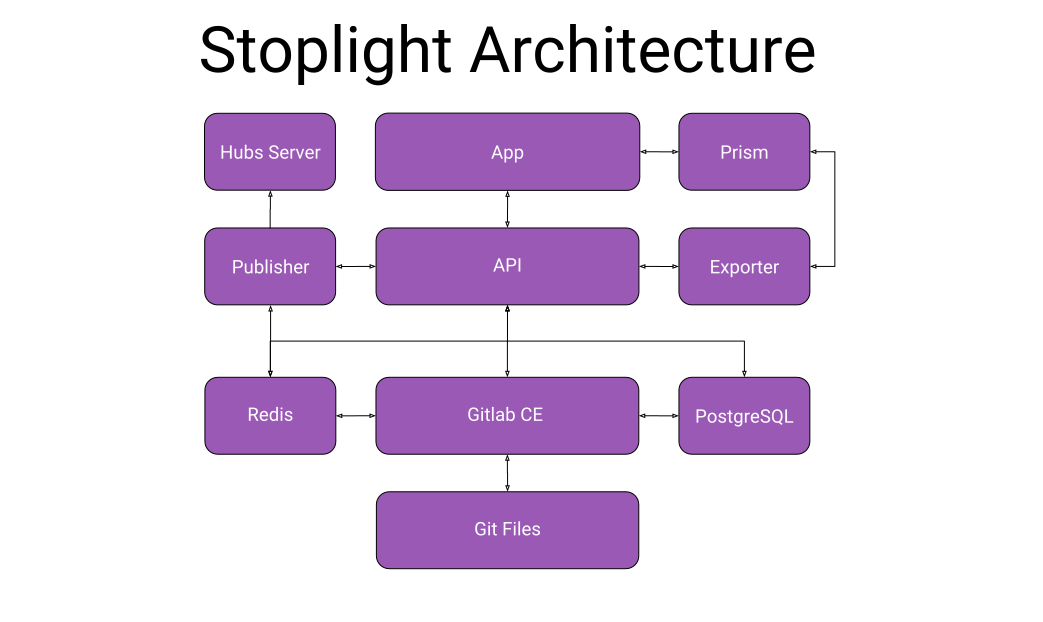
|
||||
|
||||
The Stoplight platform is broken up in to seven main components:
|
||||
|
||||
1. [Stoplight App](/enterprise/components/app)
|
||||
2. [Stoplight API](/enterprise/components/api)
|
||||
3. [Stoplight Exporter](/enterprise/components/exporter)
|
||||
4. [Prism](/enterprise/components/prism)
|
||||
5. [Tasker (Jobs Server)](/enterprise/components/tasker)
|
||||
* [Hub Builder](/enterprise/components/hub-builder)
|
||||
6. [Pubs (Hubs Server)](/enterprise/components/pubs)
|
||||
7. [GitLab CE - Stoplight Fork](/enterprise/components/gitlab)
|
||||
|
||||
Please review each of the component pages prior to the installation.
|
||||
|
||||
## Monitoring
|
||||
|
||||
For monitoring purposes, Stoplight runs and recommends the following
|
||||
applications:
|
||||
|
||||
* [InfluxDB](https://www.influxdata.com/time-series-platform/influxdb/) v1.3
|
||||
for metrics storage and aggregation
|
||||
* [Kapacitor](https://www.influxdata.com/time-series-platform/kapacitor/) v1.3
|
||||
for alerting and metrics processing
|
||||
* [Telegraf](https://www.influxdata.com/time-series-platform/telegraf/) v1.4
|
||||
for metrics collection
|
||||
* [Mtail](https://github.com/google/mtail) v3.0 for whitebox monitoring of
|
||||
application logs
|
||||
|
||||
> Please note that the above recommendations are entirely optional if your
|
||||
> organization already has a monitoring and alerting solution in place.
|
||||
51
articles/getting-started/faq.md
Normal file
51
articles/getting-started/faq.md
Normal file
@@ -0,0 +1,51 @@
|
||||
# FAQs
|
||||
|
||||
## General
|
||||
|
||||
**Is Stoplight v2 being discontinued?**
|
||||
|
||||
Stoplight Classic (v2) will persist, but new feature development will only occur on Stoplight v3. Major bugs in Stoplight v2 will continue to be addressed. We encourage all our Stoplight Classic (v2) users to move onto our new platform. Read more about migrating from v2 to v3 [here](LINK).
|
||||
|
||||
**Can I save my files locally?**
|
||||
|
||||
Yes, but only on the desktop app. Click [here](LINK) to learn more about the Stoplight desktop app.
|
||||
|
||||
**Is there a way to manage multiple APIs in a single Project**
|
||||
|
||||
Yes. In Stoplight v3 you can manage unlimited APIs in a single Project. To learn more click [here](LINK).
|
||||
|
||||
**What are the differences between Stoplight Classic (v2) and Stoplight v3?**
|
||||
|
||||
Stoplight Classic is our original platform. Stoplight v3 is the next generation of platform, including all the features and tools from Stoplight Classic and much more. To learn more, click [here](LINK).
|
||||
|
||||
**Can I transfer Account ownership?**
|
||||
|
||||
Yes, you can [transfer ownership of an Organization](https://next.stoplight.io/stoplight/stoplight-next-docs/blob/master/Stoplight%20Platform.hub.yml?edit=%23%2Fpages%2F~1%2Fdata%2Fchildren%2F2%2Fdata%2Fchildren%2F5) or [make changes to your personal account](https://next.stoplight.io/stoplight/stoplight-next-docs/blob/master/Stoplight%20Platform.hub.yml?edit=%23%2Fpages%2F~1%2Fdata%2Fchildren%2F0%2Fdata%2Fchildren%2F1)
|
||||
|
||||
**Is there a way to edit my OpenAPI (Swagger) directly?**
|
||||
|
||||
Yes. In Stoplight v3 you can switch between the GUI editor and the source code via a TAB in the editor.For more information click [here](LINK).
|
||||
|
||||
**Does Stoplight offer monitoring solutions?**
|
||||
|
||||
Not at the moment, however, scheduling scenarios + alerting (monitoring) is on our roadmap.
|
||||
|
||||
**Does Stoplight support SSO?**
|
||||
|
||||
Yes. The business and enterprise plans support SSO. For more information, click [here](LINK).
|
||||
|
||||
**I am looking for a secure solution for hosting my API and restricting access, what do you recommend for hosting?**
|
||||
|
||||
Stoplight offers an on-premise installation option that will meet most security needs. For more information, click [here](LINK).
|
||||
|
||||
**Does Stoplight support OpenAPI 3?**
|
||||
|
||||
Currently we support OpenAPI 2 (Swagger 2). OpenAPI 3 support on our short term roadmap.
|
||||
|
||||
**My sign-up token has expired, how do I generate a new one?**
|
||||
|
||||
On the login page, go to forgot password and reset it using your email. This will renew your token.
|
||||
|
||||
**Can I remove the Stoplight branding from my API docs?**
|
||||
|
||||
Yes! In Stoplight v3 all paid users have access to the underlying CSS, and can customize it to remove or change any of the visual elements on the page. Click [here](LINK) for more information on themeing.
|
||||
21
articles/getting-started/new-user-introduction.md
Normal file
21
articles/getting-started/new-user-introduction.md
Normal file
@@ -0,0 +1,21 @@
|
||||
# Welcome to Stoplight Next!
|
||||
|
||||
Now that you have the basics on what the [Stoplight Next Platform](/platform/what-is-stoplight) is, we can go over how to get started.
|
||||
|
||||
First things first, are you using Stoplight for Personal Projects or as part of an Organization?
|
||||
|
||||
## Personal Projects
|
||||
1. [Sign In](/platform/getting-started/account-basics/sign-in)
|
||||
2. [Create a Project](/platform/projects/creating-a-project)
|
||||
|
||||
## Organization
|
||||
1. [Sign In](/platform/getting-started/account-basics/sign-in)
|
||||
2. [Create an Organization](/platform/organizations/create-org)
|
||||
3. [Invite Members](/platform/organizations/invite-people)
|
||||
4. [Create a Project](/platform/projects/creating-a-project)
|
||||
|
||||
## Web App or Download
|
||||
* You can log in to the Web App at [next.stoplight.io](http://next.stoplight.io) or
|
||||
* You can download the platform [here](https://github.com/stoplightio/desktop/releases/latest)
|
||||
|
||||
If you have any questions you can reach out to us through Intercom or email us at [support@stoplight.io](support@stoplight.io) otherwise... **Full Steam Ahead!**
|
||||
38
articles/getting-started/organization-owner-introduction.md
Normal file
38
articles/getting-started/organization-owner-introduction.md
Normal file
@@ -0,0 +1,38 @@
|
||||
# Organization Owner Introduction
|
||||
|
||||
## Welcome to Stoplight Next!
|
||||
|
||||
If you are trying to create a new Organization then you are in the right place. Stoplight Next was designed with large scale collaboration and governance as a central principle. The following guide will take you through the process of creating and populating an Organization, and offer an overview of the governance tools within Stoplight Next.
|
||||
|
||||
## Organization
|
||||
Organizations function as a shared space for you and your co-workers. Members of an Organization have access to a centralized Activity Feed, Project Repository, and an Issues discussion tool. Organization Owners can also assign varying levels of Permissions to other members of the Organization.
|
||||
|
||||
- [Create an Organization](/platform/organizations/create-org)
|
||||
- [Invite People to Organization](/platform/organizations/invite-people)
|
||||
- [Remove People from Your Organizations](/platform/organizations/remove-members)
|
||||
- [Organization Member Roles and Permissions](/platform/organizations/roles)
|
||||
- [Customize Your Organization](/platform/organizations/customize)
|
||||
- [Transfer Primary Ownership of an Organization](/platform/organizations/transfer-ownership)
|
||||
- [Delete an Organization](/platform/organizations/delete-org)
|
||||
|
||||
|
||||
## Teams
|
||||
If you are managing a large Organization with multiple teams you can use Teams to group Organization members together.
|
||||
|
||||
- [Create a Team](/platform/organizations/teams/create-team)
|
||||
- [Add People to a Team](/platform/organizations/teams/add-people)
|
||||
- [Remove People for a Team](/platform/organizations/teams/remove-people)
|
||||
- [Team Member Roles and Permissions](/platform/organizations/teams/roles)
|
||||
- [Customize a Team](/platform/organizations/teams/create-team)
|
||||
- [Transfer Ownership of a Team](/platform/organizations/teams/transfer-ownership)
|
||||
- [Delete a Team](/platform/organizations/teams/delete)
|
||||
|
||||
|
||||
## Projects
|
||||
Projects are the workspaces you can create for your Organization.
|
||||
|
||||
- [Creating a Project](/platform/projects/creating-a-project)
|
||||
- [Invite People & Teams](/platform/projects/invite-people)
|
||||
- [Change a Project Member's Role](/platform/projects/change-a-members-role)
|
||||
- [Make Your Project Private/Public](/platform/projects/visibility)
|
||||
|
||||
36
articles/getting-started/permissions-overview.md
Normal file
36
articles/getting-started/permissions-overview.md
Normal file
@@ -0,0 +1,36 @@
|
||||
# Roles & Permissions Overview
|
||||
|
||||
## Organizations
|
||||
|
||||
| **Organization Actions** | **Reader** | **Creator** | **Administrator** | **Owner** |
|
||||
|---------------------------------|:----------:|:-----------:|:-----------------:|:---------:|
|
||||
| Read Public Projects | X | X | X | X |
|
||||
| View Organization Collaborators | | X | X | X |
|
||||
| View Organization Teams | | X | X | X |
|
||||
| Create Projects | | X | X | X |
|
||||
| Read Private Projects | | X | X | X |
|
||||
| Write Projects | | X | X | X |
|
||||
| Manage Collaborators | | | X | X |
|
||||
| Manage Teams | | | X | X |
|
||||
| Manage Organization Settings | | | | X |
|
||||
| Manage Organization Billing | | | | X |
|
||||
| Delete Organization | | | | X |
|
||||
|
||||
## Teams
|
||||
|
||||
| **Team Actions** | **Member** | **Administrator** | **Owner** |
|
||||
|-------------------------|:------------:|:-------------------:|:-----------:|
|
||||
| View Team Collaborators | X | X | X |
|
||||
| Add Team to Projects | X | X | X |
|
||||
| Manage Team Collaborators | | X | X |
|
||||
| Manage Team Settings | | X | X |
|
||||
| Delete Team | | | X |
|
||||
|
||||
## Projects
|
||||
|
||||
| **Project Actions** | **Read** | **Write** | **Administrator** |
|
||||
|------------------------------|:--------:|:---------:|:-----------------:|
|
||||
| Read Project | X | X | X |
|
||||
| Write Project | | X | X |
|
||||
| Manage Project Collaborators | | | X |
|
||||
| Delete Project | | | X |
|
||||
@@ -1 +1,30 @@
|
||||
# What is Stoplight?
|
||||
# The Stoplight Platform
|
||||
The Stoplight platform provides a suite of products that cover the entire pre-production API lifecycle. Here is an overview of the platform:
|
||||
|
||||

|
||||
|
||||
Stoplight promotes a design-first philosophy. Developing good design-first practices at your organization will minimize future cost, speed up your time to market, and lead to more consistent, higher quality APIs.
|
||||
|
||||
## API Modeling & Design
|
||||
At Stoplight, everything starts with design. Our visual designer makes it easy for anybody in your organization to model and document APIs, no matter the complexity.
|
||||
|
||||
Whether you have an existing OpenAPI Specification (fka Swagger) or are creating a new API design from scratch, we've got you covered.
|
||||
|
||||

|
||||
|
||||
## API Testing
|
||||
Once you have your API design / documentation, how do you make sure that it remains accurate over time? Stoplight contract testing, powered by Prism, makes it seamless to create a full suite of tests that apply your API documentation (your contract) to your API. Run these tests from the Stoplight app, and standalone in your CI process or elsewhere.
|
||||
|
||||

|
||||
|
||||
## Documentation
|
||||
|
||||
You have your API designed and documented privately in the Stoplight app, and now you want to share all or part of it with 3rd parties (developers, customers, clients, etc). Stoplight makes it easy to publish your documentation to the world, with a single click.
|
||||
|
||||
|
||||

|
||||
|
||||
## Mock Server
|
||||
Stoplight provides a complete mock server for every API described in the app. Run tests against this mock server, build consumers (like mobile apps, SDKS, etc) before the final API is ready, and more.
|
||||
|
||||

|
||||
|
||||
5
articles/help.md
Normal file
5
articles/help.md
Normal file
@@ -0,0 +1,5 @@
|
||||
# Contact Us
|
||||
|
||||
Having trouble finding what you are looking for? Need some additional support? We’ve got you covered. Shoot us a message and we will get back to you as soon as possible.
|
||||
|
||||
Email us at [support@stoplight.io](mailto:support@stoplight.io) or message us in Intercom.
|
||||
37
articles/hubs/blocks.md
Normal file
37
articles/hubs/blocks.md
Normal file
@@ -0,0 +1,37 @@
|
||||
# Blocks
|
||||
|
||||

|
||||
|
||||
## What
|
||||
Blocks are the micro-level building blocks of Hubs. They house multiple forms of content and allow for simple restructuring and modification.
|
||||
|
||||
>Hovering over a Block reveals additional tooling including: Preview, Cut, Copy, Reference External Source, and Delete
|
||||
|
||||
## Block Types
|
||||
### Text Block
|
||||
* A markup editor for adding any textual elements to your Hub
|
||||
### JSON Schema
|
||||
* A block for describing the structure of a JSON object
|
||||
### HTTP Request Maker
|
||||
* A block for making HTTP requests
|
||||
### Code
|
||||
* A block for inserting code snippets
|
||||
### Image
|
||||
* A block for inserting images
|
||||
### Tabs
|
||||
* An upper level block for organizing text within tabs
|
||||
### Callout
|
||||
* A text block with color for emphasis
|
||||
### HTML
|
||||
* Include arbitrary HTML in your hubs when the other base block types don't quite do the trick
|
||||
|
||||
---
|
||||
**Related Articles**
|
||||
- [Documentation with Hubs](/documentation/introduction)
|
||||
- [Routing](/documentation/getting-started/routing)
|
||||
- [Headers](/documentation/getting-started/header-footer)
|
||||
- [Pages](/documentation/getting-started/pages)
|
||||
- [Subpages](/documentation/getting-started/subpages)
|
||||
- [Referencing Other Data Sources](/documentation/referencing-other-data-sources)
|
||||
- [Publishing](/documentation/publishing)
|
||||
|
||||
46
articles/hubs/custom-css.md
Normal file
46
articles/hubs/custom-css.md
Normal file
@@ -0,0 +1,46 @@
|
||||
# Custom CSS
|
||||
|
||||

|
||||
|
||||
## What
|
||||
|
||||
Want to add some style and flair to your documentation? Add your own custom CSS to enhance your Hub’s look and feel. Below are some of the classes you can modify:
|
||||
|
||||
```
|
||||
.Hub
|
||||
.HubHeader
|
||||
.HubHeader-section
|
||||
.HubHeaderItem.is-active
|
||||
.HubHeaderItem-name
|
||||
.HubMain
|
||||
.HubSidebar-overlay
|
||||
.HubSidebar-wrapper
|
||||
.HubSidebar
|
||||
.HubSidebar-inner
|
||||
.HubBranding
|
||||
.HubPage-wrapper
|
||||
.HubPage
|
||||
.HubPage-inner
|
||||
.HubPage-content
|
||||
.HubPageCrumbs
|
||||
.HubPageCrumb
|
||||
.HubPageBody
|
||||
.HubBlock
|
||||
.HubPageFooter
|
||||
```
|
||||
|
||||
## How
|
||||
|
||||
1. Select the Hub you wish to modify
|
||||
2. Select the **Design View**
|
||||
3. Click on **Theme** in the top toolbar
|
||||
4. Select **Custom CSS** in the bottom left
|
||||
5. Input CSS in the text area at the bottom of the page
|
||||
6. Input CSS in the generated **theme** file (optional)
|
||||
7. In publishing, check the **Custom CSS** box under **Advanced** to apply the Custom CSS to that Hub when published
|
||||
|
||||
>After accessing Custom CSS, a **theme** file will be generated under Documentation in the file explorer. After making changes to your CSS, make sure to save the **theme** file.
|
||||
|
||||
---
|
||||
**Related Articles**
|
||||
- [Theming](/documentation/design/theming)
|
||||
31
articles/hubs/export-static-html.md
Normal file
31
articles/hubs/export-static-html.md
Normal file
@@ -0,0 +1,31 @@
|
||||
# Download Static HTML & CSS
|
||||
|
||||

|
||||
|
||||
> Requires a Pro Docs plan
|
||||
|
||||
## What
|
||||
If you would rather host your documentation outside of Stoplight's hosted servers, you can download a built version of your Hub. Downloading a build will produce a `.zip` containing all of the minified assets necessary to load your Hub. These assets will include HTML, JAvascript, CSS, and JSON files.
|
||||
|
||||
## How to Download
|
||||
1. Click the **Publish** icon on the far left toolbar
|
||||
2. Select or create a **domain**
|
||||
3. Choose a **Hub** or **OAS** file to create a build from
|
||||
4. Click the **Build** button to start the build process.
|
||||
|
||||
> If this is your first build, it will also publish to your selected domain
|
||||
|
||||
5. Once your **Hub** has finished building, it will appear in the **Builds** section. Click the download icon to the right of the build
|
||||
---
|
||||
**Related Articles**
|
||||
- [Documentation with Hubs](/documentation/introduction)
|
||||
- [Routing](/documentation/getting-started/routing)
|
||||
- [Headers](/documentation/getting-started/header-footer)
|
||||
- [Pages](/documentation/getting-started/pages)
|
||||
- [Subpages](/documentation/getting-started/subpages)
|
||||
- [Blocks](/documentation/blocks)
|
||||
- [Referencing Other Data Sources](/documentation/referencing-other-data-sources)
|
||||
- [Publishing](/documentation/publishing)
|
||||
- [Theming](/documentation/design/theming)
|
||||
- [Custom CSS](/documentation/design/custom-css)
|
||||
|
||||
33
articles/hubs/hubs-introduction.md
Normal file
33
articles/hubs/hubs-introduction.md
Normal file
@@ -0,0 +1,33 @@
|
||||
# Documentation with Hubs
|
||||
|
||||

|
||||
|
||||
Documenting your API is critical to its success. The methods of creation and languages and libraries utilized to create APIs differ dramatically across the API landscape. To ensure that consumers of your API are successful, you must provide robust documentation. To that end, Stoplight has created Hubs, our new documentation editor and generator.
|
||||
|
||||
Hubs allows users to:
|
||||
- Expedite the process of documenting your API
|
||||
- Focus on content instead of design
|
||||
- Host documentation anywhere
|
||||
- Connect your API specification to your documentation
|
||||
- Create non-reference documentation, guides, and tutorials
|
||||
|
||||
## Optimized for Speed
|
||||
- Hubs generates static documentation that gives you near instant load times and can be cached in the browser
|
||||
- Makes it easy to add textual elements to your docs through a UI/UX designed for non-technical users
|
||||
- Focuses on content instead of design
|
||||
- Can be served from anywhere or hosted by us
|
||||
|
||||
## Ensures Documentation Accuracy
|
||||
|
||||
One of the most common issues we wanted to solve with Hubs was outdated and incorrect documentation. This occurs because most solutions treat documentation as separate from the API design process. This ultimately leads to out of date documentation due to changes in API specifications not being reflected in documentation. Hubs connects your documentation to your API specification. Whenever you make changes to your API spec, it immediately gets pushed to your documentation, so you never have out of date docs again.
|
||||
|
||||
|
||||
---
|
||||
**Related Articles**
|
||||
- [Routing](/documentation/getting-started/routing)
|
||||
- [Headers](/documentation/getting-started/header-footer)
|
||||
- [Pages](/documentation/getting-started/pages)
|
||||
- [Subpages](/documentation/getting-started/subpages)
|
||||
- [Blocks](/documentation/blocks)
|
||||
- [Referencing Other Data Sources](/documentation/referencing-other-data-sources)
|
||||
- [Publishing](/documentation/publishing)
|
||||
50
articles/hubs/managing-headers-footers.md
Normal file
50
articles/hubs/managing-headers-footers.md
Normal file
@@ -0,0 +1,50 @@
|
||||
|
||||
# Managing Headers
|
||||
|
||||

|
||||
|
||||
## What
|
||||
You can customize the headers of your Hub to add additional navigation to your documentation. You can modify a header's:
|
||||
|
||||
- **Location on Page**
|
||||
- **Title**: What text is displayed on page
|
||||
- **Path to Page**: Specify path to page
|
||||
- **Image URL**: If you want to display an image within the header
|
||||
|
||||
|
||||
## How
|
||||
|
||||
### Modify Existing Header
|
||||
|
||||
1. Select the Hub you wish to modify
|
||||
2. Click on the **Design toggle** at the top of the page
|
||||
3. By default, there will already be three headers (Home, API Reference, Help) and a footer (Home)
|
||||
4. Hover over **Settings** in the top right and select **Hub**
|
||||
5. Select **Header** in the left had sidebar of the modal
|
||||
6. Input new text under **Title** to modify text
|
||||
7. Input an image URL under **Image** to add an image
|
||||
8. Input a new **Path** to modify the header's destination
|
||||
|
||||
> The location of the header is determined by the order of the list in **Settings**. The first header item in either category will be displayed at the left extreme.
|
||||
|
||||
### Create New Header
|
||||
|
||||
1. Select the Hub you wish to modify
|
||||
2. Click on the **Design toggle** at the top of the page
|
||||
3. By default, there will already be three headers (Home, API Reference, Help) and a footer (Home)
|
||||
4. Hover over **Settings** in the top right and select **Hub**
|
||||
5. Select **Header** in the left had sidebar of the modal
|
||||
6. Click **+ Add** to add a new header in either the left or right navigation
|
||||
7. Input new text under **Title** to modify text
|
||||
8. Input an image URL under **Image** to add an image
|
||||
9. Input a new **Path** to modify the header's destination
|
||||
|
||||
---
|
||||
**Related Articles**
|
||||
- [Documentation with Hubs](/documentation/introduction)
|
||||
- [Routing](/documentation/getting-started/routing)
|
||||
- [Pages](/documentation/getting-started/pages)
|
||||
- [Subpages](/documentation/getting-started/subpages)
|
||||
- [Blocks](/documentation/blocks)
|
||||
- [Referencing Other Data Sources](/documentation/referencing-other-data-sources)
|
||||
- [Publishing](/documentation/publishing)
|
||||
56
articles/hubs/oauth.md
Normal file
56
articles/hubs/oauth.md
Normal file
@@ -0,0 +1,56 @@
|
||||
# OAuth for Hubs
|
||||
|
||||
## What
|
||||
|
||||
OAuth provides a level of security to your documentation to restrict access to it. If your API is protected by OAuth, you will need to enable it for Try It Out. Enabling OAuth for Try It Out can be accomplished through two different methods: via Modeling or directly into the Hubs code.
|
||||
|
||||
> Stoplight supports OAuth 1.0 and 2.0
|
||||
|
||||
## How
|
||||
|
||||
### Modeling
|
||||
|
||||

|
||||
|
||||
1. Create a new Modeling file or select an existing one referenced by the Hub you wish to modify
|
||||
|
||||
> If you are creating a new Modeling file, make sure to reference it in your Hub
|
||||
|
||||
2. Next to **Security** in the left-middle toolbar, Add a Security Scheme by clicking the **+**
|
||||
3. Input a **key**
|
||||
4. Select oauth2 under **type**
|
||||
5. Select **accessCode** under OAuth **flow**
|
||||
6. Select an **authorization url**
|
||||
7. Select a **token url**
|
||||
8. **Add Scope** (optional)
|
||||
9. Add a **Security scheme description** (optional)
|
||||
|
||||
### Hubs
|
||||
|
||||

|
||||
|
||||
1. Select the Hub you wish to modify
|
||||
2. Select **Code View**
|
||||
3. Add the following lines of code to your Hub:
|
||||
|
||||
```
|
||||
|
||||
"config": {
|
||||
"http": {
|
||||
"oauth2": {
|
||||
"credentials": {
|
||||
"authorize_url": "insert authorize url here",
|
||||
"access_token_url": "insert access token url here",
|
||||
}
|
||||
}
|
||||
}
|
||||
}
|
||||
|
||||
```
|
||||
|
||||
---
|
||||
**Related Articles**
|
||||
|
||||
- [Digital Oceans: Introduction to OAuth2](https://www.digitalocean.com/community/tutorials/an-introduction-to-oauth-2)
|
||||
- [Security Schemes](/modeling/modeling-with-openapi/security-schemes)
|
||||
|
||||
37
articles/hubs/pages.md
Normal file
37
articles/hubs/pages.md
Normal file
@@ -0,0 +1,37 @@
|
||||
# Pages
|
||||
|
||||

|
||||
|
||||
## What
|
||||
Pages are the macro level building blocks of a Hub. They function as the canvas on which all other Hubs objects reside. They are commonly used as a way to separate information based on the broadest topics.
|
||||
|
||||
### Hubs Architecture from Top Down
|
||||
|
||||
- Pages
|
||||
- Subpages
|
||||
- Blocks
|
||||
- Header
|
||||
- Blocks
|
||||
|
||||
## How
|
||||
|
||||
### Create a New Page
|
||||
|
||||
1. Select the Hub you wish to modify
|
||||
2. Click on the **Design** toggle at the top of the page
|
||||
3. Hover over **+ Add** at the top of the page
|
||||
4. Click on **Page**
|
||||
1. Input a **Page Title**
|
||||
2. Input a **Page Route** (optional)
|
||||
3. **Power the Page** with an External Data Source (optional)
|
||||
|
||||
|
||||
|
||||
---
|
||||
**Related Articles**
|
||||
- [Pages](/documentation/getting-started/pages)
|
||||
- [Subpages](/documentation/getting-started/subpages)
|
||||
- [Blocks](/documentation/blocks)
|
||||
|
||||
|
||||
|
||||
43
articles/hubs/publishing.md
Normal file
43
articles/hubs/publishing.md
Normal file
@@ -0,0 +1,43 @@
|
||||
# Publishing
|
||||
|
||||

|
||||
|
||||
## What
|
||||
|
||||
Publishing your documentation has never been easier. Stoplight has added:
|
||||
- New **Integrations** for Segment, Intercom, and Google Analytics to allow for traffic monitoring and additional analytics
|
||||
- New **Authorizations** to make sure your documentation is secure at all times. This includes basic user/password authentication and SSO provider integration, powered by Auth0, SAML, and more.
|
||||
- New **Builds** section for tracking published Hubs, including when a Hub was published, who published it, and under what domain.
|
||||
|
||||
>Take that Gutenberg!
|
||||
|
||||
## Who
|
||||
|
||||
- **Organization Owners**, **Account Owners**, and **Administrators** can publish Hubs
|
||||
|
||||
## How
|
||||
|
||||
1. From the Stoplight editor, click on **Publish** in the far left-hand toolbar
|
||||
2. Input a **subdomain** under Stoplight's tech-docs.io domain
|
||||
- Or input a **custom domain** (optional)
|
||||
3. Once completed, click **Next ->**
|
||||
4. Select the Hub you wish to publish under **Hub File**
|
||||
5. Add Integrations to **Segment**, **Intercom**, and **Google Analytics** under Integrations (optional)
|
||||
6. Add security via **Username/Passwords Login**, **Auth0**, or **SAML** (optional)
|
||||
7. Once completed, click **Publish** in the top left
|
||||
8. A confirmation window will ask you to confirm your selection, click **Okay**
|
||||
9. Once confirmed, **Build Logs** will display your current progress
|
||||
- The process usually takes 2-5 minutes
|
||||
10. Once the process has completed, a **green success message** will display at the bottom of the screen, letting you know that the Hub was published succesfully
|
||||
11. Once a Hub is published, it will appear under **Builds**
|
||||
12. To unpublish a Hub, select **Unpublish** in the **Danger Zone** underneath **Builds**
|
||||
- If you wish to delete all builds and release the domain you are currently using, select **Remove Domain**
|
||||
|
||||
---
|
||||
**Related Articles**
|
||||
- [Documentation with Hubs](/documentation/introduction)
|
||||
- [Routing](/documentation/getting-started/routing)
|
||||
- [Headers](/documentation/getting-started/header-footer)
|
||||
- [Pages](/documentation/getting-started/pages)
|
||||
- [Subpages](/documentation/getting-started/subpages)
|
||||
- [Blocks](/documentation/blocks)
|
||||
36
articles/hubs/ref-other-sources-hubs.md
Normal file
36
articles/hubs/ref-other-sources-hubs.md
Normal file
@@ -0,0 +1,36 @@
|
||||
# Reference Other Sources
|
||||
|
||||

|
||||
|
||||
## What
|
||||
Hubs allows you to reference other sources to automatically populate your Hub with content. We call this “powering” a page, subpage, or block. You can power a page, subpage, or block with a markdown or specification file from the current file, a file from the current project, a file from another project, or a file from an external source.
|
||||
|
||||
### What Can I Power
|
||||
|
||||
- Pages
|
||||
- Subpages
|
||||
- Blocks
|
||||
|
||||
## How
|
||||
|
||||
### Power a Subpage
|
||||
|
||||
1. Select the Hub you wish to modify
|
||||
2. Select **Design** view
|
||||
3. Click on **Page Settings & TOC** at the top of the page
|
||||
1. Select the **page** or **subpage** you wish to power
|
||||
2. Under Page Type, select **Markdown**(for markdown files) or **OpenAPI** (for JSON or YAML files)
|
||||
3. Input the specific data source or select from the drop-down menu
|
||||
4. Input an inner data source (optional)
|
||||
4. Click **Confirm**
|
||||
|
||||
>Try it Out! Power a Subpage with an API Spec from the same project.
|
||||
|
||||
---
|
||||
**Related Articles**
|
||||
- [Documentation with Hubs](/documentation/introduction)
|
||||
- [Routing](/documentation/getting-started/routing)
|
||||
- [Headers & Footers](/documentation/getting-started/header-footer)
|
||||
- [Pages](/documentation/getting-started/pages)
|
||||
- [Subpages](/documentation/getting-started/subpages)
|
||||
- [Blocks](/documentation/blocks)
|
||||
43
articles/hubs/routing.md
Normal file
43
articles/hubs/routing.md
Normal file
@@ -0,0 +1,43 @@
|
||||
|
||||
# Routing
|
||||
|
||||

|
||||
|
||||
## What
|
||||
Stoplight’s Hubs features an easy to use routing system to make sure your docs have identifiable and friendly URL’s. The routing system allows customization of the following objects:
|
||||
|
||||
- Your Hub
|
||||
- [Pages within a Hub](/documentation/getting-started/pages)
|
||||
- [Subpages within a Hub](/documentation/getting-started/subpages)
|
||||
- [Headers](/documentation/getting-started/header-footer)
|
||||
- Links
|
||||
|
||||
|
||||
>Friendly URLs are links that are easily readable, rememberable, and relevant to the content.
|
||||
|
||||
|
||||
## How
|
||||
|
||||
### Pages & Subpages
|
||||
|
||||
1. Select the **Hub** you wish to modify
|
||||
2. Add a new **page** or **subpage**
|
||||
1. Select a **page title** to auto-fill the **Page Route** or
|
||||
2. Input a **custom page route**
|
||||
3. Select an **existing page** or **subpage**
|
||||
4. Select the **Page Settings & TOC** at the top of the Hub in the center of the page or subpage you wish to modify
|
||||
1. Input a **new URL** under the page path
|
||||
|
||||
### Headers
|
||||
|
||||
1. Select the **Hub** you wish to modify
|
||||
2. Click on **Hub Settings** in the top right
|
||||
3. Find the header you wish to modify and input a new route under **Page or Link**
|
||||
|
||||
|
||||
---
|
||||
**Related Articles**
|
||||
- [Headers](/documentation/getting-started/header-footer)
|
||||
- [Pages](/documentation/getting-started/pages)
|
||||
- [Subpages](/documentation/getting-started/subpages)
|
||||
|
||||
35
articles/hubs/subpages.md
Normal file
35
articles/hubs/subpages.md
Normal file
@@ -0,0 +1,35 @@
|
||||
# Subpages
|
||||
|
||||

|
||||
|
||||
## What
|
||||
Subpages are the second tier macro building blocks of Hubs. They function as a canvas for blocks and the backbone of navigation. They are commonly used to house content based on a specific topic. Subpages can have more subpages nested underneath them, which gives you lots of flexibility to organize your Hub as you see fit. If a subpage has subpages nested inside of it, it will be displayed as a collapsible group (if it contains content) or a header (if it does not contain content) in the left navigational sidebar.
|
||||
|
||||
>Subpages populate the navigational sidebar of a page.
|
||||
|
||||
### Hubs Architecture Top Down
|
||||
- Pages
|
||||
- Subpages
|
||||
- Blocks
|
||||
- Blocks
|
||||
|
||||
## How
|
||||
|
||||
### Create a New Subpage
|
||||
|
||||
1. Select the Hub you wish to modify
|
||||
2. Select the **design** view
|
||||
3. Hover over **+ Add** and select **Subpage**
|
||||
1. Input a **Subpage Name**
|
||||
2. Modify the **Subpage Route** (optional)
|
||||
3. **Power the Subpage** with an External Data Source (optional)
|
||||
|
||||
|
||||
>Just like pages, subpages can have blocks. Any blocks added to a subpage will be displayed when a reader navigates to that subpage in your Hub
|
||||
|
||||
---
|
||||
**Related Articles**
|
||||
- [Routing](/documentation/getting-started/routing)
|
||||
- [Headers](/documentation/getting-started/header-footer)
|
||||
- [Pages](/documentation/getting-started/pages)
|
||||
- [Publishing](/documentation/publishing)
|
||||
33
articles/hubs/themes.md
Normal file
33
articles/hubs/themes.md
Normal file
@@ -0,0 +1,33 @@
|
||||
# Theming
|
||||
|
||||

|
||||
|
||||
## What
|
||||
|
||||
Theming brings your API documentation to life. It allows you to easily modify color schemes and add textures to your documentation. There are four different theme settings that can be modified: Primary Color, Secondary Color, Background, and Texture.
|
||||
|
||||
### Primary Color
|
||||
Primary Color applies any color to primary actions and appears only once per page. It modifies objects that you want to draw attention to like buttons.
|
||||
|
||||
### Secondary Color
|
||||
Secondary Color applies any color to other secondary actions. This includes links and active items.
|
||||
|
||||
### Background
|
||||
Background Color applies any color to your header.
|
||||
|
||||
### Texture
|
||||
Texture applies a texture to your header.
|
||||
|
||||
## How
|
||||
1. Select the **Hub** you wish to modify
|
||||
2. Select the **Design View**
|
||||
3. Click on **Theme** at the top of the screen
|
||||
4. Select a pre-selected color or choose your own color with the eyedropper
|
||||
5. Select a texture
|
||||
|
||||
---
|
||||
|
||||
**Related Links**
|
||||
- [Custom CSS](/documentation/design/custom-css)
|
||||
|
||||
|
||||
40
articles/hubs/variables.md
Normal file
40
articles/hubs/variables.md
Normal file
@@ -0,0 +1,40 @@
|
||||
# Variables in Hubs
|
||||
|
||||
## What
|
||||
|
||||
Inputting variables in API documentation whenever you consume them can quickly become a tedious time sink. The same pain point applies to people consuming your documentation. Inputting an API key everytime you want to send HTTP Requests to test endpoints is time better spent elsewhere. Stoplight removes this obstacle by storing variables in your local browser. Once you input a variable, it populates the rest of your docs, no duplication, no problems.
|
||||
|
||||
## How
|
||||
|
||||
You can specify variables in your docs by adding them at the specification level or directly into Hubs.
|
||||
|
||||
### Modeling Method
|
||||
|
||||

|
||||
|
||||
1. Select the modeling file you wish to modify
|
||||
2. Create a new **security scheme**
|
||||
1. Input a **key** (required, must be unique in this specification)
|
||||
2. Select a **type** of security scheme
|
||||
3. Select a location for the security scheme under **in**
|
||||
4. Input a **name**
|
||||
3. Reference the specification in your Hub
|
||||
|
||||
---
|
||||
|
||||
### Hubs Method
|
||||
|
||||

|
||||
|
||||
1. Select the Hub you wish to modify
|
||||
2. Create a **HTTP Request Maker** block
|
||||
3. Select the **Headers** tab
|
||||
4. Click **Add Header**
|
||||
5. Input a **header name**
|
||||
6. Input a **header value**
|
||||
|
||||
***
|
||||
|
||||
**Related**
|
||||
|
||||
* [Security Schemes Overview](/modeling/modeling-with-openapi/security-schemes)
|
||||
1
articles/issues/attaching-issues-to-files.md
Normal file
1
articles/issues/attaching-issues-to-files.md
Normal file
@@ -0,0 +1 @@
|
||||
|
||||
1
articles/issues/closing-issues.md
Normal file
1
articles/issues/closing-issues.md
Normal file
@@ -0,0 +1 @@
|
||||
|
||||
1
articles/issues/creating-issues.md
Normal file
1
articles/issues/creating-issues.md
Normal file
@@ -0,0 +1 @@
|
||||
|
||||
1
articles/issues/replying-to-issues.md
Normal file
1
articles/issues/replying-to-issues.md
Normal file
@@ -0,0 +1 @@
|
||||
|
||||
89
articles/modeling/api-models.md
Normal file
89
articles/modeling/api-models.md
Normal file
@@ -0,0 +1,89 @@
|
||||
# API Models
|
||||
|
||||

|
||||
|
||||
Models are used to describe common structures in your API design. Use models to
|
||||
describe common structures in your API design. Models help reduce duplication in
|
||||
your API definitions, and increase future maintainability.
|
||||
|
||||
While designing your APIs, you will often find yourself repeating structures in
|
||||
your endpoint request and response bodies. Models allow you to describe these
|
||||
common structures, and then reference the object from endpoint definitions and
|
||||
other models (with references).
|
||||
|
||||
## Effective API Model Design
|
||||
|
||||
An API model can be viewed as a blueprint that identifies the requirements for
|
||||
an API development project. A well crafted API model indicates you understand
|
||||
the problem you are trying to solve.
|
||||
|
||||
The following steps can help you get started with creating an excellent API
|
||||
model.
|
||||
|
||||
### Identify Needs
|
||||
|
||||
During interactive sessions with stakeholders, outline all the requirements you
|
||||
want your API to meet. Some important questions to ask:
|
||||
|
||||
* What goal(s) do we want to achieve with the API?
|
||||
* Who are the principal users that will consume or interact with the API?
|
||||
* What activities will the users execute?
|
||||
* How can we group the activities into steps?
|
||||
* What are the API methods that are required for these steps? (Place the methods into common resource groups.)
|
||||
* What resources will the API expose?
|
||||
* What permissions will we need?
|
||||
|
||||
This process may need to be repeated until the API development team is sure that
|
||||
all requirements are covered.
|
||||
|
||||
### Build a Common Vocabulary
|
||||
|
||||
Vocabulary is used in your API artifacts such as your data fields, resource
|
||||
names, identifiers, and documentation. Creating a standard vocabulary helps you:
|
||||
|
||||
* Communicate well with different audiences
|
||||
* Establish a standard or style guide that can be adopted by members of the API development team
|
||||
* Easily update your documentation
|
||||
|
||||
### Identify Resource Relationships
|
||||
|
||||
If your resources contain references to other resources or contain child
|
||||
resources, it is important to understand and define the types of relationships
|
||||
between resources because this will help you to show the link between the
|
||||
resources to the API user making the API more readable. Relationships can be:
|
||||
|
||||
* **Dependent**: the resource cannot exist without a parent resource
|
||||
* **Independent**: the resource can stand on its own and can reference another
|
||||
resource but does not need another resource to exist or function
|
||||
* **Associative**: the resources are independent but the relationship includes
|
||||
or needs further properties to describe it
|
||||
|
||||
### Create a Test Plan
|
||||
|
||||
Ensuring that your API meets the agreed-upon specification requires testing.
|
||||
Design test plans early.
|
||||
|
||||
Feasible tests you can execute include:
|
||||
|
||||
* **Functional Testing**: Test the API calls to ensure that it delivers or
|
||||
behaves as expected. For example, you can test to see that the API delivers
|
||||
the expected data based on your model
|
||||
|
||||
* **Mocking** (service simulation): Mocking allows you to execute tests on an
|
||||
API deployment without calling it through a defined API key. Effective API
|
||||
tools will allow you to test your API before implementation
|
||||
|
||||
* **Load Testing**: How will your API perform when deployed on a production
|
||||
server? A load test is one way to simulate the effect of traffic on your
|
||||
servers and observe the performance of your API when it is available to users.
|
||||
Doing a load test will help you understand your API threshold and if the users
|
||||
exceed the threshold
|
||||
|
||||
---
|
||||
|
||||
**Related Articles**
|
||||
|
||||
- [Modeling Introduction](/modeling/introduction)
|
||||
- [Object Inheritance](/modeling/json-best-practices/object-inheritance)
|
||||
- [Testing Overview](/testing/introduction)
|
||||
- [Mock Testing with Prism](/mocking/introduction)
|
||||
116
articles/modeling/api-operations.md
Normal file
116
articles/modeling/api-operations.md
Normal file
@@ -0,0 +1,116 @@
|
||||
# API Operations
|
||||
|
||||
API operations describe the way you define how an API is exposed to a user. Properly defined operations are fundamental to the API development life cycle and the outcome is a final product that is easy to understand and use. Creating a properly designed RESTful API requires research, analysis, and planning. It is the API developer’s responsibility to ensure that the API design, resources, and connected operations are easy to understand by consumers.
|
||||
|
||||
The following characteristics are true of well-designed APIs:
|
||||
|
||||
* Comprehensive, yet succinct
|
||||
* Understandable and easy to use
|
||||
* Supports delta (incremental) development
|
||||
* Expedites and simplifies the API documentation process
|
||||
|
||||
## Key Terms
|
||||
|
||||
* A **resource** is an entity or object that has data linked to it, relationships to other objects or entities, and a set of methods that operate on it to access, use, or manipulate the associated data. When resources are grouped together, it is called a collection
|
||||
|
||||
* A **Uniform Resource Locator (URL)** is used to indicate and identify the location of an API resource and perform some actions to it. Note that the base URL is the constant part of this location
|
||||
|
||||
* **GET** method requests data from a resource and the body of the response message holds the information requested
|
||||
|
||||
* **PUT** method requests the server to update the resource or create it (if it does not exist) and the body of the request message indicates the resource to be updated or created
|
||||
|
||||
* **PATCH** method performs a partial update on a resource and the body of the request message indicates the change to be applied. This can occasionally be more efficient than PUT because the client forwards changes required and not the entire details about the resource
|
||||
|
||||
* **POST** creates a new resource and the body of the request message indicates the details of the new resource to be created. This method can be used to activate operations that will not create a resource
|
||||
|
||||
* **DELETE** method requests that the specified resource be removed
|
||||
|
||||
## Best Practices
|
||||
|
||||
### Resource URL should be based on nouns and not verbs
|
||||
|
||||
For example, to retrieve pet details for a pet store which has different kinds of pets:
|
||||
|
||||
* `/pets` (Good)
|
||||
* `/getAllPets` (Bad)
|
||||
|
||||
> A good resource URL contains resources (nouns) and not actions or verbs. Ensure that the resource is in the plural form at the API endpoint.
|
||||
|
||||
### Use HTTP methods to operate on resources
|
||||
|
||||
To add, delete, or update information, use the HTTP methods GET, POST, DELETE, PUT, and PATCH (also known as verbs). For example:
|
||||
|
||||
* `GET /pets` (returns the list of all pets)
|
||||
* `GET /pets/5` (returns details of pet 5)
|
||||
|
||||
> A successful GET method normally returns a HTTP status code of 200 (OK) and 404 (Not found) if the resource cannot be located.
|
||||
|
||||
| GET | PUT/PATCH | POST | DELETE | Resource |
|
||||
| ------------------------------------- | -------------------------------------------- | ----------------------------------- | ------------------------------------------- | ---------------------- |
|
||||
| Return list of all pets | Update all pets | Add a new pet | Remove all pets | path/pets |
|
||||
| Return details of treatment for pet 5 | Update all treatment for pet 5 | Add new treatment details for pet 5 | Remove all treatments associated with pet 5 | path/pets/5/treatments |
|
||||
| Returns details for pet 5 | Updates details for pet 5 assuming it exists | Error (Not permitted) | Deletes pet 5 details | path/pets/5 |
|
||||
|
||||
### Make use of a Query String (?) for complex parameter optional parameters
|
||||
|
||||
When you need to add more complexity and dynamics to the request, add parameters to the query string. For example:
|
||||
|
||||
* `GET /pets?type=feline&age=5` (Good)
|
||||
* `getFelinePets` (Bad)
|
||||
|
||||
### Utilize HTTP Status Codes
|
||||
|
||||
A user should know the status of request made through an API. This might include failed, passed, or invalid responses. The table below summarizes the codes.
|
||||
|
||||
| 2xx Success | 3xx Redirect | 4xx Client Error | 5xx Server Error |
|
||||
| ----------------------------------------------------------------------- | --------------------- | ---------------- | ------------------------- |
|
||||
| 200 Ok (Success for GET, PUT, or POST) | 301 Moved Permanently | 400 Bad Request | 550 Internal Server Error |
|
||||
| 201 Created | 304 Not Modified | 401 Unauthorized | |
|
||||
| 204 No Content (Request successfully processed but returns not content) | | 403 Forbidden | |
|
||||
| | | 404 Not Found | |
|
||||
|
||||
* Be wary of using too many status codes and confusing the API user
|
||||
* It is good to provide an additional description of the status code in the body of the HTTP Response. For example:
|
||||
* Request: method `GET /pets?type=feline`
|
||||
* Response:
|
||||
|
||||
```json
|
||||
//This is an invalid request.
|
||||
{
|
||||
"message": "Invalid Pet Type please enter a valid pet category"
|
||||
}
|
||||
```
|
||||
|
||||
### Executing search, sort, filter and pagination operations
|
||||
|
||||
* When you need to perform these actions, you can append the query parameters to the GET method and the API endpoint. For example, to carry out a **search** operation for a particular pet:
|
||||
|
||||
* `GET /pets?search=Blaze` (This will search for a pet named Blaze)
|
||||
|
||||
* **Pagination** helps you to manage the amount of resources you return and it is advisable to use the parameters offset and limit as shown in the example below:
|
||||
|
||||
* `GET /pets?offset=10&limit=20` (Return pets between 10 to 20)
|
||||
|
||||
* To **sort** the list of resources we can use multiple sort parameters in the query string. For example:
|
||||
|
||||
* `GET /pets?sort=age_desc` (Would sort the age in descending order.)
|
||||
|
||||
* For **filtering** we can use one or more parameters in the query string. For example:
|
||||
|
||||
* `GET /pets?type=canine&age=7`
|
||||
|
||||
> If too many query parameters are used in GET methods and the URL becomes too long, the server may return a ‘414 URL too long’ HTTP status. Parameters might be passed to the request body of a POST request as a solution to this challenge.
|
||||
|
||||
### Versioning
|
||||
|
||||
It is good practice to version an API to describe the available features and resources it exposes. When this is properly done, the application consuming the API can submit explicit requests to a specific version of a feature or resource. For example, you can specify the version of the resource by means of a parameter within the query string affixed to the HTTP request: http://api.yourdomain.com/v2/pets/10/
|
||||
|
||||
---
|
||||
|
||||
**Related Articles**
|
||||
- [Modeling Introduction](/modeling/introduction)
|
||||
- [Using the CRUD Builder](/modeling/modeling-with-openapi/using-the-crud-builder)
|
||||
- [API Models](/modeling/modeling-with-openapi/api-models)
|
||||
- [Security Schemes](/modeling/modeling-with-openapi/security-schemes)
|
||||
- [Shared Parameters and Responses](/modeling/modeling-with-openapi/shared-parameters-and-responses)
|
||||
|
||||
1
articles/modeling/build-api-library.md
Normal file
1
articles/modeling/build-api-library.md
Normal file
@@ -0,0 +1 @@
|
||||
|
||||
128
articles/modeling/crud-builder.md
Normal file
128
articles/modeling/crud-builder.md
Normal file
@@ -0,0 +1,128 @@
|
||||
# Using the CRUD Builder
|
||||
|
||||
Stoplight's CRUD builder allows you to easily design and model data structures
|
||||
used by your API. The CRUD builder is especially useful for:
|
||||
|
||||
* Drafting API requests and response bodies under an API endpoint
|
||||
* Creating [models](/modeling/modeling-with-openapi/api-models) for your API
|
||||
* Creating [shared responses](/modeling/modeling-with-openapi/shared-parameters-and-responses) for
|
||||
re-use across multiple endpoints
|
||||
|
||||
There are three different methods for generating a CRUD model:
|
||||
|
||||
* Using the CRUD builder **editor**, which allows you to create data structures
|
||||
in an easy-to-use, graphical format
|
||||
|
||||
* Using the **Generate from JSON** feature, which allows you to copy and paste
|
||||
an existing JSON document into the CRUD builder to have a model automatically
|
||||
generated for you
|
||||
|
||||
* Using the **Raw Schema** editor, if you would prefer to modify the data
|
||||
structure with raw JSON
|
||||
|
||||
While each method can be used individually, you will most likely find yourself
|
||||
using a combination of all three while drafting API endpoints, models, and
|
||||
shared responses.
|
||||
|
||||
## Using the Editor
|
||||
|
||||
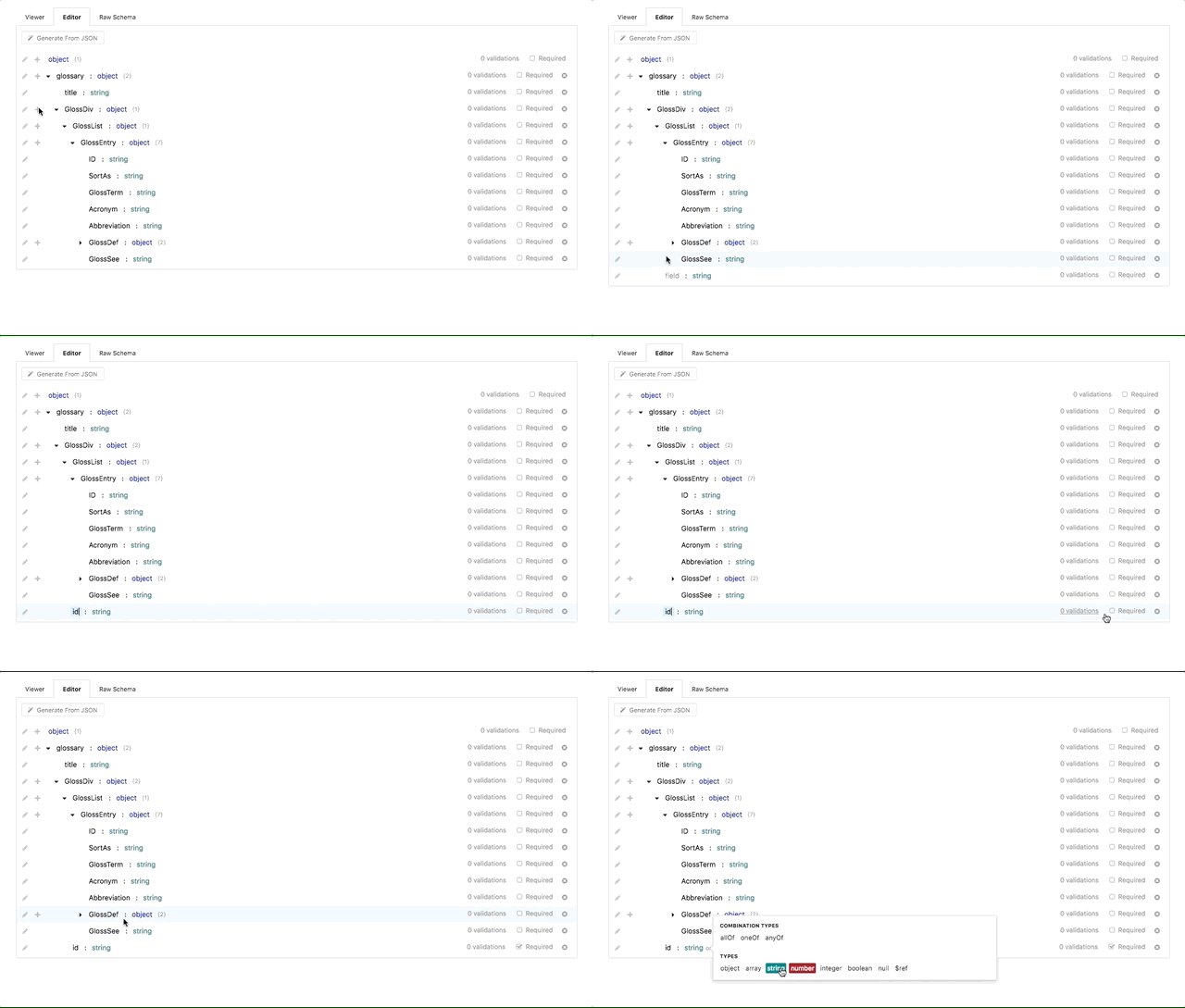
|
||||
|
||||
We created the CRUD builder editor to make data structure creation as simple as
|
||||
possible. You can find the CRUD builder editor under the **Editor** tab under
|
||||
any request, response, or model view.
|
||||
|
||||
To start utilizing the editor:
|
||||
|
||||
* Click the **+** (plus) icon next to the root **object** to start adding fields
|
||||
to the data structure. The plus icon can also be used on nested objects to
|
||||
create a hierarchy of arbitrarily-nested data structures
|
||||
|
||||
* Set the **field name** (or _key_) of a data field by clicking the text label
|
||||
to the left of the newly-created field. Field names can be composed of any
|
||||
alpha-numeric characters, but can only be specified once. You will receive an
|
||||
error if you try to re-use field names multiple times on the same level
|
||||
(though they can be re-used on nested objects)
|
||||
|
||||
* Set the **type** of a field by clicking the _string_ label to the right of
|
||||
the field name. The default type for a newly-created field is 'string',
|
||||
however other types include:
|
||||
|
||||
* objects (for nesting objects)
|
||||
* arrays
|
||||
* numbers
|
||||
* integers
|
||||
* booleans
|
||||
* nulls
|
||||
* [references](/modeling/json-best-practices/reducing-duplication-with-refs)
|
||||
|
||||
Field types can also include _Combination Types_, which include 'allOf',
|
||||
'oneOf', and 'anyOf'. These special types allow for object inheritance from
|
||||
other data structures and models, and discussed in more detail
|
||||
[here](/modeling/json-best-practices/object-inheritance).
|
||||
|
||||
* Optionally, you can set extra validations on the field, for example:
|
||||
|
||||
* **Enumerations** (or _enums_ for short) allow you to restrict the contents
|
||||
of the field to be specific values. For example, if you are creating a
|
||||
'color' field of type string, you may want to restrict the strings used in
|
||||
that field to specific colors (red, blue, green, etc).
|
||||
|
||||
* **Format** allows for validating the field value is of a specific format. A
|
||||
few common format validations include: date, time, date-time, URI, and
|
||||
email.
|
||||
|
||||
In addition to the validations listed above, there are also per-type
|
||||
validations that can be used depending on the type of the field. For example,
|
||||
string validations include setting a minimum/maximum length and regex pattern.
|
||||
For numbers, you can set minimum/maximum values and even validate that the
|
||||
numeric value is a multiple.
|
||||
|
||||
* Optionally, you can specify a field as **required**, which ensures that the
|
||||
field is present in all requests (and an error is thrown otherwise).
|
||||
|
||||
## Generating from JSON
|
||||
|
||||
If you have a pre-existing JSON document that you would like to convert to a
|
||||
Stoplight data structure, the **Generate from JSON** button available towards
|
||||
the top of the CRUD editor allows you to do just that.
|
||||
|
||||
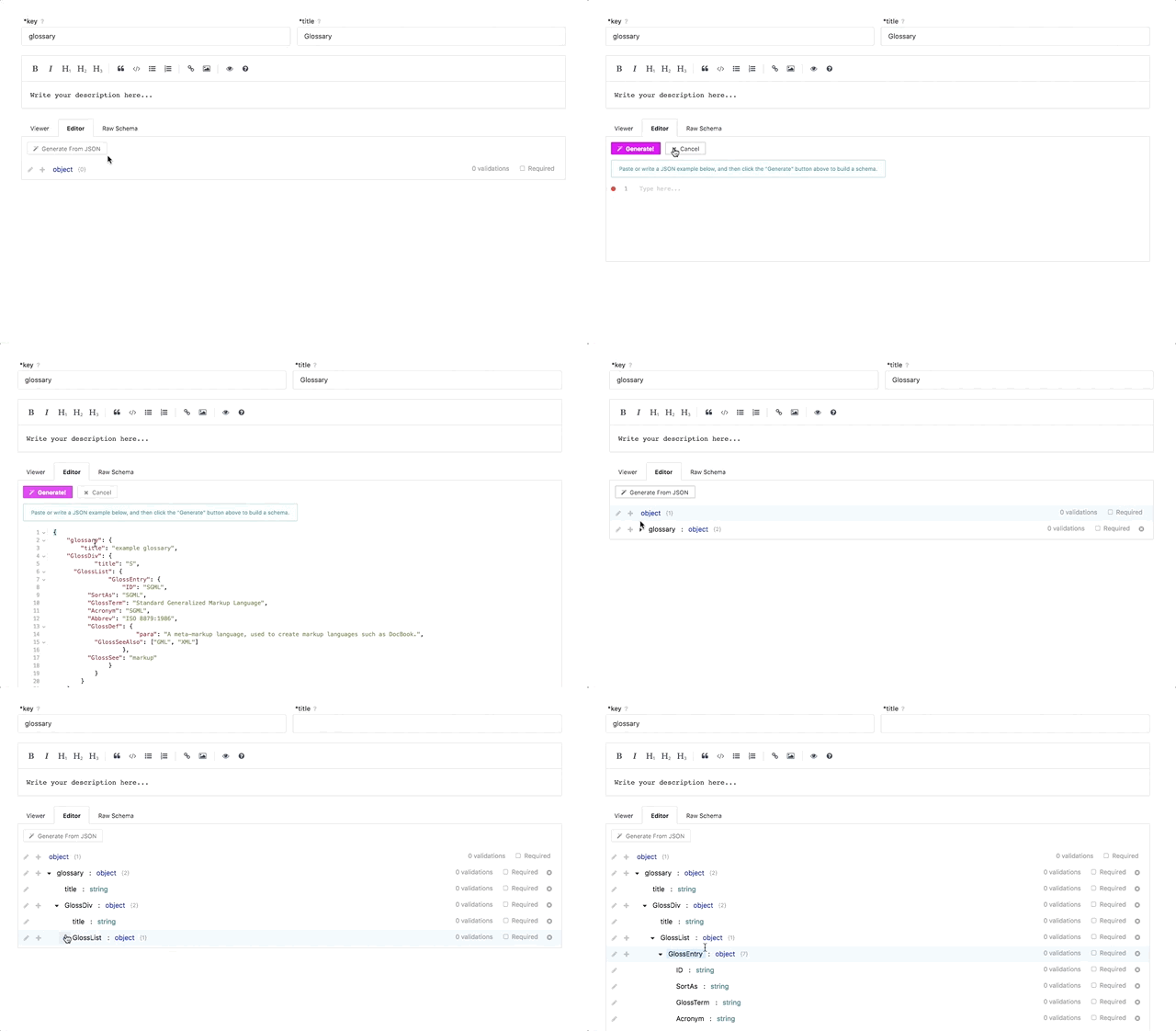
|
||||
|
||||
To start:
|
||||
|
||||
* Click the **Generate from JSON** button, opening a text input
|
||||
|
||||
* Either paste or write the contents of the desired JSON object into the text input
|
||||
|
||||
* Click the **Generate** button
|
||||
|
||||
And that's it! The JSON document will automatically be converted into a
|
||||
Stoplight data structure, able to be included as models, request/response
|
||||
bodies, and shared responses.
|
||||
|
||||
> The result of a **Generate from JSON** can also be edited using the CRUD
|
||||
> editor once it is generated, so you can still modify and add validations
|
||||
> afterwards.
|
||||
|
||||
## Editing the Raw JSON Schema
|
||||
|
||||
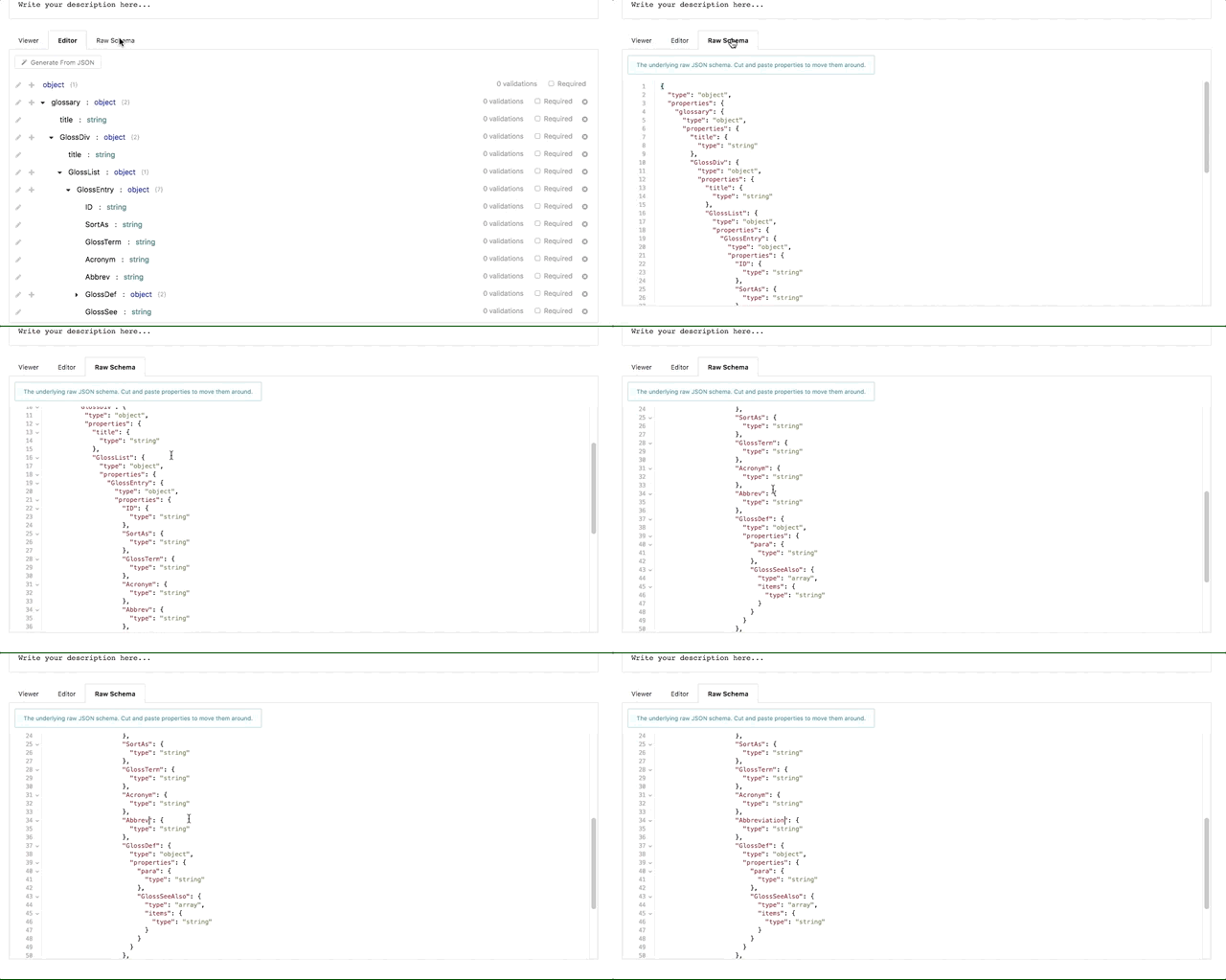
|
||||
|
||||
While not for the faint hearted, you can also edit the raw JSON schema directly
|
||||
if you are familiar with the format, or have a pre-existing JSON schema
|
||||
representation of your data structure.
|
||||
|
||||
To edit the raw JSON schema, click the **Raw Schema** tab next to the **Editor**
|
||||
tab. This will open a text box with the JSON schema of the current object. From
|
||||
there, you can either edit or copy and paste contents directly into the text box
|
||||
to update the data structure.
|
||||
|
||||
---
|
||||
|
||||
**Related**
|
||||
|
||||
* [API Modeling Overview](/modeling/introduction)
|
||||
* [Shared Parameters and Responses Overview](/modeling/modeling-with-openapi/shared-parameters-and-responses)
|
||||
* [References Overview](/modeling/json-best-practices/reducing-duplication-with-refs)
|
||||
* [Object Inheritance](/modeling/json-best-practices/object-inheritance)
|
||||
132
articles/modeling/duplication-refs.md
Normal file
132
articles/modeling/duplication-refs.md
Normal file
@@ -0,0 +1,132 @@
|
||||
# Preventing Duplications and Simplifying OAS Files
|
||||
|
||||
## What
|
||||
- API resources often have or share similar features
|
||||
- Duplicating features increase the size and complexity of your API
|
||||
- Reusable definitions make it easier to read, understand, and update your OAS files
|
||||
- Similar features can be created as reusable definitions and utilized with references
|
||||
- These definitions can be hosted on the same server as your OAS file or on a different server
|
||||
- You can reference a definition hosted at any location or server
|
||||
- Apart from defining reusable definitions, you can also define reusable responses and parameters. You can store your reusable definitions, responses, and parameters in a common library
|
||||
|
||||
>Key Terms: A definition is a named schema object. A reference is a path to a declaration within an OAS file
|
||||
|
||||
## How to Reference a Definition
|
||||
To invoke a reference to a definition, use the **$ref** keyword. For example:
|
||||
```
|
||||
#/definitions/Pets ($ref: 'reference to definition')
|
||||
```
|
||||
|
||||
## URL, Remote, and Local References
|
||||
|
||||
### General Syntax for URL Reference
|
||||
- Reference a complete document or resource located on a different server:
|
||||
```
|
||||
$ref: 'http://url_resource_path'
|
||||
```
|
||||
- Reference a particular section of a resource stored on a different server:
|
||||
```
|
||||
$ref: 'http://url_resource_path/document_name.json#section'
|
||||
```
|
||||
|
||||
### General Syntax for Remote Reference
|
||||
- Reference a complete document or resource located on the same server and location:
|
||||
```
|
||||
$ref:'document_name.json'
|
||||
```
|
||||
- Reference a particular section of a resource stored on a different server:
|
||||
```
|
||||
$ref: 'document_name.json#section'
|
||||
```
|
||||
### General Syntax for Local Reference
|
||||
- Reference a resource found in the root of the current document and the definitions:
|
||||
```
|
||||
$ref: '#/definitions/section'
|
||||
```
|
||||
|
||||
## Best Practices
|
||||
- Only use $ref in locations specifed by the OpenAPI Specification
|
||||
- Always enclose the value of your local reference in quotes (when using YAML syntax) to ensure it is not treated as a comment. For example:
|
||||
|
||||
Good
|
||||
```
|
||||
"#/definitions/todo-partial"
|
||||
```
|
||||
Bad
|
||||
```
|
||||
#/definitions/todo-partial
|
||||
```
|
||||
|
||||
## Examples
|
||||
- Assuming you have the following schema object named **Todo Partial** and you want to use it inside another definition:
|
||||
|
||||
```
|
||||
{
|
||||
"title": "Todo Partial",
|
||||
"type": "object",
|
||||
"properties": {
|
||||
"name": {
|
||||
"type": "string"
|
||||
},
|
||||
"completed": {
|
||||
"type": [
|
||||
"boolean",
|
||||
"null"
|
||||
]
|
||||
}
|
||||
},
|
||||
"required": [
|
||||
"name",
|
||||
"completed"
|
||||
]
|
||||
}
|
||||
```
|
||||
- To refer to that object, you need to add $ref with the corresponding path to your response:
|
||||
|
||||
```
|
||||
{
|
||||
"title": "Todo Full",
|
||||
"allOf": [
|
||||
{
|
||||
"$ref": "#/definitions/todo-partial" (Reference)
|
||||
},
|
||||
{
|
||||
"type": "object",
|
||||
"properties": {
|
||||
"id": {
|
||||
"type": "integer",
|
||||
"minimum": 0,
|
||||
"maximum": 1000000
|
||||
},
|
||||
"completed_at": {
|
||||
"type": [
|
||||
"string",
|
||||
"null"
|
||||
],
|
||||
"format": "date-time"
|
||||
},
|
||||
"created_at": {
|
||||
"type": "string",
|
||||
"format": "date-time"
|
||||
},
|
||||
"updated_at": {
|
||||
"type": "string",
|
||||
"format": "date-time"
|
||||
},
|
||||
"user": {
|
||||
"$ref: "https://exporter.stoplight.io/4568/master/common.oas2.yml#/definitions/user" (Reference)
|
||||
}
|
||||
},
|
||||
"required": [
|
||||
"id",
|
||||
"user"
|
||||
]
|
||||
}
|
||||
]
|
||||
}
|
||||
```
|
||||
---
|
||||
**Related Articles**
|
||||
- [Referencing Another API Spec](/modeling/modeling-with-openapi/referencing-another-api-spec)
|
||||
- [JSON Introduction](/modeling/json-best-practices/introduction)
|
||||
|
||||
61
articles/modeling/generating-schemas.md
Normal file
61
articles/modeling/generating-schemas.md
Normal file
@@ -0,0 +1,61 @@
|
||||
# Generating Schema
|
||||
|
||||
## What
|
||||
- A schema is metadata that defines the structure, properties, and relationships between data. It also defines the rules that must be adhered to and is usually in the form of a document
|
||||
- A structured approach is always recommended for handling and manipulating data
|
||||
- The "$ref" keyword is used to reference a schema
|
||||
|
||||
## Why
|
||||
- A schema definition makes the process of handling data more structured
|
||||
- The process of validation and handling user input errors can be imprioved through the use of schemas
|
||||
- Schemas encourage the 'single source of truth' (single place to update a definition) concept which, among other things, makes it easier to create and maintain endpoints
|
||||
|
||||
## Best Practices
|
||||
- It is advisable to always use a schema when you define and implement your API
|
||||
- Use schemas to rapidly extract titles, descriptions, and samples for easy API documentation
|
||||
|
||||
## JSON Schema
|
||||
- JSON (Javascript Object Notation) is a popular, human readable data format that is easy to parse at the server or client side
|
||||
- JSON Schema is a standard that contains information about the properties of a JSON object that can be used by an API. It also helps validate the structure of JSON data
|
||||
-The properties include: name, title, type etc.
|
||||
- JSON Schema Specification is divided into three parts:
|
||||
- **JSON Schema Core**: describes the basic foundation of JSON Schema
|
||||
- **JSON Schema Validation**: describes methods that define validation constraints. It also describes a set of keywords that can be used to specify validations
|
||||
- **JSON Hyper-Schema**: an extension of the JSON Schema Specification that defines hyperlink, images, and hypermedia-related keywords
|
||||
|
||||
## Example
|
||||
Assume you have an API that requires data provided in the format below:
|
||||
|
||||
```
|
||||
{
|
||||
pets: [
|
||||
{id:1 petName: "Blaze", petType: "Canine", age: 2},
|
||||
{id: 2, petName: "Felicia", petType: "Feline", age: 1}
|
||||
{id: 2, petName: "Bolt", petType: "Canine", age: 3}
|
||||
|
||||
]
|
||||
}
|
||||
```
|
||||
As seen above, each object in the pets array contains the following properties: id, petName, and petType. You can create a schema definition to validate the data and ensure it is in the expected format. The schema definition is outlined below:
|
||||
|
||||
```
|
||||
{
|
||||
"type":"object",
|
||||
"properties": {
|
||||
"pets": {
|
||||
"type": "array",
|
||||
"items": {
|
||||
"type": "object",
|
||||
"properties": {
|
||||
"id": {"type": "number"},
|
||||
"petName": {"type": "string", "required": true},
|
||||
"petType": {"type": "number", "required": true},
|
||||
"age": {"type": "number"}
|
||||
}
|
||||
}
|
||||
}
|
||||
}
|
||||
}
|
||||
```
|
||||
### Related Articles
|
||||
- [JSON Schema](http://json-schema.org/specification.html)
|
||||
85
articles/modeling/how-to-create-models.md
Normal file
85
articles/modeling/how-to-create-models.md
Normal file
@@ -0,0 +1,85 @@
|
||||
# Models
|
||||
|
||||
## What
|
||||
A model contains common reusable information that can be referenced in your endpoint definitions or other models in your API design. The resources or endpoints in your API project might contain duplicate structures and response objects. Models reduce this duplication by helping you extract and define common resources making your project easier to maintain.
|
||||
|
||||
## Best Practices
|
||||
|
||||
### Avoid Cluttered APIs
|
||||
When you have several endpoints with the same structure, objects, and properties, your API design is untidy. Ensure that you extract reusable artifacts and build them as pragmatic models referenced by other resources within your API project.
|
||||
|
||||
### Use a Design First Approach
|
||||
A design first approach helps create neat and consistent models. It will take longer, but it ensures you built an effective API that is easy to understand and maintain.
|
||||
|
||||
## How to Create Models using the Stoplight Modeling Editor
|
||||
1. Create a new API project (link on how to create a new project goes here)
|
||||
2. For this example we will be referring to endpoints created for a fictional Pet Store as listed below
|
||||
- GET /pets (return all pets)
|
||||
- GET /pets{petid} (return pet with a specified id)
|
||||
- POST / pets (enter pet information)
|
||||
- PUT /pets{petid} (update pet with a specified id)
|
||||
- DELETE /pets{petid} (delete pet with a specified id)
|
||||
3. The GET /pets method has an array of objects in the Response body with the following properties:
|
||||
|
||||
```
|
||||
{
|
||||
id, (string),
|
||||
name, (string),
|
||||
date _created (string, date format),
|
||||
date_updated (string, date format),
|
||||
approved (Boolean),
|
||||
approved_by (string)
|
||||
}
|
||||
```
|
||||
|
||||
4. The GET /pets {petid} method duplicates the objects above with the same properties:
|
||||
|
||||
```
|
||||
{
|
||||
id, (string),
|
||||
name, (string),
|
||||
date _created (string, date format),
|
||||
date_updated (string, date format),
|
||||
approved (Boolean),
|
||||
approved_by (string)
|
||||
}
|
||||
```
|
||||
|
||||
5. The PUT / pets{petid} method duplicates the object above in the Response body with a slight difference in the Request body which has the objects and properties below:
|
||||
|
||||
```
|
||||
{
|
||||
id, string,
|
||||
approved boolean,
|
||||
approved_by string
|
||||
}
|
||||
```
|
||||
|
||||
<!-- theme: info -->
|
||||
>Duplication of Objects: If you are required to make changes you would have to update this information in three or more endpoints. Creating a model solves this issue.
|
||||
|
||||
6. To create a model click on the + sign next to the Model section.
|
||||
|
||||

|
||||
|
||||
7. Enter the details for the key, title, and description fields
|
||||
|
||||

|
||||
|
||||
8. Click on the Editor Tab to create the object and specify the properties you want in the model (You can also copy and paste the JSON Schema from an endpoint into the Raw Schema section of the model)
|
||||
|
||||

|
||||
|
||||

|
||||
|
||||
9. Click the Save button to save the changes you have made in the editor
|
||||
10. Select the GET /pets {petid} (or any endpoint) and navigate to Responses→ Editor
|
||||
11. To reference the model in your endpoint, click on the object and select $ref as the array item type. Select the model you created from the drop down list
|
||||
|
||||

|
||||
|
||||
12. Select the Viewer section to see the changes you have made
|
||||
|
||||

|
||||
|
||||
13. All changes made to the properties of the object in the model are now automatically updated in all endpoints that make a reference to the model
|
||||
63
articles/modeling/json-introduction.md
Normal file
63
articles/modeling/json-introduction.md
Normal file
@@ -0,0 +1,63 @@
|
||||
# Introduction to JSON
|
||||
|
||||
## What is JSON?
|
||||
|
||||
JSON (short for JavaScript Object Notation) is a syntax used to represent data
|
||||
structures in a simple, easy-to-read textual format. JSON is ubiquitous
|
||||
throughout the computing industry, and has become the de-facto data format of
|
||||
the Web.
|
||||
|
||||
If you have never seen JSON before, here is a small demonstration using JSON to
|
||||
describe a (fictional) person:
|
||||
|
||||
```json
|
||||
{
|
||||
"firstName": "Lando",
|
||||
"lastName": "Calrissian",
|
||||
"title": "Baron Administrator",
|
||||
"address": {
|
||||
"streetAddress": "123 Betrayal Dr",
|
||||
"city": "Cloud City",
|
||||
"planet": "Bespin"
|
||||
},
|
||||
"homeworld": "Socorro",
|
||||
"currentLocation": null
|
||||
}
|
||||
```
|
||||
|
||||
## Why JSON?
|
||||
|
||||
There are many benefits to using JSON, some of which include:
|
||||
|
||||
* It can be used to represent a wide array of objects in a simple and
|
||||
easy-to-read format, making it useful for just about anything
|
||||
|
||||
* It is widely used and supported across web browsers and programming languages,
|
||||
making it very easy to develop for
|
||||
|
||||
* It is easy to read and write by humans (as well as computers), making it a
|
||||
great choice for specifications like [OpenAPI](https://github.com/OAI/OpenAPI-Specification#the-openapi-specification)
|
||||
|
||||
* It is a subset of another syntax called
|
||||
[YAML](https://en.wikipedia.org/wiki/YAML). Documents written in JSON can also
|
||||
be written in YAML, so either format can be used to write OpenAPI specifications
|
||||
|
||||
* It can be used to link files together through [JSON
|
||||
references](/modeling/modeling-with-openapi/referencing-another-api-spec), making it easy to break up large documents
|
||||
into smaller, more focused documents
|
||||
|
||||
Whether you are modeling an API, creating a Prism Collection, or writing
|
||||
documentation in Stoplight, behind the scenes you are actually updating a JSON
|
||||
document.
|
||||
|
||||
> You can see the underlying JSON document of any object being updated in
|
||||
> Stoplight using the editor's **Code** button at the top of the screen.
|
||||
|
||||
---
|
||||
|
||||
**Related Articles**
|
||||
|
||||
* [JSON Overview - Wikipedia](https://en.wikipedia.org/wiki/JSON)
|
||||
* [YAML Overview - Wikipedia](https://en.wikipedia.org/wiki/YAML)
|
||||
* [OpenAPI Specification Format Reference](https://github.com/OAI/OpenAPI-Specification/blob/master/versions/2.0.md#format)
|
||||
* [Referencing Another API Specification](/modeling/modeling-with-openapi/referencing-another-api-spec)
|
||||
33
articles/modeling/modeling-introduction.md
Normal file
33
articles/modeling/modeling-introduction.md
Normal file
@@ -0,0 +1,33 @@
|
||||
# Modeling Introduction
|
||||
|
||||

|
||||
|
||||
## What is API Design?
|
||||
|
||||
Designing (also known as Modeling) your API involves describing all of the inputs and outputs across the footprint of your entire service. Your API design will answer questions like:
|
||||
|
||||
- What are the different resources and operations available in your API?
|
||||
- How does your API authenticate requests?
|
||||
- What are the different data models associated with your service?
|
||||
- How does your API handle errors?
|
||||
|
||||
## How does it fit into Stoplight?
|
||||
|
||||
The Stoplight design module is where you and your team will maintain the single source of truth that describes the inputs and outputs of your API.
|
||||
|
||||
Once you have your API described in the Stoplight design module, you can:
|
||||
|
||||
- Publish all or part of your API with Hubs
|
||||
- Create API tests from your designs
|
||||
- Send requests to your API to debug it
|
||||
- Create a mock API based on your design
|
||||
- ...and much more
|
||||
|
||||
## Getting Started
|
||||
|
||||
There are a few ways to get started designing your API with the Stoplight design module:
|
||||
|
||||
- Create an API from scratch [Using the CRUD Builder](/modeling/modeling-with-openapi/using-the-crud-builder)
|
||||
- [Reference another API Spec](/modeling/modeling-with-openapi/referencing-another-api-spec)
|
||||
- [Send HTTP Requests](/modeling/modeling-with-openapi/sending-http-requests) to an existing API Spec
|
||||
- [Validate your API Spec](/modeling/modeling-with-openapi/validating-your-api-spec)
|
||||
158
articles/modeling/object-inheritance.md
Normal file
158
articles/modeling/object-inheritance.md
Normal file
@@ -0,0 +1,158 @@
|
||||
# Object Inheritance
|
||||
|
||||
## What
|
||||
|
||||
* A **model** contains properties that can be reused and referenced by endpoint
|
||||
definitions, shared objects, and other models. For more information on what
|
||||
models are and how they can be used, please see the API model overview
|
||||
[here](/modeling/modeling-with-openapi/api-models).
|
||||
|
||||
* **Inheritance** is when a model derives its properties from another model.
|
||||
|
||||
* When a model inherits properties from another model, the model being inherited from is
|
||||
known as a **base type** (or parent). A model that is inheriting
|
||||
properties from a base type is known as a **derived type** (or child).
|
||||
|
||||
* When a base type inherits properties from another model, any derived types
|
||||
will also automatically inherit the properties as well. For example, if model
|
||||
C is a derived type of model B, and model B is a derived type of model A, then
|
||||
model C is also a derived type of model A. In mathematics, this is known as
|
||||
the [transitive property](https://en.wikipedia.org/wiki/Transitive_relation).
|
||||
|
||||
* To specify that a model should inherit from a base type, use the **allOf**
|
||||
option (under "Combination Types") when building the model. By specifying
|
||||
allOf and referencing the base type, the model will automatically inherit all
|
||||
of the parent model's properties. A model can also inherit from multiple base
|
||||
types as needed.
|
||||
|
||||
## Why
|
||||
|
||||
* Inheritance makes your API design more compact. It helps avoid duplication of
|
||||
common properties and fields, reducing the complexity of the specification and the chance of errors.
|
||||
|
||||
## Best Practices
|
||||
|
||||
> Avoid using contradictory declarations such as declaring properties with the
|
||||
> same name but dissimilar data type in your base model and derived model.
|
||||
|
||||
### Example
|
||||
|
||||
As an example, imagine you are creating an API that stores and categorizes
|
||||
different types of vehicles. To begin working on the API, you will need a base
|
||||
"car" model with a few attributes that are common across all vehicles. This
|
||||
might look similar to:
|
||||
|
||||
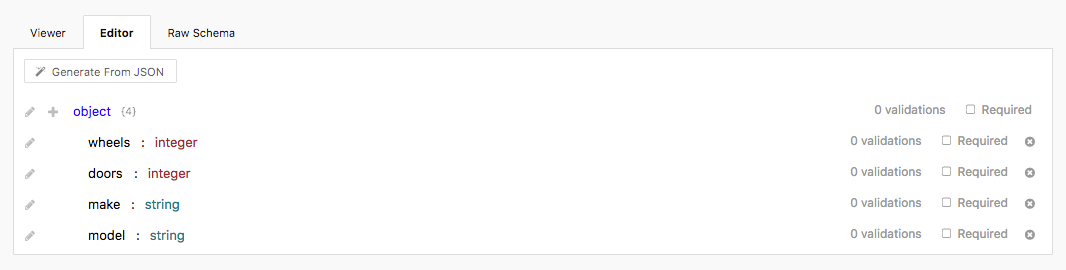
|
||||
|
||||
The JSON schema will be:
|
||||
|
||||
```javascript
|
||||
// the car base type
|
||||
{
|
||||
"type": "object",
|
||||
"properties": {
|
||||
// number of wheels
|
||||
"wheels": {
|
||||
"type": "integer"
|
||||
},
|
||||
// number of doors
|
||||
"doors": {
|
||||
"type": "integer"
|
||||
},
|
||||
// brand of car
|
||||
"make": {
|
||||
"type": "string"
|
||||
},
|
||||
// model of car
|
||||
"model": {
|
||||
"type": "string"
|
||||
}
|
||||
}
|
||||
}
|
||||
```
|
||||
|
||||
Now that we have a base type model, we now need a derived type that extends the
|
||||
base type. Since we're dealing with cars, let's create a model that defines a
|
||||
SUV type (or a Sport Utility Vehicle):
|
||||
|
||||
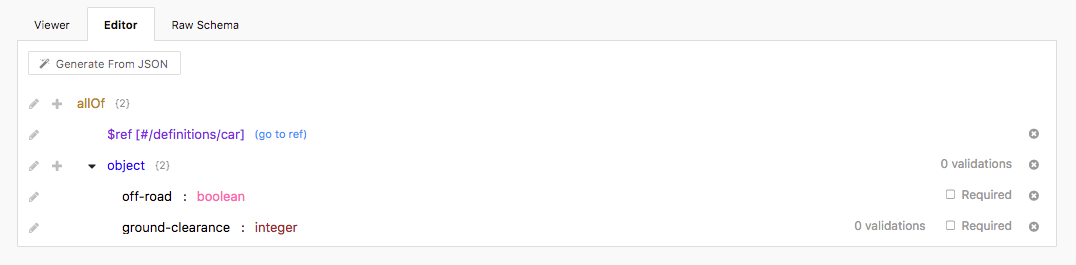
|
||||
|
||||
The JSON schema will be:
|
||||
|
||||
```javascript
|
||||
// the SUV model
|
||||
{
|
||||
"allOf": [
|
||||
// a reference to the car base type
|
||||
{
|
||||
"$ref": "#/definitions/car"
|
||||
},
|
||||
// properties that are only applied to the SUV model
|
||||
{
|
||||
"type": "object",
|
||||
"properties": {
|
||||
// whether the vehicle can go "off road"
|
||||
"off-road": {
|
||||
"type": "boolean"
|
||||
},
|
||||
// the amount of ground clearance
|
||||
"ground-clearance": {
|
||||
"type": "integer"
|
||||
}
|
||||
}
|
||||
}
|
||||
]
|
||||
}
|
||||
```
|
||||
|
||||
As shown above, by wrapping our SUV model inside of an `allOf` block, we are
|
||||
able to include all of the properties that are included in the car base model
|
||||
above.
|
||||
|
||||
When fully de-referenced (the car reference is replaced with the car
|
||||
properties), the derived SUV model will have the following JSON properties:
|
||||
|
||||
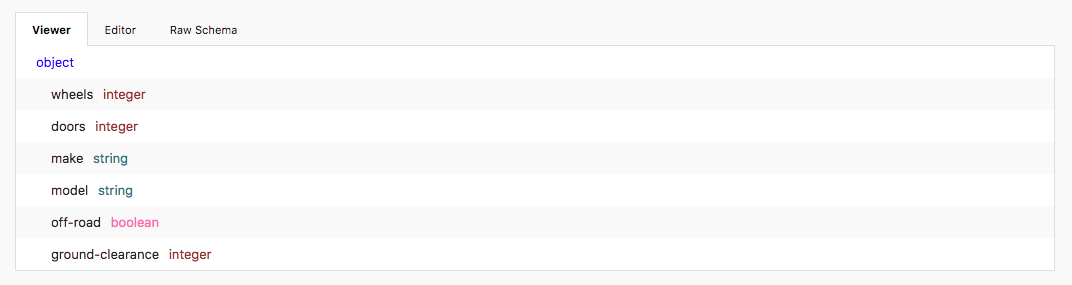
|
||||
|
||||
The JSON schema will be:
|
||||
|
||||
```javascript
|
||||
{
|
||||
"type": "object",
|
||||
"properties": {
|
||||
// number of wheels
|
||||
"wheels": {
|
||||
"type": "integer"
|
||||
},
|
||||
// number of doors
|
||||
"doors": {
|
||||
"type": "integer"
|
||||
},
|
||||
// brand of car
|
||||
"make": {
|
||||
"type": "string"
|
||||
},
|
||||
// model of car
|
||||
"model": {
|
||||
"type": "string"
|
||||
},
|
||||
// whether the vehicle can go "off road"
|
||||
"off-road": {
|
||||
"type": "boolean"
|
||||
},
|
||||
// the amount of ground clearance
|
||||
"ground-clearance": {
|
||||
"type": "integer"
|
||||
}
|
||||
}
|
||||
}
|
||||
```
|
||||
|
||||
---
|
||||
|
||||
**Related Articles**
|
||||
|
||||
* [JSON Introduction](/modeling/json-best-practices/introduction)
|
||||
* [Adding Validations](/modeling/json-best-practices/adding-validations)
|
||||
* [Reducing Duplication with $refs](/modeling/json-best-practices/reducing-duplication-with-refs)
|
||||
* [Generating Schemas](/modeling/json-best-practices/generating-schemas)
|
||||
1
articles/modeling/open-ended-objects.md
Normal file
1
articles/modeling/open-ended-objects.md
Normal file
@@ -0,0 +1 @@
|
||||
|
||||
41
articles/modeling/openapi-validation.md
Normal file
41
articles/modeling/openapi-validation.md
Normal file
@@ -0,0 +1,41 @@
|
||||
# OpenAPI Validation
|
||||
|
||||

|
||||
|
||||
## What
|
||||
OpenAPI validation is the process of verifying the underlying OpenAPI file syntax by making sure it conforms to the [OpenAPI Specification requirements](https://github.com/OAI/OpenAPI-Specification#the-openapi-specification) provided by the [OpenAPI Initiative](https://www.openapis.org/). Stoplight immediately validates any changes done to a spec to ensure they are in the correct format prior to being saved.
|
||||
|
||||
> Stoplight currently supports the OpenAPI v2 specification. We are working on support for OpenAPI v3, and should have more information in the coming months.
|
||||
|
||||
## Why
|
||||
- Validation promotes data integrity in your data store. For example, a user making updates during a PUT operation might omit data for an important property and overwrite valid data, compromising data integrity.
|
||||
- Validations indicates that you are engaging in good design practice and your API design is consistent.
|
||||
|
||||
## Best Practices
|
||||
- All requests made to an API should be validated before processing
|
||||
- Mark all mandatory properties as **Required** to ensure that the value of the property is provided
|
||||
- Assign a default value to optional properties or parameters with missing values. The server will use the default value when a value is missing or not provided
|
||||
- You can use the keyword **ReadOnly** to designate a property that can be sent in a response and should not be sent in a request
|
||||
|
||||
> Using a default value is not recommended when a property or parameter is mandatory
|
||||
|
||||
- An API can comsume different media types, the accepted media type can be specified using the **consume** keyword at the operational level or root level to define acceptable media types. For example:
|
||||
|
||||
```
|
||||
consumes:
|
||||
multipart/form-data
|
||||
or
|
||||
consumes:
|
||||
application/json
|
||||
```
|
||||
- An HTTP response containing a user friendly error description is useful when validation fails
|
||||
|
||||
|
||||
---
|
||||
**Related Articles**
|
||||
- [Modeling Introduction](/modeling/introduction)
|
||||
- [Using the CRUD Builder](/modeling/modeling-with-openapi/using-the-crud-builder)
|
||||
- [API Operations](/modeling/modeling-with-openapi/api-operations)
|
||||
- [API Models](/modeling/modeling-with-openapi/api-models)
|
||||
- [Security Schemes](/modeling/modeling-with-openapi/security-schemes)
|
||||
|
||||
42
articles/modeling/reference-spec.md
Normal file
42
articles/modeling/reference-spec.md
Normal file
@@ -0,0 +1,42 @@
|
||||
# Referencing Another API Specification
|
||||
|
||||

|
||||
|
||||
## What
|
||||
|
||||
Referencing another specification allows for cleaner and more organized code. Some use cases are as follows:
|
||||
|
||||
* Generate API documentaion in Hubs
|
||||
* De-duplicate common structures like responses or shared parameters in Modeling
|
||||
* Test a connected API specification in Scenarios
|
||||
* Setup a mock server for an API in Prism
|
||||
|
||||
## How
|
||||
|
||||
1. Choose the **source**
|
||||
|
||||
* This File
|
||||
|
||||
* This Project
|
||||
|
||||
* Select a **file**
|
||||
|
||||
* Shared/Common
|
||||
|
||||
* External URL
|
||||
|
||||
* Enter a valid **URL** to an existing specification
|
||||
|
||||
2. Select a **target**, if required
|
||||
|
||||
3. Confirm your choice. (Only required if there is a confirm button)
|
||||
|
||||
4. View the referenced specification by clicking the book icon
|
||||
|
||||
---
|
||||
**Related Links**
|
||||
|
||||
* [Reference other Sources](/documentation/referencing-other-data-sources)
|
||||
* [API Models](/modeling/modeling-with-openapi/api-models)
|
||||
* [Shared Parameters and Responses](/modeling/modeling-with-openapi/shared-parameters-and-responses)
|
||||
|
||||
92
articles/modeling/security-schemes.md
Normal file
92
articles/modeling/security-schemes.md
Normal file
@@ -0,0 +1,92 @@
|
||||
# API Security Schemes
|
||||
|
||||
API security schemes protect your API resources by authenticating apps or users
|
||||
that consume your API. There are a number of standard authentication protocols
|
||||
you can pick from, each with their own strengths and weaknesses. To help you get
|
||||
started, the section below outlines some common schemes in use.
|
||||
|
||||
## Authentication Schemes
|
||||
|
||||
### Basic API Authentication
|
||||
|
||||
* Easy to implement, and supported by nearly all web servers
|
||||
* Entails sending base-64 encoded username and passwords
|
||||
* Usually bundled with standard framework or language library
|
||||
* Should not be used without SSL, or some other data-in-transit encryption mechanism
|
||||
* Can easily be combined with other security methods
|
||||
|
||||
> **Note**: basic authentication is susceptible to hijacks and man-in-the-middle
|
||||
> attacks when no encryption is in use. Due to this limitation, this method of
|
||||
> authentication is only recommended when paired with SSL.
|
||||
|
||||
### OAuth1.0 (Digest Scheme)
|
||||
|
||||
* Popular, tested, secure, signature driven, protocol
|
||||
* Uses cryptographic signature, which is a mix of token secret, nonce, and other request based information
|
||||
* Can be used with or without SSL
|
||||
|
||||
### OAuth2 (Bearer Token Scheme)
|
||||
|
||||
* The current OAuth2 specification eliminates need for cryptographic signatures, passwords, and usernames
|
||||
* OAuth2 works with authentication scenarios called flows, these flows include:
|
||||
* Authorization Code flow
|
||||
* Implicit flow
|
||||
* Resource Owner Password flow
|
||||
* Client Credentials flow
|
||||
* The OAuth 2.0 server will distribute access tokens that a client application will use to access protected resources
|
||||
|
||||
> Additional Information on OAuth2.0 can be found [here](https://tools.ietf.org/html/rfc6749).
|
||||
|
||||
### OpenID Connect Discovery
|
||||
|
||||
* OpenID Connect Discovery (OIDC) is based on the OAuth 2.0 protocol
|
||||
* Uses a sign-in flow that permits user authentication and information access by a client app
|
||||
* The user information is encoded via a secure JSON Web Token (JWT)
|
||||
|
||||
> Additional Information on OpenID Connect Discovery can be found [here](https://openid.net/specs/openid-connect-discovery-1_0.html)
|
||||
|
||||
## Best Practices
|
||||
|
||||
### Sensitive Information in HTTP Request URLs
|
||||
|
||||
Ensure that your API will not expose important information such as passwords,
|
||||
API keys, and security tokens in the URL. For example, this URL can be
|
||||
considered insecure because it contains an API key as a query parameter:
|
||||
|
||||
```
|
||||
/baseurl/<uid>q=?apiKey=2123223223
|
||||
```
|
||||
|
||||
### API Keys
|
||||
|
||||
Reduce the likelihood of exposing your API keys by keeping them in a file or
|
||||
storage mechanism that is accessible only by the owner.
|
||||
|
||||
> **Note**, API Keys can be duplicated or lost so it is important to use other
|
||||
> security measures apart from API keys. Consider encryption to make your API
|
||||
> keys more secure.
|
||||
|
||||
### Validation
|
||||
|
||||
It is beneficial to validate your inputs and access to resources using robust
|
||||
parsers. Parsing requests can help verify the validity of user requests. API
|
||||
designers can perform an implicit input validation to ensure the user inputs
|
||||
data with permitted characters, right syntax, and character length. Using
|
||||
regular expressions can also help validate string inputs.
|
||||
|
||||
### Audit log
|
||||
|
||||
Create audit logs before and after security related events. You can also log
|
||||
validation errors to detect patterns or potential attacks.
|
||||
|
||||
### HTTP Status Codes
|
||||
|
||||
Use status codes and proper error handling techniques for incoming requests to
|
||||
identify potential security risks.
|
||||
|
||||
---
|
||||
|
||||
**Related**
|
||||
|
||||
* [Additional Information on HTTP Status and Error Codes](https://en.wikipedia.org/wiki/List_of_HTTP_status_codes)
|
||||
* [API Operations](/modeling/modeling-with-openapi/api-operations)
|
||||
35
articles/modeling/sending-http-requests.md
Normal file
35
articles/modeling/sending-http-requests.md
Normal file
@@ -0,0 +1,35 @@
|
||||
# Sending HTTP Requests
|
||||
|
||||

|
||||
|
||||
## What
|
||||
|
||||
Use the HTTP Request Maker to send requests to the endpoints defined in your specification, extend your specification with new endpoints, or send a request to any endpoint.
|
||||
|
||||
## How
|
||||
|
||||
1. Click **HTTP** in the top tool bar located above the editor.
|
||||
2. Select a **method** from the first dropwdown.
|
||||
3. Choose a **path** from the next dropdown, or enter any **valid API endpoint**.
|
||||
4. If the variables tab is present, fill in any required values
|
||||
5. Use the tabbed menu to add headers, query params, request body information, or authentication.
|
||||
6. Click **send** and view the results.
|
||||
|
||||
> #### Bonus
|
||||
>
|
||||
> Click **Extend Spec** to append or alter your specification using the information supplied in the request maker.
|
||||
|
||||
## Additional Notes
|
||||
|
||||
* The Code Generation tab can but used to view your request in another language so it can be sent through other means.
|
||||
|
||||
* If a path or endpoint is selected from your current specification, the tabbed menu will prepopulate with any parameters defined in the spec.
|
||||
|
||||
* To add variable path parameters, wrap the parameter name in the path in curly braces like so `/path/{param}` and then fill in the value in the Variables tab.
|
||||
|
||||
* To use environment variables in your request, enter `{$$.env.variable_name}` as the value and the populated value can be viewed or changed in the variables tab.
|
||||
|
||||
---
|
||||
**Related Articles**
|
||||
|
||||
- [Using Environment Variables](/testing/using-variables/environment)
|
||||
193
articles/modeling/shared-params-responses.md
Normal file
193
articles/modeling/shared-params-responses.md
Normal file
@@ -0,0 +1,193 @@
|
||||
# Shared Parameters and Responses
|
||||
|
||||
While designing API's in Stoplight, it is common to have multiple endpoints
|
||||
share a set of query parameters and API responses. To help reduce extra
|
||||
work (and the chance of introducing errors), it is important to:
|
||||
|
||||
* Identify endpoints with common parameters
|
||||
* Use _shared components_ to reference the same property multiple times instead
|
||||
of rewriting the properties for each individual endpoint.
|
||||
|
||||
Shared components in Stoplight come in two forms:
|
||||
|
||||
* __Parameters__ - These are shared parameters that can be applied to requests
|
||||
across multiple endpoints.
|
||||
|
||||
* __Responses__ - These are shared response objects that can be applied to
|
||||
multiple endpoints.
|
||||
|
||||
## Parameters
|
||||
|
||||
Shared parameters provide a way to use request properties across multiple API
|
||||
endpoints without having to duplicate effort.
|
||||
|
||||

|
||||
|
||||
Shared parameters are supported in the following request property locations:
|
||||
|
||||
* __path__ - The request URL path
|
||||
* __query__ - The request URL query string
|
||||
* __header__ - The request HTTP Header field object
|
||||
* __body__ - The request HTTP message body
|
||||
* __form-data__ - The request HTTP message body in the `multipart/form-data` format
|
||||
|
||||
> For more information the above properties, see the [OpenAPI v2 Specification](https://github.com/OAI/OpenAPI-Specification/blob/master/versions/2.0.md#parameter-object)
|
||||
|
||||
Similar to generic request parameters, restrictions on the parameter values can
|
||||
also be applied based on type, expected default value, minimum/maximum length,
|
||||
and regular expression (regex).
|
||||
|
||||

|
||||
|
||||
To use a shared parameter, navigate to an API endpoint's _Request_ section and
|
||||
create a reference to the shared parameter using the "chain" button as shown in
|
||||
the image above. Once the parameter has been referenced, any updates to the
|
||||
shared parameter will automatically be propagated to every endpoint using that
|
||||
parameter.
|
||||
|
||||

|
||||
|
||||
Like other references in Stoplight, shared parameters can also be shared across
|
||||
files, projects, and other external sources.
|
||||
|
||||
### Shared Parameters Example
|
||||
|
||||
Let's say you are creating an API to serve thousands of cooking recipes. When dealing with large volumes of
|
||||
data, you typically want to avoid sending _all_ data in a request. To help avoid
|
||||
sending more data than is necessary, most applications implement a "paging"
|
||||
feature that allows clients to retrieve a small portion of results (i.e. a single
|
||||
page).
|
||||
|
||||
There are multiple ways to approach a paging feature. For this example, we
|
||||
want to add two query string parameters to every request:
|
||||
|
||||
* `limit` - The number of results to return when viewing a page. For example,
|
||||
setting `limit` to `20` means that, at most, 20 results will be returned in the
|
||||
request.
|
||||
* `offset` - The number of results to skip before returning results. For
|
||||
example, setting an `offset` of `20` means that the API will discard the first
|
||||
20 results.
|
||||
|
||||
By using the two parameters above, a client can efficiently "page" through
|
||||
results, only returning items that are within the requested bounds. To demonstrate, let's use the parameters to display the first page of our recipe
|
||||
results:
|
||||
|
||||
```
|
||||
GET /recipes?limit=20&offset=0
|
||||
```
|
||||
|
||||
Since the `offset` is set to `0`, the API will not discard any results. Paired
|
||||
with a `limit` of `20`, we will only see the first 20 results (1 through 20).
|
||||
|
||||
To view the second page of recipes, we would use:
|
||||
|
||||
```
|
||||
GET /recipes?limit=20&offset=20
|
||||
```
|
||||
|
||||
By setting an `offset` of `20`, the API will discard the first 20 results. Paired
|
||||
again with a `limit` of `20`, we will see the second page of results (21 through
|
||||
40).
|
||||
|
||||
### How
|
||||
Now that we know how we want the components to behave, let's create them in
|
||||
Stoplight. To get started, create a new shared parameter for an OpenAPI file
|
||||
under the "Shared" section of the menu.
|
||||
|
||||

|
||||
|
||||
As shown in the image above, set the properties for each parameter based on our
|
||||
requirements:
|
||||
|
||||
1. Be sure to set the display names for both components properly. In our
|
||||
example, we only have two parameters, however, if there are multiple shared
|
||||
parameters with similar names, you may want to set a more descriptive name
|
||||
(i.e. 'recipe-limit' instead of 'limit').
|
||||
2. Since both components are query string parameters, set the property location
|
||||
for each as 'query'.
|
||||
3. Set the name of the parameter, which is how it will be set in HTTP requests.
|
||||
4. Optional type restrictions can be applied to the values. In our case, since
|
||||
both parameters are integer values, we can use the 'integer' format
|
||||
restriction.
|
||||
5. Setting a default value can be useful if you don't need the client to specify
|
||||
each parameter for every request. For our example, it makes sense to set
|
||||
defaults that will return the first page (limit of 20, offset of 0).
|
||||
|
||||

|
||||
|
||||
Once the shared parameters are created, reference them in any API endpoint under the
|
||||
__Query Parameters__ block of the request section in the editor.
|
||||
|
||||
## Shared Responses
|
||||
|
||||
Shared responses provide a practical way to re-use response objects across multiple API
|
||||
endpoints without having to duplicate effort. Similar to the shared components
|
||||
discussed above, shared responses allow you to reference a single response
|
||||
multiple times without having to recreate each response manually. The added
|
||||
benefit of this approach is that updates to the shared response object are
|
||||
automatically propagated to any endpoint using that object, no extra changes
|
||||
required.
|
||||
|
||||

|
||||
|
||||
Shared responses allow you to configure the following properties:
|
||||
|
||||
* Headers - Customize the HTTP Headers returned in the response
|
||||
* Response body - Customize the HTTP message body contents using the Stoplight
|
||||
modeling tool (or reference a pre-existing model)
|
||||
|
||||
|
||||
> For more information on the above properties, see the OpenAPI v2 Specification
|
||||
[here](https://github.com/OAI/OpenAPI-Specification/blob/master/versions/2.0.md#responseObject)
|
||||
|
||||

|
||||
|
||||
To use a shared response, navigate to an API endpoint's __Response__ section and
|
||||
create a reference to the shared response by choosing the _Type_ of the response
|
||||
as "Reference". Once the Response type is set to "Reference", you can then
|
||||
choose the shared response to use for that endpoint. Shared responses can also
|
||||
be shared across files, projects, and other external sources.
|
||||
|
||||
### Shared Responses Example
|
||||
|
||||
Let's say you have a set of
|
||||
API endpoints that should return the same error response when a failure occurs.
|
||||
Every time an error is returned from the API, you want to make sure the
|
||||
following properties are returned:
|
||||
|
||||
* `error_message` - A descriptive error message about the failure in string format.
|
||||
* `error_code` - A code representing the category of the failure in integer format.
|
||||
* `tracking_id` - A tracking ID that can be used by the caller to follow-up with
|
||||
an administrator for more information (ie, debug an issue with customer
|
||||
support).
|
||||
|
||||
Now that we know what should be returned, let's create a shared response in
|
||||
Stoplight. To get started, create a new shared response for an OpenAPI file
|
||||
under the "Shared" section of the menu.
|
||||
|
||||

|
||||
|
||||
As shown in the image above, set the properties for each portion of the response
|
||||
based on our requirements:
|
||||
|
||||
1. Set the name of the shared response. In our example, we only have one error
|
||||
type, however, if there are multiple error responses with similar names, you
|
||||
may want to set a more descriptive name (ie, 'api-tracking-error' instead of
|
||||
'error').
|
||||
2. A short description of the error response, such as why it is needed and how
|
||||
it is used.
|
||||
3. The contents of the shared response object based on the three required
|
||||
properties above.
|
||||
|
||||

|
||||
|
||||
Once the shared response is created, it can be referenced in any API endpoint by
|
||||
using a _Reference_ type under a response. A shared response can also be used
|
||||
multiple times under the same endpoint.
|
||||
|
||||
***
|
||||
|
||||
**Related**
|
||||
|
||||
* [OpenAPI v2 Parameter Objects Reference](https://github.com/OAI/OpenAPI-Specification/blob/master/versions/2.0.md#parameter-object)
|
||||
* [OpenAPI v2 Response Objects Reference](https://github.com/OAI/OpenAPI-Specification/blob/master/versions/2.0.md#responseObject)
|
||||
25
articles/organizations/create-org.md
Normal file
25
articles/organizations/create-org.md
Normal file
@@ -0,0 +1,25 @@
|
||||
# Create An Organization
|
||||
|
||||

|
||||
|
||||
## What
|
||||
Organizations are great for grouping people, data, and billing together in one convenient location.
|
||||
|
||||
## How
|
||||
1. Click on **+ New** to the right of Organizations
|
||||
2. Fill in **Name**
|
||||
* We recommend using your company’s name
|
||||
3. Choose the path for your Organization (optional)
|
||||
4. Add member by email (optional)
|
||||
* Input email accounts to add other members to your organization
|
||||
* You can also do this later
|
||||
|
||||
---
|
||||
**Related Articles**
|
||||
- [Create a Project](/platform/projects/creating-a-project)
|
||||
- [Invite People to Organization](/platform/organizations/invite-people)
|
||||
- [Remove People from Your Organizations](/platform/organizations/remove-members)
|
||||
- [Organization Member Roles and Permissions](/platform/organizations/roles)
|
||||
- [Customize Your Organization](/platform/organizations/customize)
|
||||
- [Transfer Primary Ownership of an Organization](/platform/organizations/transfer-ownership)
|
||||
- [Delete an Organization](/platform/organizations/delete-org)
|
||||
33
articles/organizations/customize-org.md
Normal file
33
articles/organizations/customize-org.md
Normal file
@@ -0,0 +1,33 @@
|
||||
# Customize Your Organization
|
||||
|
||||

|
||||
|
||||
## What
|
||||
|
||||
Want to modify your Organization? In Stoplight you can modify your Organization's:
|
||||
* Name
|
||||
* Org Path
|
||||
* Add a Description
|
||||
* Add an Org Image
|
||||
|
||||
## Who
|
||||
* Only an Organization **Owner** or **Administrators** can modify Organizations
|
||||
|
||||
## How
|
||||
1. From the homepage, select the **Organization** you would like to modify
|
||||
2. Select the **Settings** tab
|
||||
3. Input a **Name**
|
||||
4. Input a **Path**
|
||||
5. Input a quick sentence about your organization (optional)
|
||||
6. Select an **image** file for your Org (optional)
|
||||
|
||||
---
|
||||
**Related Articles**
|
||||
- [Customize a Team](/platform/organizations/teams/create-team)
|
||||
- [Create an Organization](/platform/organizations/create-org)
|
||||
- [Invite People to Organization](/platform/organizations/invite-people)
|
||||
- [Remove People from Your Organizations](/platform/organizations/remove-members)
|
||||
- [Organization Member Roles and Permissions](/platform/organizations/roles)
|
||||
- [Transfer Primary Ownership of an Organization](/platform/organizations/transfer-ownership)
|
||||
- [Delete an Organization](/platform/organizations/delete-org)
|
||||
|
||||
28
articles/organizations/delete-org.md
Normal file
28
articles/organizations/delete-org.md
Normal file
@@ -0,0 +1,28 @@
|
||||
# Delete an Organization
|
||||
|
||||

|
||||
|
||||
## What
|
||||
|
||||
Deleting an organization is easy peasy, but once you delete an Org, there is no going back. Please be certain.
|
||||
|
||||
## Who
|
||||
|
||||
Only the Organization’s **Owner** can delete
|
||||
|
||||
## How
|
||||
1. From the homepage, select the **Organization** you would like to delete
|
||||
2. Select the **Settings** tab
|
||||
3. Scroll to the bottom of the page to the **Danger Zone**
|
||||
4. Click on **Delete this Org**
|
||||
5. Confirm the deletion by clicking okay on the proceeding popup
|
||||
6. Wipe the tears from your eyes and say goodbye
|
||||
|
||||
---
|
||||
**Related Articles**
|
||||
- [Delete a Team](/platform/organizations/teams/delete)
|
||||
- [Remove People from Your Organizations](/platform/organizations/remove-members)
|
||||
- [Organization Member Roles and Permissions](/platform/organizations/roles)
|
||||
- [Customize Your Organization](/platform/organizations/customize)
|
||||
- [Transfer Primary Ownership of an Organization](/platform/organizations/transfer-ownership)
|
||||
|
||||
@@ -1 +1,47 @@
|
||||
# Invite People to an Organization
|
||||
|
||||

|
||||
|
||||
## What
|
||||
Adding people to your Organization is the first step towards collaboration within Stoplight. There are two methods of inviting people to your Organization: inputting email addresses or by generating Magic Links. Inputting email addresses send invitations directly to that person's email. Magic Links allow you to invite people via a simple link.
|
||||
|
||||
## Who
|
||||
* Only an Organization **Owner** or **Administrator** can invite people to an Organization
|
||||
|
||||
## How
|
||||
|
||||
### Inviting via Email Addresses
|
||||
1. From the Stoplight homepage, select the **Organization** you would like to invite people to
|
||||
2. Select the **People** tab from the tabs bar
|
||||
3. Click **Invite Member**
|
||||
4. In the popup that appears input email addresses or usernames
|
||||
5. Hit **enter** to add them to your list
|
||||
6. Once completed, click the **Invite** button
|
||||
|
||||
### Magic Link
|
||||
|
||||
> Magic Link grants either Creator or Reader Permissions. Set accordingly
|
||||
|
||||
#### Generating and Sending Magic Link
|
||||
1. Select the **Organization** you wish to invite people to
|
||||
2. Select the **People** tab
|
||||
3. Click **Invite Member**
|
||||
4. Select a role, either **Creator** or **Reader**
|
||||
5. Click **Generate Link**
|
||||
6. Send link to invitee
|
||||
|
||||
#### Accepting Magic Link
|
||||
1. Click on the **magic link**
|
||||
2. If new to Stoplight, click **Register**
|
||||
3. If you already have an account, **Login**
|
||||
4. You now have Creator or Reader access to that Organization
|
||||
|
||||
---
|
||||
**Related Articles**
|
||||
- [Invite People & Teams](/platform/projects/invite-people)
|
||||
- [Add People to a Team](/platform/organizations/teams/add-people)
|
||||
- [Create an Organization](/platform/organizations/create-org)
|
||||
- [Remove People from Your Organizations](/platform/organizations/remove-members)
|
||||
- [Organization Member Roles and Permissions](/platform/organizations/roles)
|
||||
- [Customize Your Organization](/platform/organizations/customize)
|
||||
- [Transfer Primary Ownership of an Organization](/platform/organizations/transfer-ownership)
|
||||
|
||||
1
articles/organizations/mention-people.md
Normal file
1
articles/organizations/mention-people.md
Normal file
@@ -0,0 +1 @@
|
||||
|
||||
26
articles/organizations/remove-people.md
Normal file
26
articles/organizations/remove-people.md
Normal file
@@ -0,0 +1,26 @@
|
||||
# Remove People from Your Organization
|
||||
|
||||

|
||||
|
||||
## What
|
||||
* Removing a person for your organization is as easy as 123...4...5...6
|
||||
|
||||
## Who
|
||||
* Only an Organization **Owner** or **Administrator** can modify
|
||||
|
||||
## How
|
||||
1. From the homepage, select the **Organization** you would like to modify
|
||||
2. Select the **People** tab from the tab bar
|
||||
3. Find the person you would like to remove from the list
|
||||
4. To the right of the person’s name, click on the **dropdown arrow** to the left of the person’s role
|
||||
5. In the dropdown menu that appears, select **Remove Member**
|
||||
6. Click **Okay** in the popup prompt
|
||||
|
||||
---
|
||||
**Related Articles**
|
||||
- [Remove People from a Team](/platform/organizations/teams/remove-people)
|
||||
- [Invite People to Organization](/platform/organizations/invite-people)
|
||||
- [Organization Member Roles and Permissions](/platform/organizations/roles)
|
||||
- [Customize Your Organization](/platform/organizations/customize)
|
||||
- [Transfer Primary Ownership of an Organization](/platform/organizations/transfer-ownership)
|
||||
|
||||
@@ -0,0 +1,33 @@
|
||||
# Organization Member Roles and Permissions
|
||||
|
||||

|
||||
|
||||
## What
|
||||
Roles and Permissions for members of Organizations can be managed and modified within Stoplight to control access to the Organization's functions and features.
|
||||
* There are 3 Roles:
|
||||
* **Owner**
|
||||
* Owners can update the org, its connections, and its members
|
||||
* Has access to Billing and Organization Settings
|
||||
* **Administrator**
|
||||
* Admins can update the org, its connections, and its members
|
||||
* **Creator**
|
||||
* Creators can update the org and its connections. They can view its members
|
||||
|
||||
## Who
|
||||
* Only an Organization **Owner** or **Administrator** can modify roles and permissions
|
||||
## How
|
||||
1. From the homepage, select the **Organization** you would like to modify
|
||||
2. Select the **People** tab from the tab bar
|
||||
3. Find the person you would like modify
|
||||
4. To the right of their name click on the **down carrot** button to the left of the person’s role
|
||||
5. In the dropdown menu select the desired role with accompanying permissions
|
||||
|
||||
---
|
||||
**Related Articles**
|
||||
- [Team Member Roles and Permissions](/platform/organizations/teams/roles)
|
||||
- [Change a Project Member's Role](/platform/projects/change-a-members-role)
|
||||
- [Invite People to Organization](/platform/organizations/invite-people)
|
||||
- [Remove People from Your Organizations](/platform/organizations/remove-members)
|
||||
- [Customize Your Organization](/platform/organizations/customize)
|
||||
- [Transfer Primary Ownership of an Organization](/platform/organizations/transfer-ownership)
|
||||
|
||||
|
||||
@@ -0,0 +1,28 @@
|
||||
# Transfer Primary Ownership of Your Organization
|
||||
|
||||

|
||||
|
||||
## What
|
||||
You can promote another Member of your Organization to the role of Owner
|
||||
* You can only transfer ownership to a Member of the Organization
|
||||
|
||||
## Who
|
||||
* Only the Organization **Owner** can transfer ownership of an Organization
|
||||
|
||||
## How
|
||||
1. From the homepage select the **Organization** you wish to modify
|
||||
2. Select **People** from the tabs bar
|
||||
3. Find the Member you would like to modify from the list
|
||||
4. To the right of the Member’s name, click on the **down carrot** next to the Member’s current role
|
||||
5. From the dropdown menu that expands, select **Owner**
|
||||
6. You will then be asked to confirm your selection in a popup window
|
||||
7. Click **Ok**
|
||||
|
||||
---
|
||||
**Related Articles**
|
||||
- [Transfer Ownership of a Team](/platform/organizations/teams/transfer-ownership)
|
||||
- [Invite People to Organization](/platform/organizations/invite-people)
|
||||
- [Remove People from Your Organizations](/platform/organizations/remove-members)
|
||||
- [Organization Member Roles and Permissions](/platform/organizations/roles)
|
||||
- [Customize Your Organization](/platform/organizations/customize)
|
||||
|
||||
|
||||
43
articles/playbooks/technical-writers.md
Normal file
43
articles/playbooks/technical-writers.md
Normal file
@@ -0,0 +1,43 @@
|
||||
# Technical Writer Playbook
|
||||
|
||||
Documenting an API is crucial to its success but can be extremely time consuming. Here at Stoplight, we believe documentation should be beautiful, clean, and robust while maintaining a streamlined turnaround time. We’ve created a holistic documentation tool, Hubs, to address some of the problems our users were facing including:
|
||||
|
||||
- Documenting Endpoints
|
||||
- Testing Endpoints
|
||||
- Creating Non-Reference Documentation
|
||||
- Managing Content
|
||||
- External and Internal Referencing
|
||||
- Design and Style
|
||||
|
||||
|
||||
## Documenting Endpoints
|
||||
The most key component to API Documentation are its endpoints. To that end, we created a reference builder that allows you to [“power pages”](/documentation/referencing-other-data-sources) with your specification as you see fit. When you power a page or subpage with your specification, the endpoints are automatically documented and styled for legibility and aesthetic design.
|
||||
|
||||
## Testing Endpoints
|
||||
Testing endpoints is a valuable tool for anyone who wants to consume your API. Users want to know that your API functions properly before they commit to using it. To address this problem, we created [“Try it Out,” an HTTP Request Maker](/modeling/modeling-with-openapi/sending-http-requests). Try it Out allows you to send HTTP Requests to your API to test out its endpoints under any number of different conditions. You can customize Try it Out with security schemes, variables, headers, queries, and it even generates code in various programming languages.
|
||||
|
||||
## Creating Non-Reference Documentation
|
||||
Great documentation is more than just API endpoints. Guides, tutorials, and other supplemental information enhance your users experience by providing them with all the information they need to access your API and your product. We broadened Hubs scope to accomodate all product documentation needs. You can easily build out your content within [Blocks](/documentation/blocks), a number of flexible content structures that can house a number of different forms of content including markdown, images, code snippets, and much more.
|
||||
|
||||
## Managing Content
|
||||
Organizing a complex APIs endpoints and supplemental information can be a challenging task. Some specification can have hundreds of endpoints with supplemental information throughout. To assist with organizing content, we created an overview of all your pages, subpages, and their connections called “Table of Contents”. With a bird’s eye view of your content, you can easily organize and manage your content through drag drop functionality.
|
||||
|
||||
## External and Internal Referencing
|
||||
To accomodate a larger variety of writing workflows, we expanded the capabilities of [Powering a Page](/documentation/referencing-other-data-sources) to allow for more files internally and externally to be referenced. You can now easily reference internal or external specifications, and Markdown, YAML, JSON, and Scenario files.
|
||||
|
||||
## Design and Style
|
||||
We wanted to create a new, beautiful, minimalistic, efficient design for less design-oriented individuals while allowing for customization. Hubs was designed to display your documentation in a neat, efficient structure, designed specifically for displaying the real beauty, your API. On the other hand, we didn’t want to stifle the creativity that goes into documentation design so we added in [theming](/documentation/design/theming) and [custom CSS](/documentation/design/custom-css). We also made it easier to add navigation, different kinds of content, and a more robust search.
|
||||
|
||||
---
|
||||
**Related Links**
|
||||
- [Documentation with Hubs](/documentation/introduction)
|
||||
- [Routing](/documentation/getting-started/routing)
|
||||
- [Headers](/documentation/getting-started/header-footer)
|
||||
- [Pages](/documentation/getting-started/pages)
|
||||
- [Subpages](/documentation/getting-started/subpages)
|
||||
- [Blocks](/documentation/blocks)
|
||||
- [Referencing Other Data Sources](/documentation/referencing-other-data-sources)
|
||||
- [Publishing](/documentation/publishing)
|
||||
- [Theming](/documentation/design/theming)
|
||||
- [Custom CSS](/documentation/design/custom-css)
|
||||
|
||||
59
articles/prism/introduction.md
Normal file
59
articles/prism/introduction.md
Normal file
@@ -0,0 +1,59 @@
|
||||
# Introduction
|
||||
|
||||
Prism is a proxy and API server toolkit that helps you test, mock, validate, and orchestrate your online applications. We rebuilt Prism from the ground up to be performant, powerful, and programmable while still being practical. Prism enables teams to work in parallel and iterate faster with less errors. The Stoplight Platform integrates tightly with Prism to generate test coverage of your API automatically, build tests visually, and create mock and contract servers instantly.
|
||||
|
||||
Prism has first class support for the OpenAPI Specification (aka OAS) and Stoplight Scenarios. OAS is machine readable documentation of your API that Prism can read and understand. Scenarios tell Prism how to orchestrate your API. When you use them together you can easily assert, transform, and validate your API against your OAS. Prism also allows your front-end team to work in tandem with your back-end team. While the back-end team implements your API, your front-end teams can implement against a mock server that can return static examples, dynamic data, or replay actual traffic from your API.
|
||||
|
||||

|
||||
|
||||
## Features
|
||||
|
||||
* Act as a mock server, routing incoming requests to example responses, or dynamically generating examples on the fly
|
||||
* Act as a transformation layer, manipulating incoming requests and outgoing responses
|
||||
* Act as a validation layer, validating incoming requests, and outgoing responses
|
||||
* Contract test your APIs
|
||||
* Extend existing APIs with new endpoints or capabilities
|
||||
* Act as a system-wide proxy, blocking traffic to particular websites or endpoints
|
||||
|
||||
## Conduct vs Serve
|
||||
|
||||
Conduct and Serve are important concepts to understand when using Prism.
|
||||
|
||||
* Conduct is an isolated scenario run. You tell Prism what scenarios you want to run, give it an environment to run against, and Prism will generate a report of the run
|
||||
|
||||
* Serving, on the other hand, is a long running instance of Prism that applies scenarios to HTTP traffic
|
||||
|
||||
### Conduct Use Cases
|
||||
|
||||
1. Debugging your API implementation or specification
|
||||
2. Integrating with your CI/CD Environment: Catch bugs before they get to your actual API Consumers
|
||||
3. Webhooks: Generate your OAS from code, automatically upload it to Stoplight
|
||||
|
||||

|
||||
|
||||
### Serve Use Cases
|
||||
|
||||
1. Mocking back one or more specifications: Useful to help teams work in parallel and simplify testing dependencies.
|
||||
2. Validating live traffic between your client/backend.
|
||||
3. Your API, your workflow, your Prism. Prism is very flexible. You can easily create an instance that will record your API traffic, save it to S3, and then create another instance that will replay that API traffic.
|
||||
|
||||

|
||||
|
||||
### Stoplight Prism Helpers
|
||||
|
||||
The [Prism Helpers](https://next.stoplight.io/stoplight/prism) project is a collection of scenarios, specifications, and Prism instances that illustrate how to use Prism effectively. Please go [here](https://community.stoplight.io) and let us know what you would like to see.
|
||||
|
||||
---
|
||||
|
||||
**Related Articles**
|
||||
|
||||
* [Javascript Runtime](/mocking/javascript-runtime)
|
||||
* [Running Tests In Stoplight](/testing/running-tests/in-stoplight)
|
||||
* [Running Tests in the Terminal](/testing/running-tests/in-the-terminal)
|
||||
* [Running Tests Triggered by URL](/testing/running-tests/triggering-by-url)
|
||||
* [Using Variables Overview](/testing/using-variables/overview)
|
||||
* [$$.env (Environment)](/testing/using-variables/environment)
|
||||
* [$.ctx(Context)](/testing/using-variables/context)
|
||||
* [Sending HTTP Requests](/testing/sending-http-requests/overview)
|
||||
* [Contract Testing](/testing/leveraging-openapi/contract-testing)
|
||||
* [Integrating in Continuous Integration](/testing/continuous-integration/overview)
|
||||
1
articles/prism/run-prism-local.md
Normal file
1
articles/prism/run-prism-local.md
Normal file
@@ -0,0 +1 @@
|
||||
|
||||
File diff suppressed because it is too large
Load Diff
1
articles/prism/specification.md
Normal file
1
articles/prism/specification.md
Normal file
@@ -0,0 +1 @@
|
||||
|
||||
@@ -0,0 +1,4 @@
|
||||
|
||||
<!--stackedit_data:
|
||||
eyJoaXN0b3J5IjpbLTE5Mzc0MDU2MjJdfQ==
|
||||
-->
|
||||
35
articles/projects/change-member-role.md
Normal file
35
articles/projects/change-member-role.md
Normal file
@@ -0,0 +1,35 @@
|
||||
# Change a Project Member's Role
|
||||
|
||||

|
||||
|
||||
## What
|
||||
You can invite people to a Project to grant them read or read/write permissions. There are three tiers of read/write permissions:
|
||||
* **Admin Access**: Upper level permissions that allow you to:
|
||||
* Read/Write
|
||||
* Invite and Manage Members and Teams
|
||||
* Manage Project Settings
|
||||
* Delete the project
|
||||
* **Write Access**: Mid-level permissions that allow you to:
|
||||
* Read/Write
|
||||
* **Read Access**: Low-level permissions that allow you to:
|
||||
* Read
|
||||
|
||||
|
||||
## Who
|
||||
* Only the Organization **Owner** and Organization or Project **Administrators** can modify member roles
|
||||
|
||||
>By deafult, all members of the Organization and the Project will have Read permission
|
||||
|
||||
## How
|
||||
1. From the Stoplight homepage select the **Project** you wish to modify
|
||||
2. Click on **Member Access Icon** or **Team Access Icon** in the far left sidebar
|
||||
3. Find the user you wish to modify in the list and select them
|
||||
4. From the **dropdown menu**, select the preferred role
|
||||
|
||||
---
|
||||
**Related Articles**
|
||||
- [Creating a Project](/platform/projects/creating-a-project)
|
||||
- [Invite People & Teams](/platform/projects/invite-people)
|
||||
- [Make Your Project Private/Public](/platform/projects/visibility)
|
||||
- [Organization Member Roles and Permissions](/platform/organizations/roles)
|
||||
- [Team Member Roles and Permissions](/platform/organizations/teams/roles)
|
||||
41
articles/projects/create-project.md
Normal file
41
articles/projects/create-project.md
Normal file
@@ -0,0 +1,41 @@
|
||||
# Creating a Project
|
||||
|
||||

|
||||
|
||||
## What
|
||||
Projects are the workspace of the Stoplight Platform. Projects contain:
|
||||
* File Explorer
|
||||
* Project Governance
|
||||
* Documentation Editor (Hubs)
|
||||
* Modeling Editor
|
||||
* Testing (Scenarios)
|
||||
* Mocking (Prism)
|
||||
* Markdown Editor
|
||||
|
||||
>Single Point of Truth: All editors are now contained within a Project
|
||||
|
||||
## Who
|
||||
Individual users can create Personal Projects. Organizations can create Organization Projects.
|
||||
|
||||
## How
|
||||
|
||||
### Personal Project
|
||||
1. From the homepage select the **Personal Project** tab
|
||||
|
||||
### Organization Project
|
||||
1. From the homepage select the **Organization** you want to create a Project within
|
||||
* By default you will land on Organization Projects
|
||||
|
||||
### Create a Project
|
||||
2. Input a **Project Name**
|
||||
3. Input a custom **Project Path** (optional)
|
||||
4. Input a **Project Description** (optional)
|
||||
5. Select **Public** or **Private**
|
||||
6. Select **Create Project** once complete
|
||||
|
||||
---
|
||||
**Related Articles**
|
||||
- [Invite People & Teams](/platform/projects/invite-people)
|
||||
- [Change a Project Member's Role](/platform/projects/change-a-members-role)
|
||||
- [Make Your Project Private/Public](/platform/projects/visibility)
|
||||
- [Create an Organization](/platform/organizations/create-org)
|
||||
61
articles/projects/git.md
Normal file
61
articles/projects/git.md
Normal file
@@ -0,0 +1,61 @@
|
||||
# Git Repositories
|
||||
|
||||
## What
|
||||
The Stoplight Platform is built on top of Git. This means that all your projects are Git repositories and that our platform benefits from all the additonal functionality provided by Git. To access the Git funtionality, you will need to clone your Git repository by generating an Access Token.
|
||||
|
||||
> You can also use Access Tokens to access the Stoplight API, authenticate Prism in a continuous integration enviornment, and access the underlying Git repositories for projects. You can make this part of your Git workflow, add it to scripts, or your CI/CD process
|
||||
|
||||
## Who
|
||||
|
||||
If you have write access to a project, you will be able to:
|
||||
* Pull projects via Git
|
||||
* Commit to projects via Git
|
||||
* Push changes to projects via Git
|
||||
|
||||
If you have read access to a project, you will be able to:
|
||||
* Pull your project via Git
|
||||
|
||||
## How to Clone Your Stoplight Git Repository
|
||||
|
||||
1. Select the **Settings** tab on the platform homepage
|
||||
2. Select **Access Tokens** from the left
|
||||
|
||||

|
||||
|
||||
3. Create a token to access projects that your Stoplight account has proper permissions for (These permissions match the ones in the Stoplight UI)
|
||||
|
||||
> You can name your token whatever you want. Once you have created the token, copy it, and only store it in a safe location. Once you close the window, you will not see it again
|
||||
|
||||
3. On your machine, store your access token as an environmental variable (recommended)
|
||||
|
||||
For example, on Mac/Linux:
|
||||
|
||||
```
|
||||
export STOPLIGHT_TOKEN="1234567890"
|
||||
```
|
||||
|
||||
4. You can then `git clone` the repo, replace `{stoplight-username}`, `{username}`, and `{project-name}` with the appropriate information:
|
||||
|
||||
```
|
||||
git clone https://{stoplight-username}:$STOPLIGHT_TOKEN@git.stoplight.io/{username}/{project-name}.git
|
||||
```
|
||||
|
||||
For example:
|
||||
|
||||
```
|
||||
git clone https://taylor:$STOPLIGHT_TOKEN@git.stoplight.io/taylor/test-new.git
|
||||
```
|
||||
|
||||
> If the project is associated with an organization and not a personal project, replace `username` with `organization-name`
|
||||
|
||||
5. Now you can make changes to your files, commit, and push to your master branch. You can see these changes in the Stoplight UI as well as the "History of Changes"
|
||||
|
||||
> Remember: You will only see changes on the master branch in the UI at this time.
|
||||
|
||||
|
||||
---
|
||||
**Related Articles**
|
||||
- [Change a Project Member's Role](/platform/projects/change-a-members-role)
|
||||
- [Make Your Project Private/Public](/platform/projects/visibility)
|
||||
- [Invite People to Organization](/platform/organizations/invite-people)
|
||||
- [Add People to a Team](/platform/organizations/teams/add-people)
|
||||
39
articles/projects/invite-people-team.md
Normal file
39
articles/projects/invite-people-team.md
Normal file
@@ -0,0 +1,39 @@
|
||||
# Invite People & Teams to a Project
|
||||
|
||||

|
||||
|
||||
## What
|
||||
* You can invite people to a Project to grant them read or read/write permissions
|
||||
* There are three tiers of read/write permissions
|
||||
* **Admin Access**: Upper level permissions that allow you to:
|
||||
* Read/Write
|
||||
* Invite and Manage Members and Teams
|
||||
* Manage Project Settings
|
||||
* Delete the project
|
||||
* **Write Access**: Mid-level permissions that allow you to:
|
||||
* Read/Write
|
||||
* **Read Access**: Low-level permissions that allow you to:
|
||||
* Read
|
||||
|
||||
>You can only invite people and Teams to a Project associated with an Organization
|
||||
|
||||
## Who
|
||||
* Only the Organization **Owner** and Org and Project **Administrators** have invite privileges
|
||||
|
||||
## How
|
||||
1. From your Organization's homepage, select the **Project** you wish to modify
|
||||
2. By deafult, all members of the Organization the Project is associated with will have Read permission
|
||||
3. To invite a single member, select the **Member icon** from the far left sidebar
|
||||
* Input their username in the search bar at the top of the Member sidebar
|
||||
* Once located, press enter
|
||||
4. To invite a team, select the **Team icon** from the far left sidebar
|
||||
* Input the Team name in the search bar at the top of the Team sidebar
|
||||
* Once located, press enter
|
||||
|
||||
---
|
||||
**Related Articles**
|
||||
- [Creating a Project](/platform/projects/creating-a-project)
|
||||
- [Change a Project Member's Role](/platform/projects/change-a-members-role)
|
||||
- [Make Your Project Private/Public](/platform/projects/visibility)
|
||||
- [Invite People to Organization](/platform/organizations/invite-people)
|
||||
- [Add People to a Team](/platform/organizations/teams/add-people)
|
||||
@@ -1 +1,27 @@
|
||||
## Making Your Project Private/Public
|
||||
# Making Your Project Private & Public
|
||||
|
||||

|
||||
|
||||
## What
|
||||
|
||||
You can choose to make your Project Public or Private
|
||||
* **Private**: Only designated collaborators will be able to read it. Additionally, connections from ALL dependent entities outside of this Organization will be removed
|
||||
* **Public**: Anyone can read it
|
||||
|
||||
## Who
|
||||
|
||||
* Only the Organization **Owner** and Org and Project **Administrator** can modify
|
||||
|
||||
## How
|
||||
|
||||
1. Select the **Project** you wish to modify
|
||||
2. Select the **gear icon** on the left hand sidebar
|
||||
3. Under **Danger Zone** Select **Public** or **Private**
|
||||
|
||||
---
|
||||
**Related Articles**
|
||||
- [Creating a Project](/platform/projects/creating-a-project)
|
||||
- [Invite People & Teams](/platform/projects/invite-people)
|
||||
- [Change a Project Member's Role](/platform/projects/change-a-members-role)
|
||||
|
||||
|
||||
|
||||
31
articles/teams/add-people.md
Normal file
31
articles/teams/add-people.md
Normal file
@@ -0,0 +1,31 @@
|
||||
# Add People to a Team
|
||||
|
||||

|
||||
|
||||
## What
|
||||
|
||||
Adding people to a team lets you collaborate on projects while allowing an additional level of control over permissions.
|
||||
|
||||
## Who
|
||||
|
||||
* Team **Owners**, **Administrators**, and **Members** can add people to a team
|
||||
|
||||
## How
|
||||
|
||||
1. From the homepage select the **Organization** associated with the team
|
||||
2. Select **Teams** on the tab bar
|
||||
3. Select the team that you would like to add people to.
|
||||
4. Click the **Invite Members** button
|
||||
5. Input the person’s email or Stoplight username in the textarea and press enter
|
||||
* Note: you can add more than one person at a time
|
||||
6. Once completed, click on the **Invite** button
|
||||
|
||||
---
|
||||
**Related Articles**
|
||||
- [Invite People & Teams](/platform/projects/invite-people)
|
||||
- [Invite People to Organization](/platform/organizations/invite-people)
|
||||
- [Create a Team](/platform/organizations/teams/create-team)
|
||||
- [Remove People for a Team](/platform/organizations/teams/remove-people)
|
||||
- [Team Member Roles and Permissions](/platform/organizations/teams/roles)
|
||||
- [Transfer Ownership of a Team](/platform/organizations/teams/transfer-ownership)
|
||||
|
||||
32
articles/teams/create-team.md
Normal file
32
articles/teams/create-team.md
Normal file
@@ -0,0 +1,32 @@
|
||||
# Create a Team
|
||||
|
||||

|
||||
|
||||
## What
|
||||
|
||||
Teams makes it easier for Organization Members to collaborate and allows additional control over permissions.
|
||||
|
||||
## Who
|
||||
* Only an Organization **Owner** or **Administrator** can create a Team
|
||||
|
||||
## How
|
||||
1. From the homepage, select the **Organization** you would like to make a team for
|
||||
2. Select the **Teams** tab from the tabs bar
|
||||
3. Create Your First Team
|
||||
* Input a **Team Name**(A department, project group, etc.)
|
||||
* Input a **Description** (What does this team do?)
|
||||
* Input **Members** (email or username)
|
||||
* Send email notifications to invited members? (optional)
|
||||
* If the invited member does not already have a Stoplight account, an email will be sent with instructions on how to complete the account creation process
|
||||
4. Click **Create Team** once finished
|
||||
|
||||
---
|
||||
**Related Articles**
|
||||
- [Creating a Project](/platform/projects/creating-a-project)
|
||||
- [Create an Organization](/platform/organizations/create-org)
|
||||
- [Add People to a Team](/platform/organizations/teams/add-people)
|
||||
- [Remove People for a Team](/platform/organizations/teams/remove-people)
|
||||
- [Team Member Roles and Permissions](/platform/organizations/teams/roles)
|
||||
- [Customize a Team](/platform/organizations/teams/create-team)
|
||||
- [Transfer Ownership of a Team](/platform/organizations/teams/transfer-ownership)
|
||||
- [Delete a Team](/platform/organizations/teams/delete)
|
||||
27
articles/teams/customize-team.md
Normal file
27
articles/teams/customize-team.md
Normal file
@@ -0,0 +1,27 @@
|
||||
# Customize a Team
|
||||
|
||||

|
||||
|
||||
## What
|
||||
|
||||
You can customize the Team Name, Path, and Team Description.
|
||||
|
||||
## Who
|
||||
|
||||
* Only Team **Owner** or **Administrator** can customize a Team
|
||||
|
||||
## How
|
||||
|
||||
1. From the homepage select the **Organization** associated with the Team you wish to modify
|
||||
2. Select **Teams** from the tab bar
|
||||
3. From the Teams homepage select the Team you wish to customize
|
||||
* Then select **Team Settings** from the tab bar
|
||||
* Input a new Team Name in the textarea under **Team Name**
|
||||
* Input a new Team URL in the textarea under **Path**
|
||||
* Input a new Team Description in the textarea under **Description**
|
||||
|
||||
---
|
||||
**Related Articles**
|
||||
- [Customize Your Organization](/platform/organizations/customize)
|
||||
- [Create a Team](/platform/organizations/teams/create-team)
|
||||
- [Delete a Team](/platform/organizations/teams/delete)
|
||||
22
articles/teams/delete-team.md
Normal file
22
articles/teams/delete-team.md
Normal file
@@ -0,0 +1,22 @@
|
||||
# Delete a Team
|
||||
|
||||

|
||||
|
||||
## What
|
||||
* Want to disband your team? Here's how:
|
||||
|
||||
## Who
|
||||
* Only the Organization **Owner** or a Team **Owner** or **Administrator** can delete a team
|
||||
|
||||
## How
|
||||
1. Select the **Organization** associated with the team you wish to modify
|
||||
2. Select **Teams** from the tab bar
|
||||
3. Click on the **red X icon** located to the right of the team you wish to delete
|
||||
4. A popup will appear asking if you are sure you want to delete this team
|
||||
5. Click **Ok**
|
||||
|
||||
---
|
||||
**Related Articles**
|
||||
- [Delete an Organization](/platform/organizations/delete-org)
|
||||
- [Transfer Ownership of a Team](/platform/organizations/teams/transfer-ownership)
|
||||
|
||||
Some files were not shown because too many files have changed in this diff Show More
Reference in New Issue
Block a user